Managing tags
When managing hundreds of daily customer chats, categorizing conversations by intent (such as price inquiries, booked appointments, or follow-ups) ensures no lead slips through the cracks. Tags provide visual labels in the Inbox and serve as the foundation for setting up auto-tagging rules with AI.
On this page1/4 · Creating a new tag
Key terms
- Tag
- A color-coded label attached to a conversation to classify customer intent or consultation status.
- AI-permitted tag
- Tags explicitly permitted by admins for AI auto-tagging based on semantic conversation context.
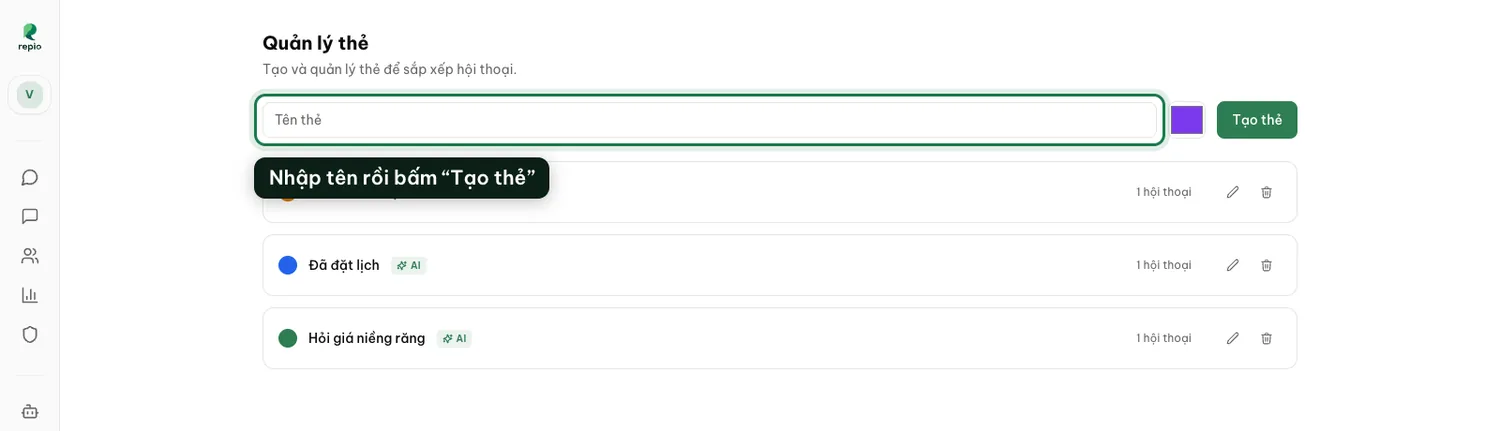
Open "Tags" in the sidebar.
Under the Setup menu group, click “Tags” to access tag management.
Enter a tag name and pick a color.
Type a clear, concise name into the “Tag name” field (e.g. “Braces pricing”, “Booked”) and click the color swatch to pick an accent color.
Click "Create tag" to save.
The new tag appears immediately in the list below and is ready to use in the Inbox.
By default, newly created tags are only applied manually by staff. To let the AI automatically interpret conversations and tag customers, you must grant permission per tag:
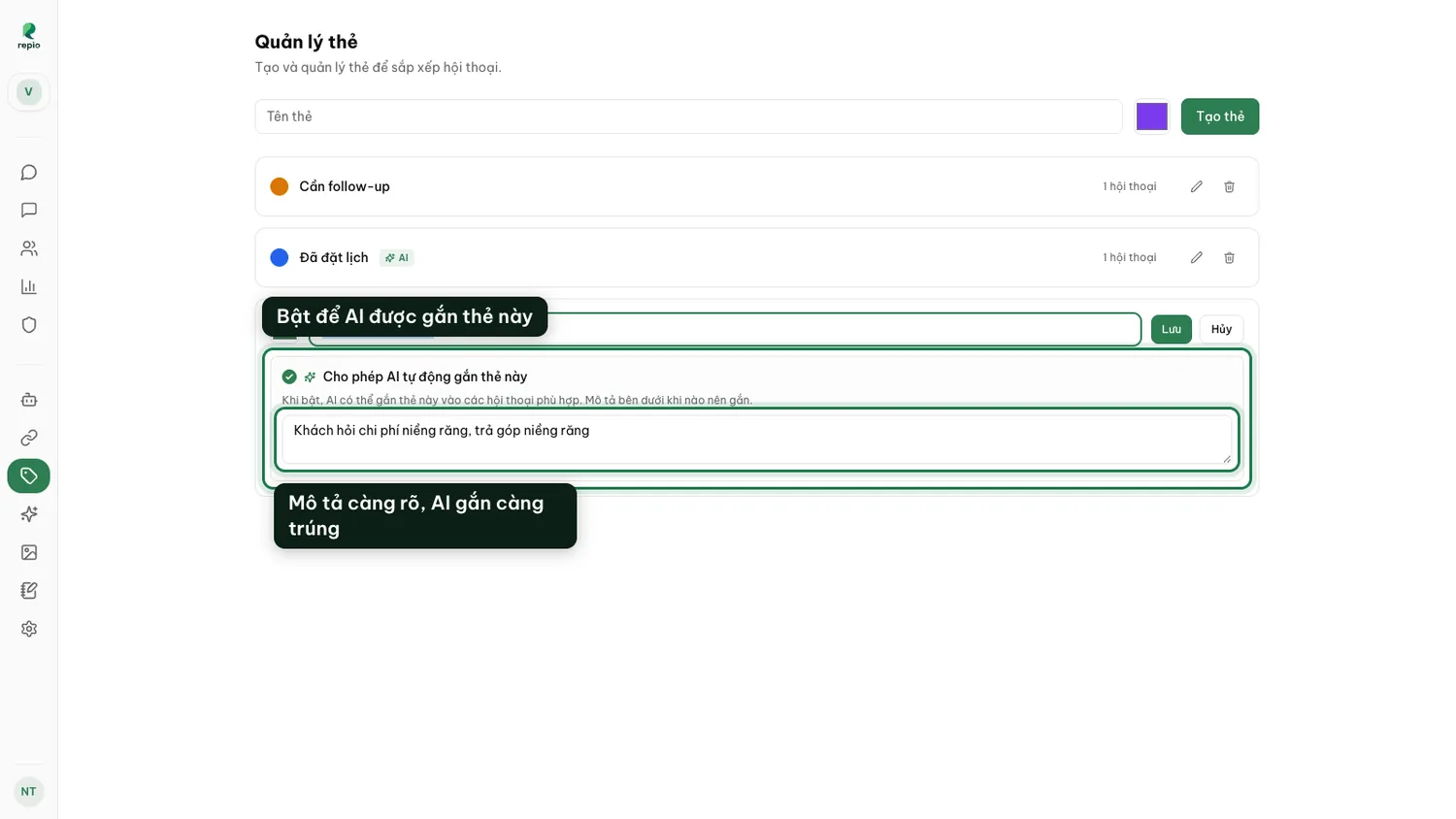
Click the pencil icon at the end of the tag row.
The detailed editing panel expands right below the tag.
Check "Allow AI to automatically apply this tag".
Once enabled, the tag displays a sparkling green “AI” badge in the list.
Write a detailed description for the AI.
The more specific the description, the higher the AI’s tagging accuracy. For example, for “Braces pricing”, state: “Customer asks about braces costs, instalment plans, or clear aligner fees”.
Click "Save" to finish.
This tag is automatically added to the “AI-permitted tags” panel for use in Auto-tagging.
Tip: Internal operational tags like “Needs call back” or “After hours” should not be delegated to AI; let staff apply them manually or via fixed automation rules.
Each tag row displays the exact conversation count carrying that label (e.g. “1 conversation”). You can click directly on this badge to jump straight into the Inbox pre-filtered by that tag, saving multiple clicks.
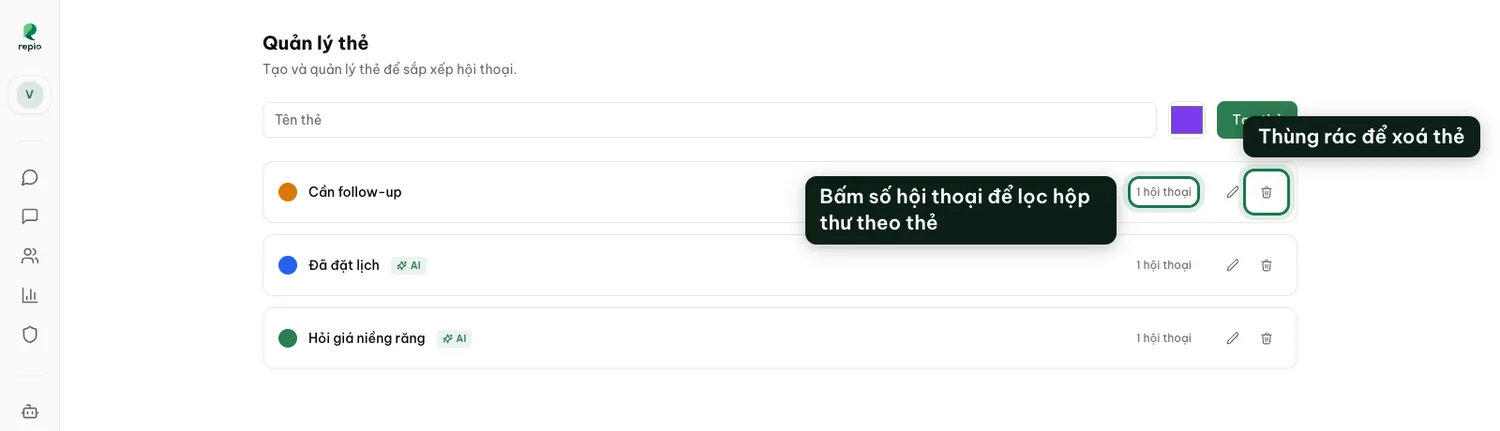
You can easily update or remove tags that no longer match your workflows:
Edit a tag using the pencil icon.
Allows changing the tag name, accent color, AI prompt description, or AI permission, then click “Save”.
Delete a tag using the trash icon.
Repio displays a confirmation prompt: “Are you sure you want to delete tag…? This will remove it from all conversations.”. Confirm to delete.
Note: Deleting a tag cannot be undone. The tag is immediately removed from all historical conversations in the Inbox and any associated automation rules.