Managing your channels
Channels is where you see every page, Zalo OA, website chat, WhatsApp number and TikTok account you have: which are still connected, which agent covers them, and whether the AI is on.
On this page1/7 · The channel list
Key terms
- Channel
- A Facebook Page, a Zalo OA, a website chat, a WhatsApp number, or a TikTok account connected to Repio.
- Assigning an agent
- Choosing which AI Agent answers customers on that channel. Each channel has exactly one.
Each row is one channel, showing its platform, assigned agent, AI switch and connection status.
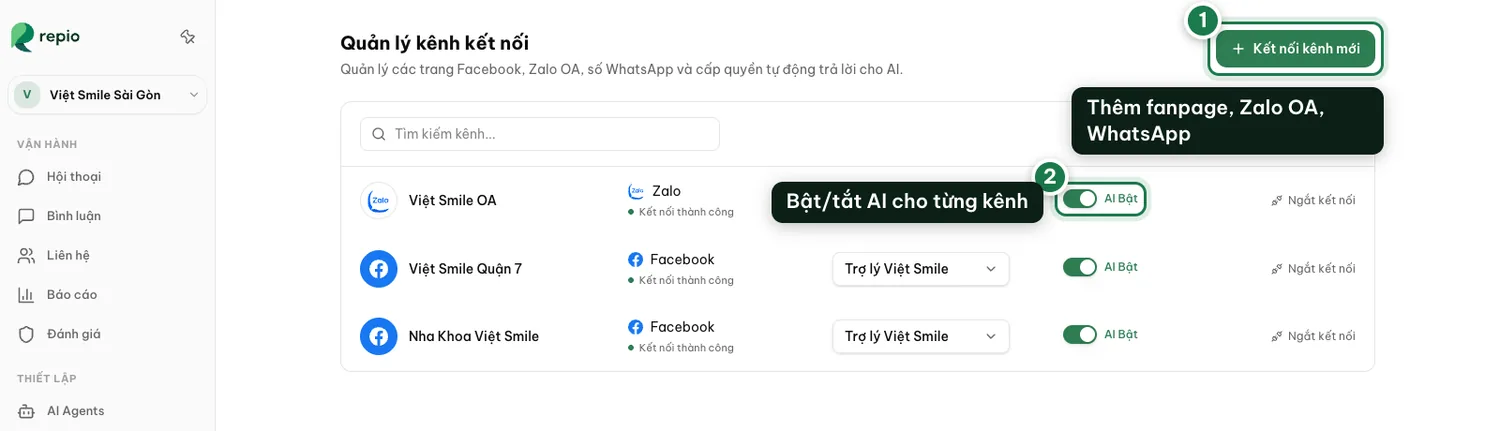
- The “Connect a channel” button adds a Facebook Page or a Zalo OA. WhatsApp and TikTok are activated together with the Repio team.
- The “Let the AI reply automatically” switch: the AI AUTO-REPLY column in the list, per channel. Switched off, new conversations route straight to staff with the reason “AI is turned off for this channel”. A channel with no agent cannot be switched on. Repio says “Assign an agent first”.
This page answers the question “how is this channel doing”.
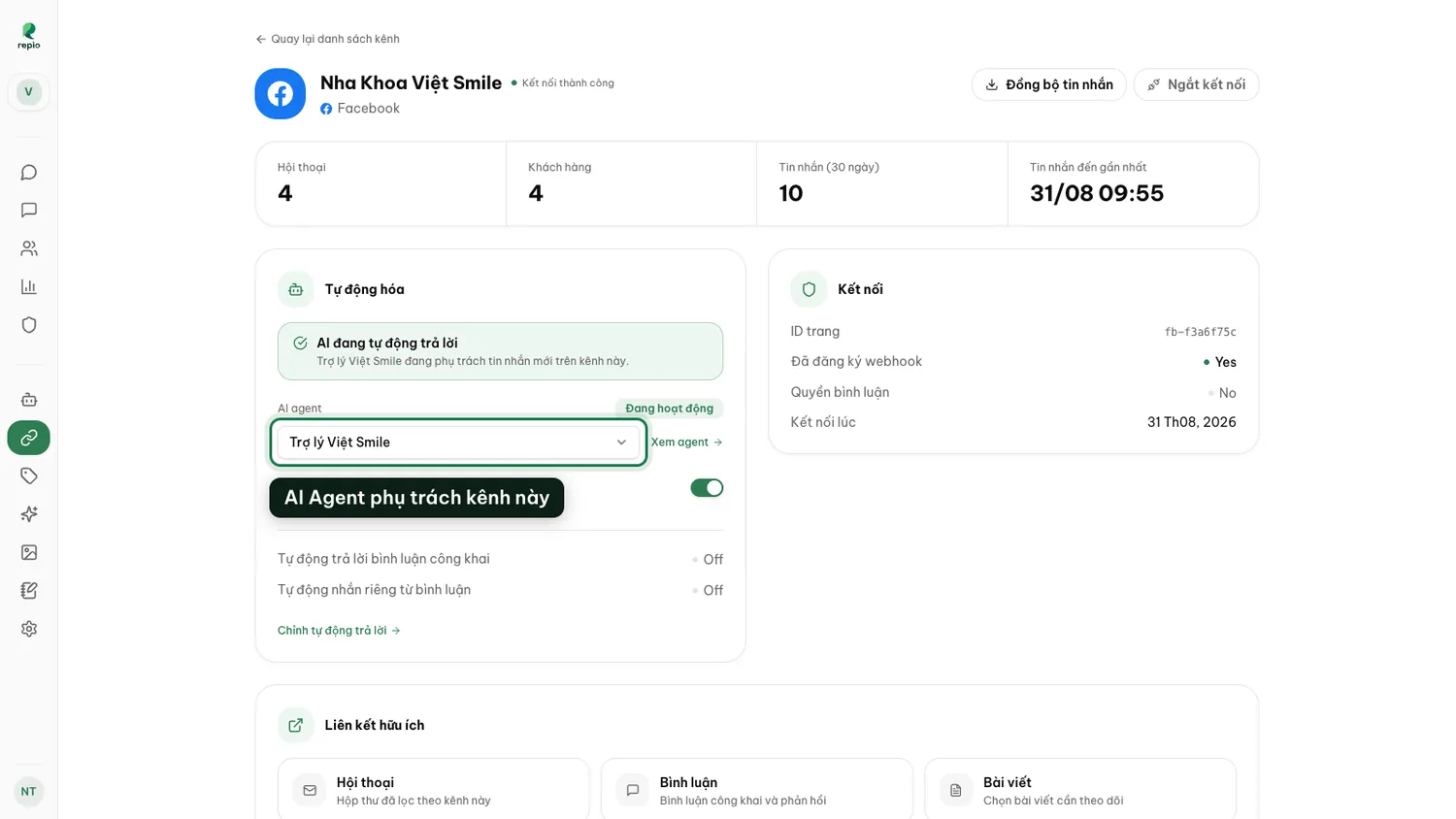
- Conversations, contacts and messages over the last 30 days.
- Which AI Agent covers it, with a link straight to that agent’s settings.
- A link to the inbox, pre-filtered to this channel only.
- A link out to the page itself on Meta Business Suite or Zalo OA.
Once a channel is connected, customer messages arrive in the inbox and your team can reply by hand. Assign an agent only after you have created and tested one.
One agent can cover several channels, but each channel has exactly one agent. You can assign in any of three places, whichever is handy:
On the channel’s detail page.
Click the channel name to open it, then pick the agent in the owner panel.
After assigning, turn on the channel’s Let the AI reply automatically switch.
After assigning, turn on the channel’s Let the AI reply automatically switch.
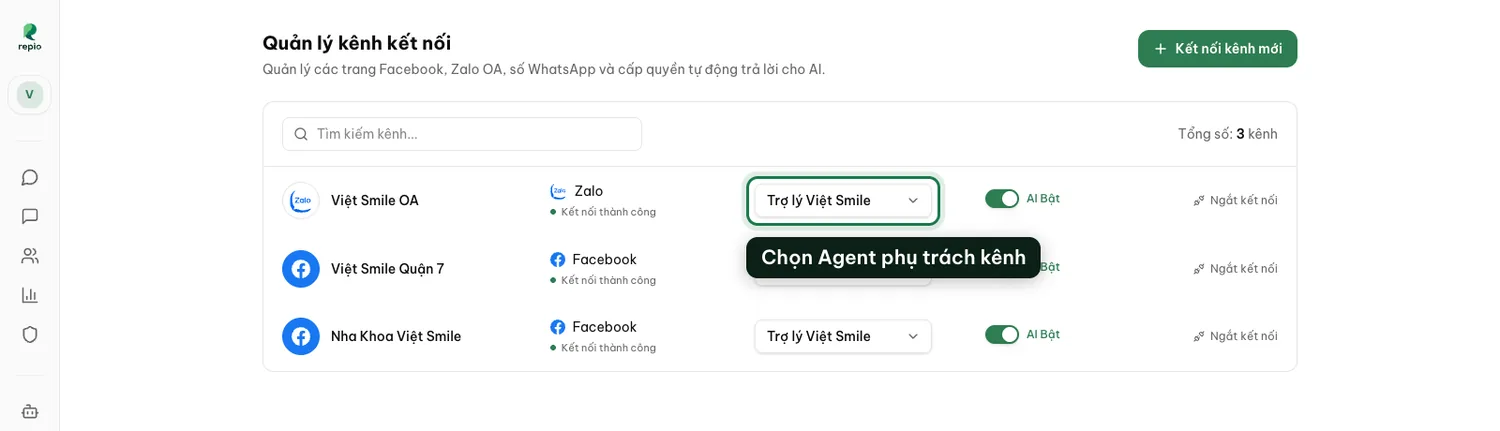
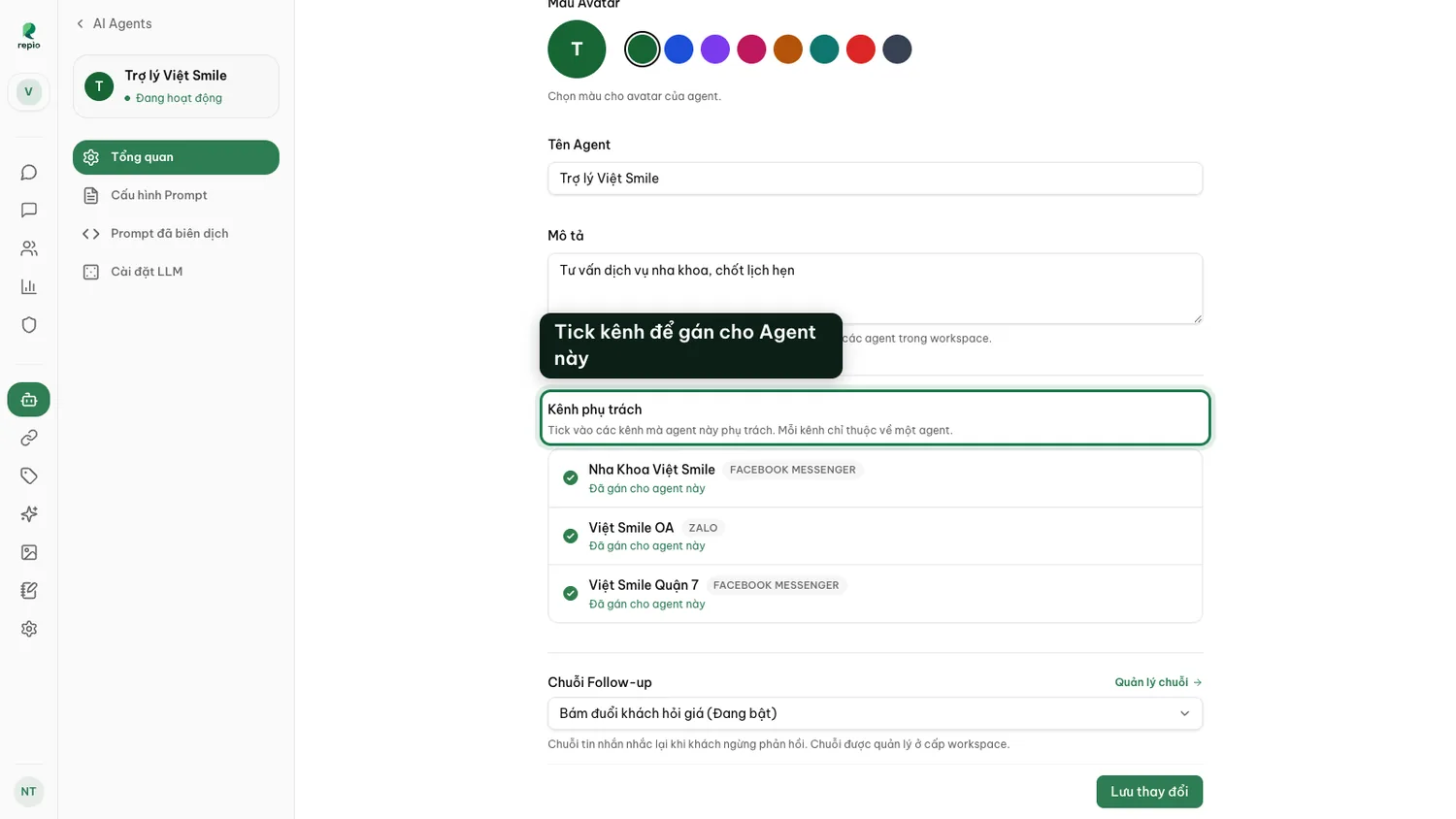
Note: Until a channel has an agent, messages still arrive but the AI does not reply, conversations go straight to staff with the reason “No AI agent assigned to this channel”. That is the expected state while you are still building your agent.
When you first connect a page, Repio only receives messages sent from that moment onwards. Conversations that already existed do not appear in the inbox by themselves.
If you are moving over from another tool and want to keep the context with existing customers, run a sync from that Facebook Messenger channel’s detail page.
- Each run reaches back at most 30 days, and each channel gets 3 self-serve runs. See Importing older messages to run a sync.
Note: Only Facebook Messenger channels can sync older messages. Zalo OA and the other platforms do not expose past history.
This is the question that comes up right after you finish building an agent: everything looks set up, a customer writes, and the AI stays quiet.
You do not have to guess. Open the channel’s detail page and its Automation block states exactly which condition is unmet.
- “The AI is replying automatically”: everything is in place. The line underneath names the agent in charge: “… is handling new messages on this channel.”
- “The AI is not replying. Pick an agent below so the AI can answer.”: no agent on the channel. Assign one right on this page.
- “The AI is not replying, … is still a draft. Publish it to put it to work.”: the easiest step to miss. The agent is assigned but still in Draft. Open it and click Publish Agent.
- “The AI is not replying. Automatic replies are switched off for this channel.”: turn the Let the AI reply automatically switch back on.
- “The AI is paused. Reconnect this channel to resume automatic replies.”: the Facebook or Zalo session has expired. Click Reconnect.
- “The AI is not replying. This channel is disconnected, so nothing can be sent or received.”: reconnect it first.
Tip: If this block says “The AI is replying automatically” and the AI is still silent with one particular customer, the cause is that conversation rather than the channel: somebody took it over and never handed it back, you are outside the operating hours, or the organization is out of quota. Open the conversation and read the reason printed on it.
When you disconnect a channel, you are asked what to do with the conversations it already has. There are three options:
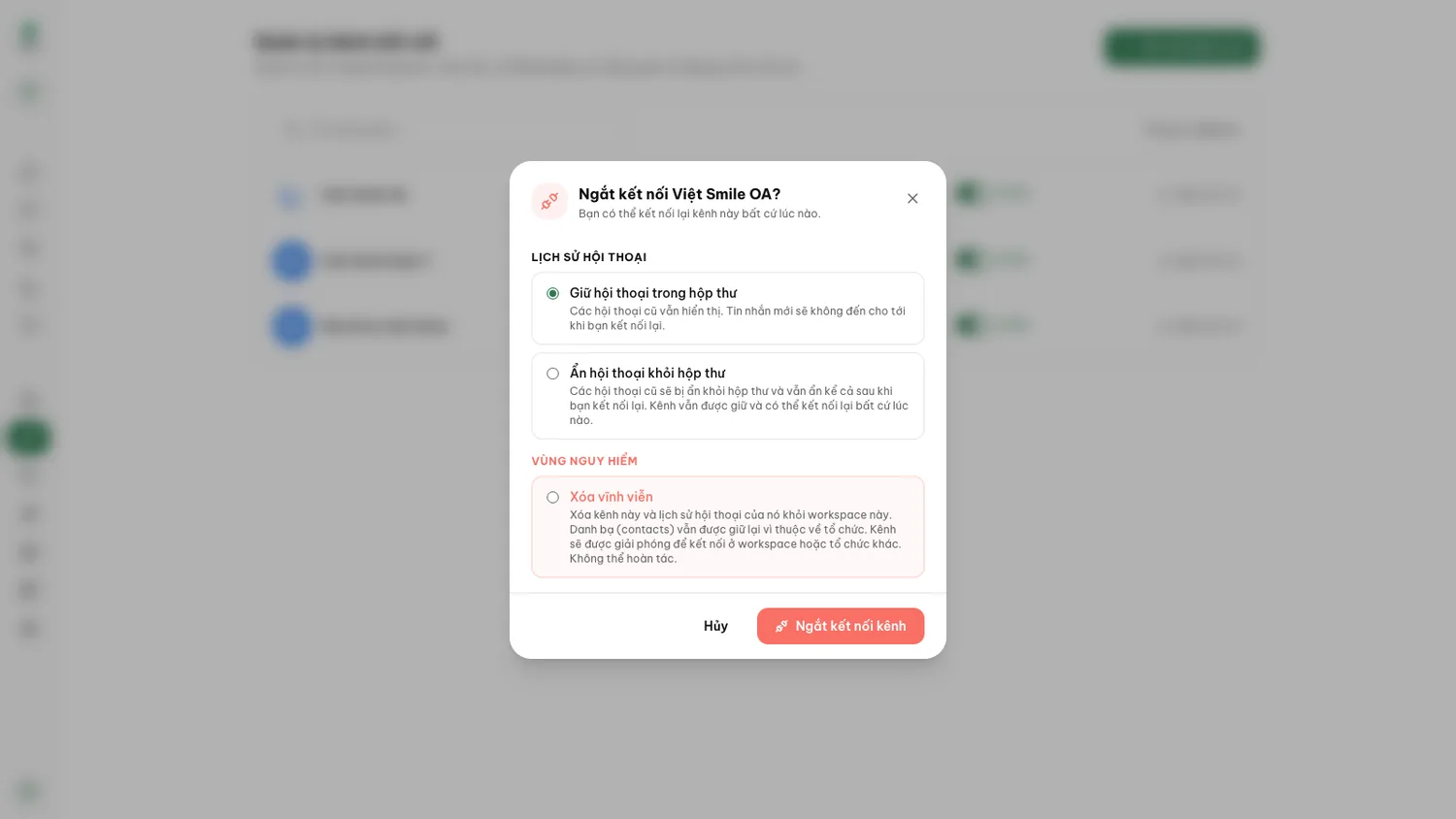
- Keep conversations in the inbox: the channel stops receiving, but existing conversations stay visible and searchable. Reconnecting picks up where it left off.
- Hide conversations from the inbox: the same, but the existing conversations are tucked away. They are still there, and come back when you reconnect the channel.
- Delete permanently: removes the channel and all its conversation history from this workspace, and frees the page to be connected in another workspace or organization. Your customer directory survives, because contacts belong to the organization rather than to the channel.
Tip: Disconnecting always unassigns the agent from the channel, even when you keep the conversations. After reconnecting, assign the agent again; the “Let the AI reply automatically” switch does keep its previous setting.
Note: Delete permanently sits under the dialog’s danger zone and cannot be undone. If you are only pausing a channel, pick one of the first two.
Facebook Pages and Zalo OAs you can connect yourself, right in the app, and you can put a chat on your own website the same way.
WhatsApp Business and TikTok are fully supported, but their connection flows have platform-specific steps (WhatsApp needs a number registered with Meta; TikTok needs a business account), so the Repio team sets them up with you.
To book that, write to hello@repio.io or call +84 933 898 048 with your workspace name and the WhatsApp number or TikTok account you want to use.