How AI Agents work
An AI Agent is your automated consultant. You teach it about your business once; after that it answers customers 24/7 across your channels and hands over to a person when it meets a question it was never taught, an upset customer, or a request for a human.
On this page1/6 · From new to live
The states an agent can be in
- Draft
- A new agent’s starting state. You can edit and test freely with zero customer impact.
- Active
- The state after you publish. From then on the agent really answers customers on its assigned channels.
Create the agent. It starts as a draft.
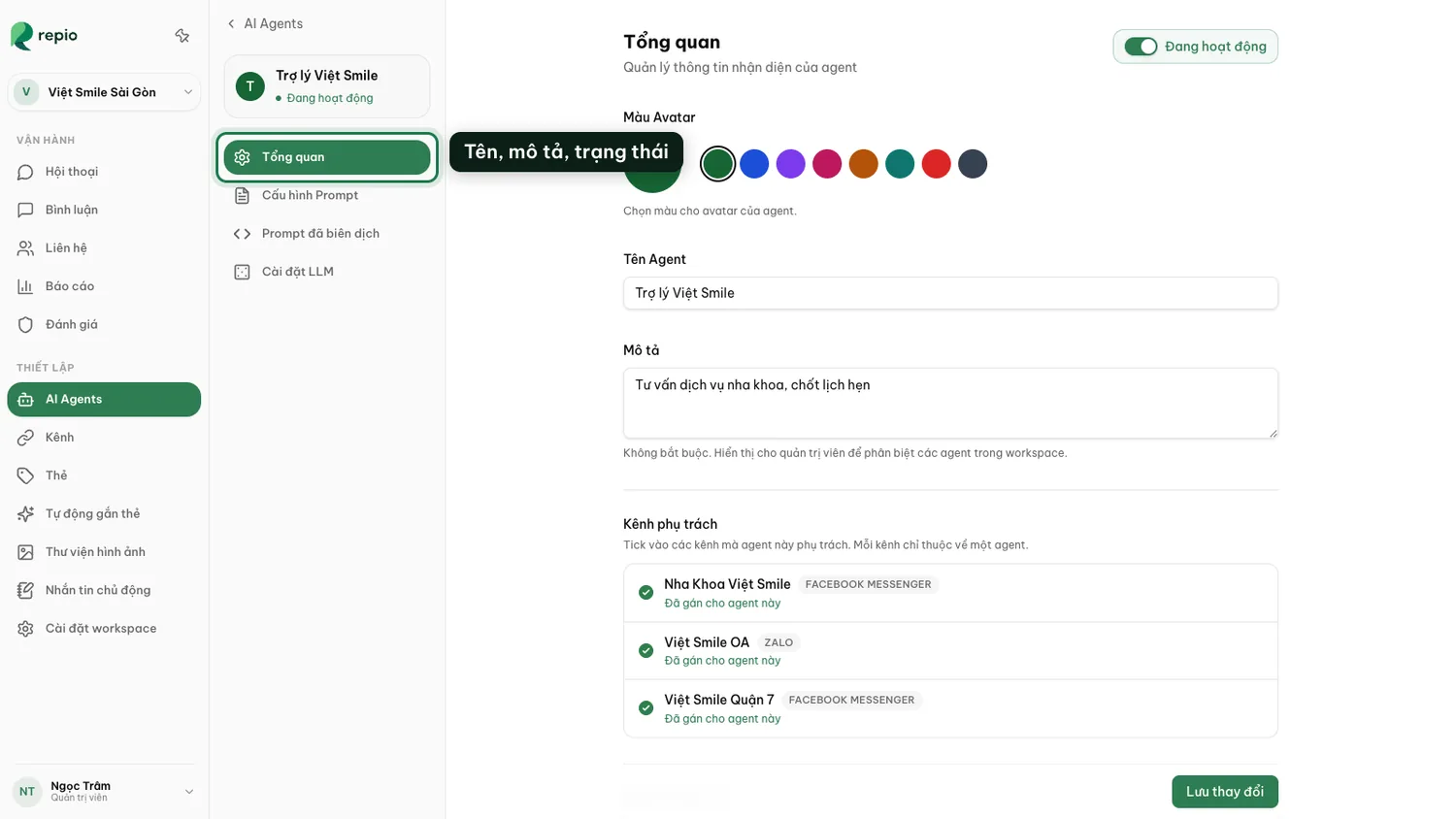
Fill in the General tab.
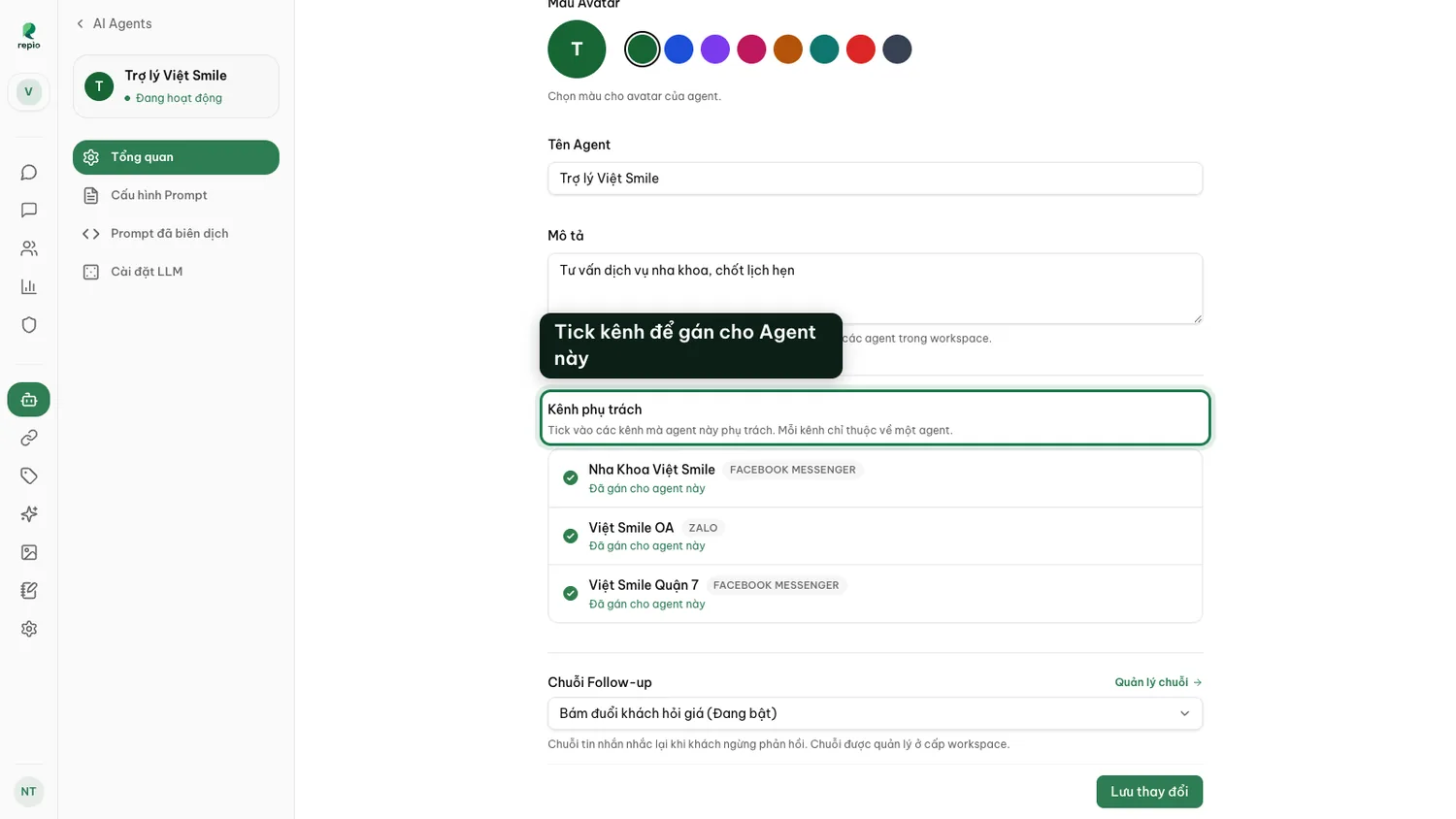
Name, description, avatar colour, the attached follow-up sequence, and the channels it covers.
Teach it in the Prompt Config tab.
Test it until you are happy.
Publish it so it starts answering real customers.
This is where people stop halfway without realising. Publishing the agent is not enough on its own, and neither is assigning a channel. All four conditions below must hold; miss one and the AI stays quiet.
The agent is Active: click Publish Agent.
The button sits in the agent’s settings. Repio confirms first: “This agent will start responding to customers. Are you sure?”. Once live, the status line reads “Agent is live and responding to customers.” To stop, click Unpublish: it returns to Draft and stops replying on every channel. Note that editing a live agent needs no re-publish: the moment you save, the very next replies use the new configuration.
The agent is assigned to at least one channel.
Tick the channels under Channels covered in the General tab, or pick the agent in the assign column of the channel list. Each channel has exactly one agent.
That channel has Let the AI reply automatically switched on.
The most commonly missed condition, because it is not on the agent screen: it lives under Channels. Assign the agent but forget the switch and the channel still routes everything to staff.
Tip: Not sure which step is missing? Do not hunt, open the channel’s detail page and its Automation block names the unmet condition outright.
Note: Is the AI answering real customers wrongly? Fastest stop: click Unpublish. The agent goes silent on every channel at once. To stop a single channel, switch off that channel’s Let the AI reply automatically under Channels. Neither loses any configuration: fix the prompt and switch back on.
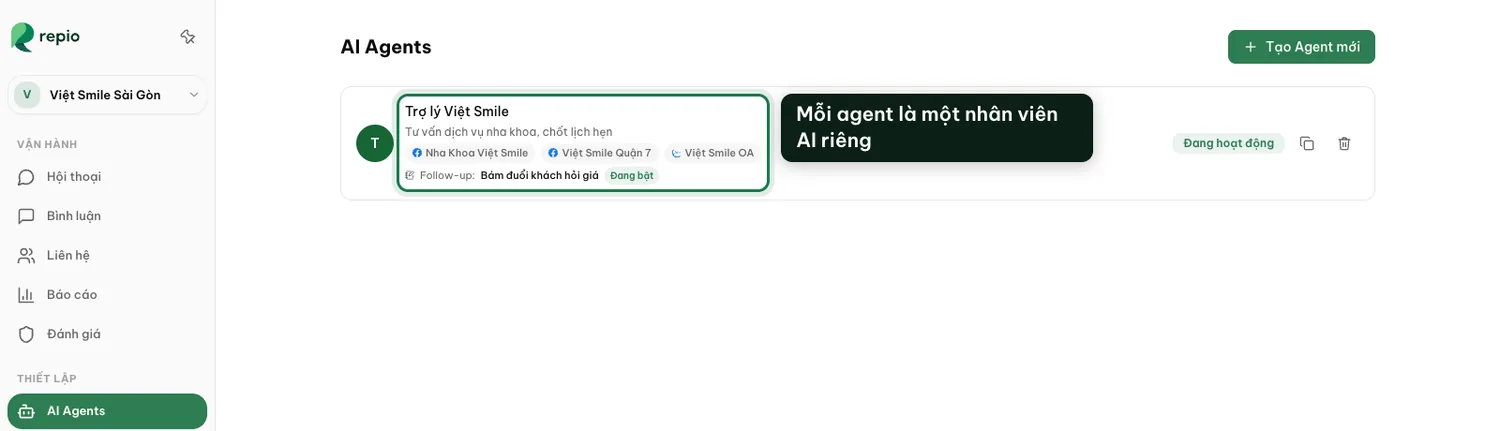
You can assign one agent to several pages and Zalo OAs at once, so the advice is consistent everywhere.
The reverse is not true: each channel has exactly one agent.
If your business has genuinely different service lines, build one agent per line: one for dentistry, one for aesthetics.
Want to change a lot without touching the agent that is answering customers? Click the duplicate button on that agent’s row. The copy keeps the whole configuration but sits in draft.
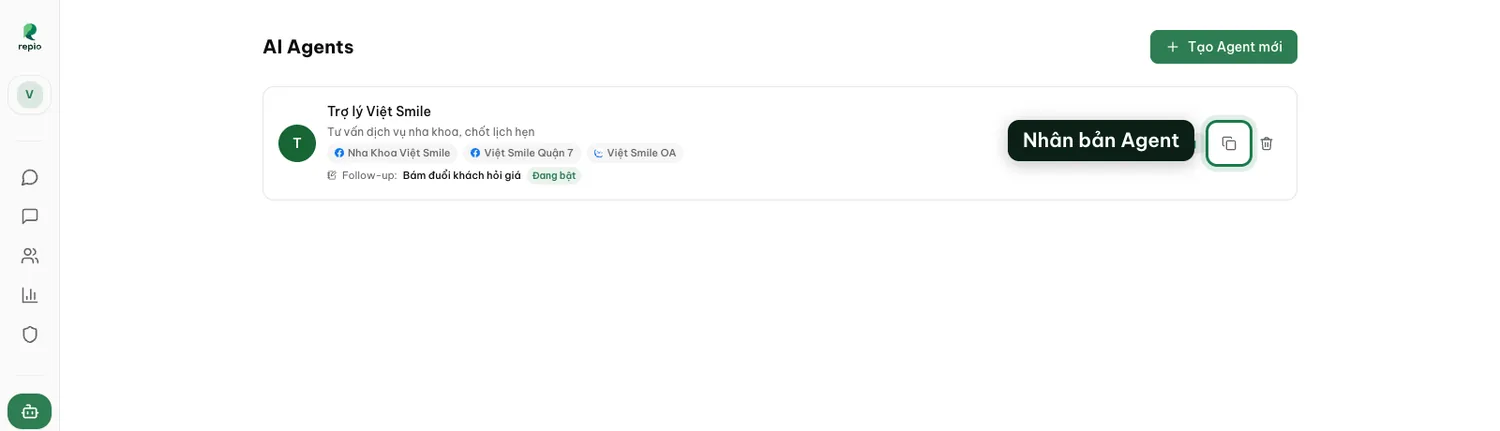
Tip: A safe sequence: duplicate → edit the draft → test until it passes → move the channels across.
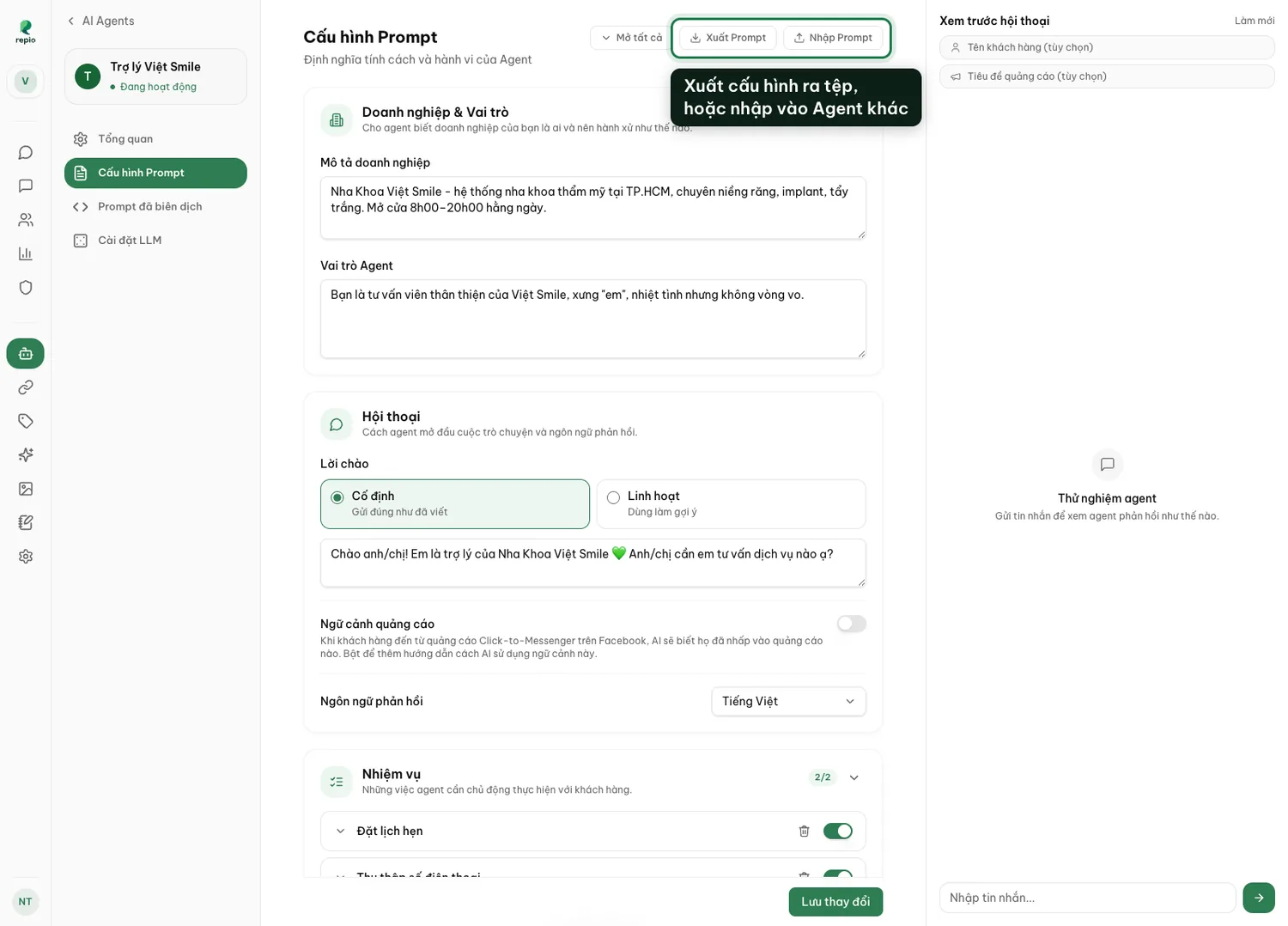
The Prompt Config tab has two buttons at the top. Export saves the whole configuration to a file; Import loads that file into another agent.
Useful for reusing a good agent’s setup on a new one, or moving a configuration to another workspace.
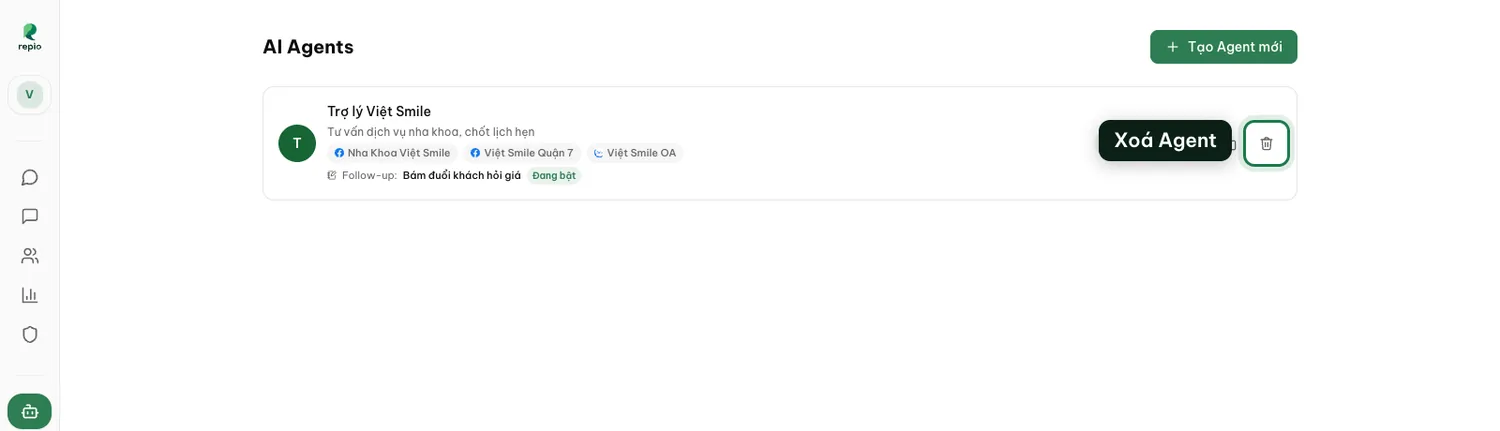
An agent still assigned to channels cannot be deleted. In the General tab, untick every channel under Channels covered. Then, in the agent list, click the delete button (the trash icon) at the end of its row.