The media library
Price lists, before-and-after photos, intro videos: upload them once to the media library and the whole team shares them. And if you allow it, the AI itself picks the right one to send.
On this page1/4 · Adding assets
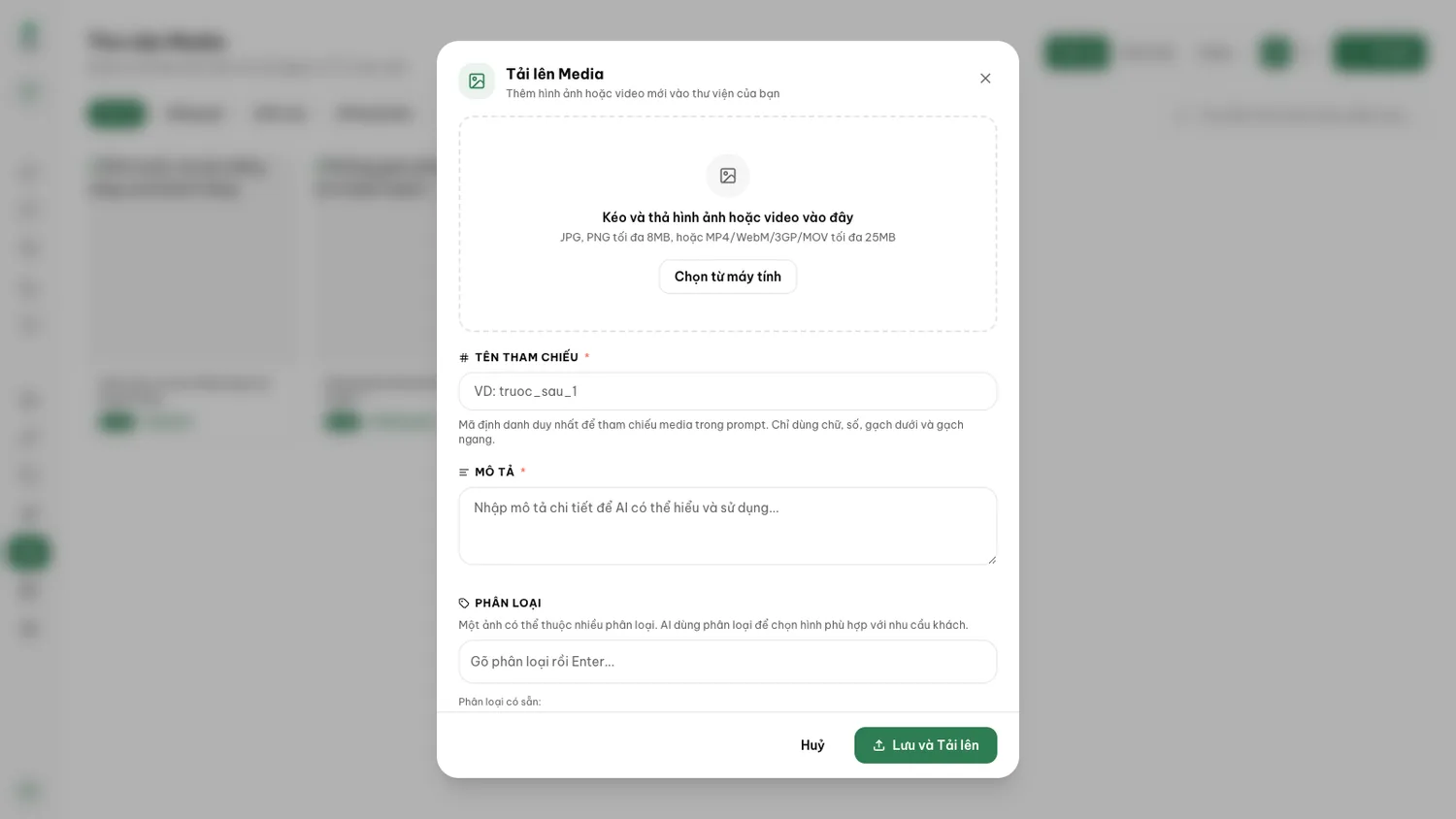
Click Upload in the library’s top right.
Pick an image or a video file.
Images as JPG or PNG up to 8MB. Video as MP4, WebM, 3GP or MOV up to 25MB.
Set the Reference Name.
This is the asset’s identifier, not a customer-facing title. Repio accepts letters, digits, underscores and hyphens only: no spaces and no accented characters. Up to 64 characters, and unique within the workspace. Good examples:
braces_pricelist_2026,before_after_implant_01.Choose the categories.
Type a category and press Enter. One asset can sit in several at once, e.g. “Pricing” and “Braces”. The AI uses categories to narrow down which asset fits a customer’s question, so reuse a small, consistent set of names rather than inventing one each time.
Write the description.
The description is not decoration. It powers search, and it is the only way the AI knows what the file shows. Write it as if briefing a new colleague. Up to 500 characters: the cap exists for a reason: every description is folded into the agent’s prompt, so long ones dilute everything else you taught it.
Price lists change monthly and old photos go stale, so this is a section you come back to.
- Edit the description and categories: click the asset to open its detail panel: change the description, the categories and the AI-send switch right there, then hit Update. In list view, the Edit button opens the same panel.
- You cannot swap the file: there is no “replace image”. A new month’s price list is a fresh upload under a new reference name, after which you delete the old one. The AI switch on a fresh upload defaults to on, turn it off if the AI should not use that asset yet.
- Delete: the Delete image button on the detail page. Repio asks to confirm and, if the asset is used in message templates, states how many are affected: deleting removes the image from them. It cannot be undone.
Tip: A habit worth forming: put the year or month in the reference name (pricelist_2026_09). When you tidy the library you can tell what is stale from the names alone, without opening each one.
An asset in the library can show up in three places. That ends the situation where every staff member keeps a different copy of the price list on their own laptop.
- When staff reply to a customer: in the composer, hit attach, open the Library tab, search by description or category, and send.
- In a template: attach an image or video to a template so it goes out every time the template is sent.
- Sent by the AI itself: if you grant permission per asset (see the section just below).
Tip: The media picker greys out any format the current channel cannot deliver.
The “Let the AI send this image” switch only exists on images: the AI does not send videos on its own. It lives in two places: the same switch either way:
At upload time: in the Upload dialog, the switch appears below the description field once you pick an image, and it defaults to on.
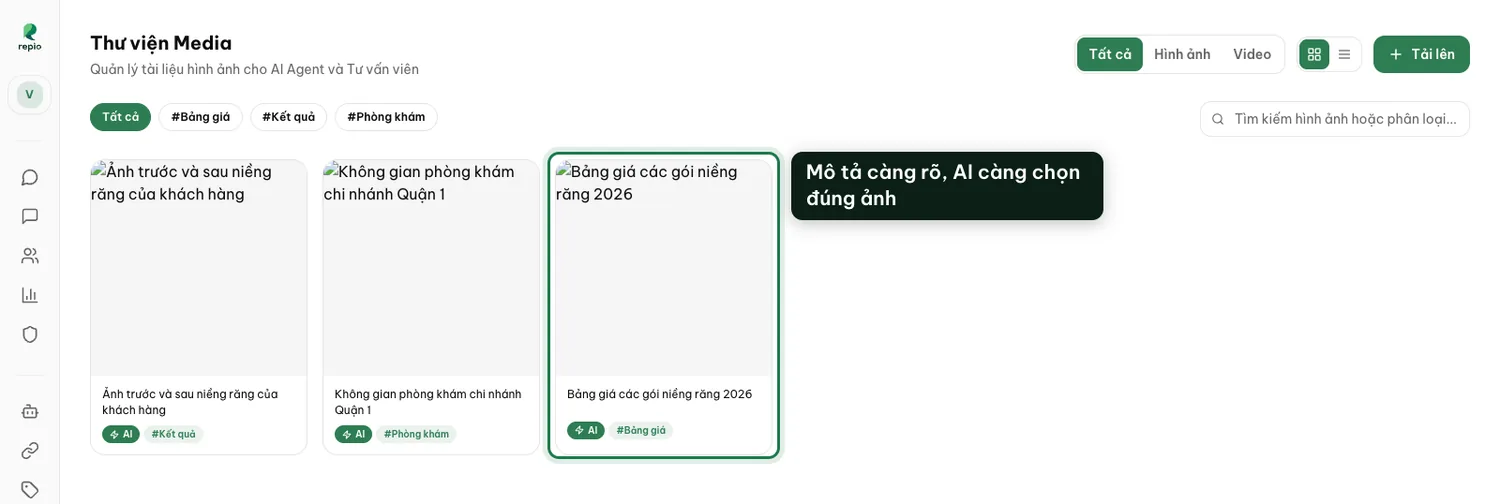
Later on: click the asset in the library to open its detail panel, flip the switch, then hit Update. In the grid, enabled assets carry an AI badge and the rest carry AI off, so one glance tells you what the AI has to work with.
From then on, when a customer asks for prices or wants to see real photos, the AI picks the asset whose description and categories match best and sends it with its reply.
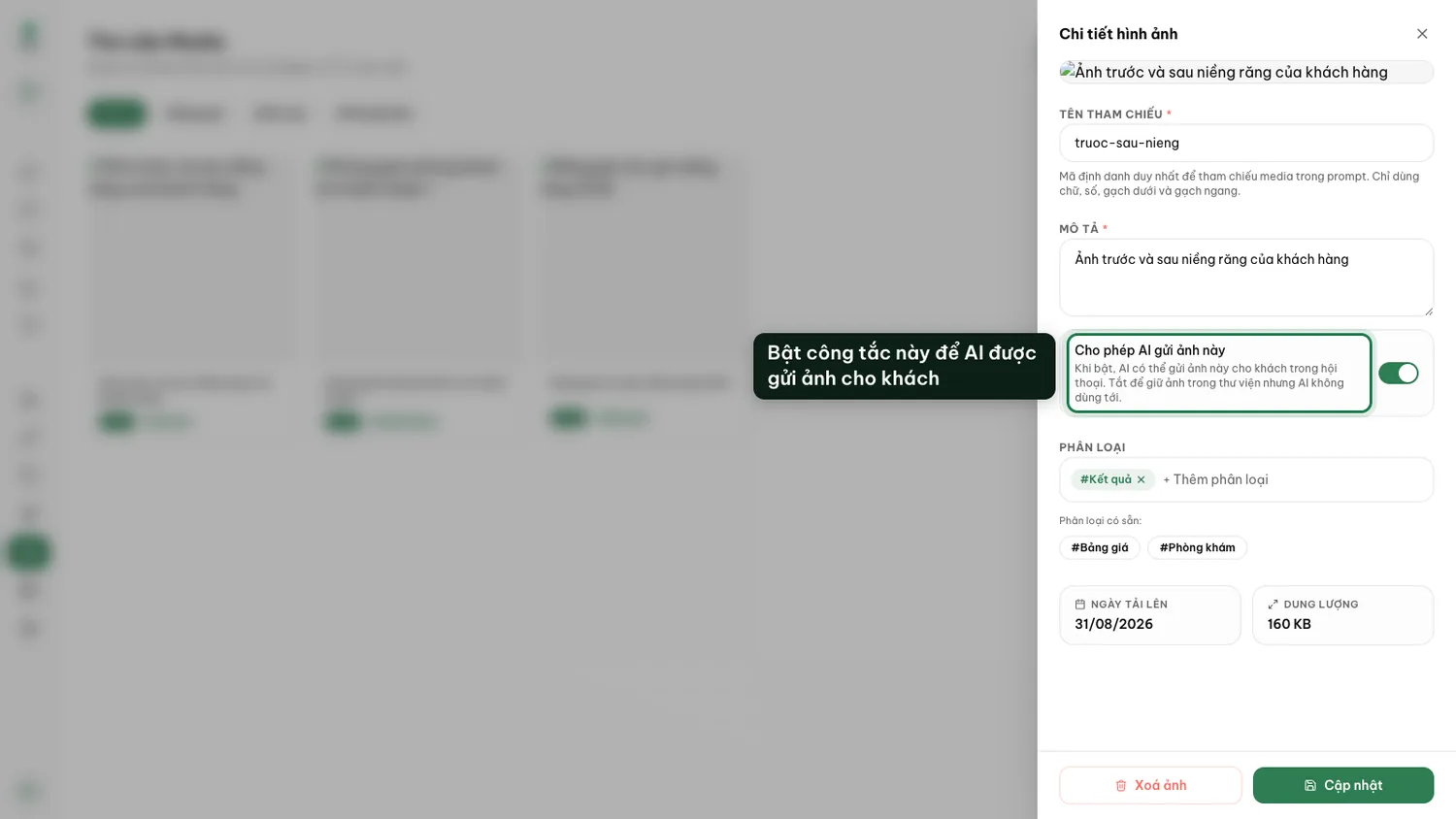
Note: Only enable this for assets you have vetted, with precise descriptions. A vaguely described image easily gets sent in the wrong context.