Managing Facebook comments
Customers ask about prices under your posts as often as in Messenger. Comments pulls every page’s comments into one queue, to answer by hand or let the AI cover.
On this page1/5 · First step: choose which posts to watch
Do these first
This only works once you have finished the following:
- 1
Connecting Facebook Pages: The page must be connected and have comment access granted before any comments reach Repio.
- 2
Message templates: If you plan to switch automation on, each automation layer needs a template to send.
Do this first, or the Comments page stays empty and looks broken.
Repio does not pull in comments from every post by itself. You name the posts, usually the ones running as ads, where the pricing questions land.
Open Comments and pick a specific page in the left column.
Click Pull posts to manage.
Repio fetches the page’s recent posts from Facebook.
Click Manage on each post you want watched.
The post’s label flips to Managed. Only these posts feed the queue.
Tip: Remember to come back and add each new post you start advertising. Repio does not add them for you, so this is a step in every campaign launch.
Once posts are being managed, customer comments arrive in Comments in real time.
Filter by status, Unanswered, Replied, All, and by page. Each comment shows who handled it: Replied by AI or Replied by Human.
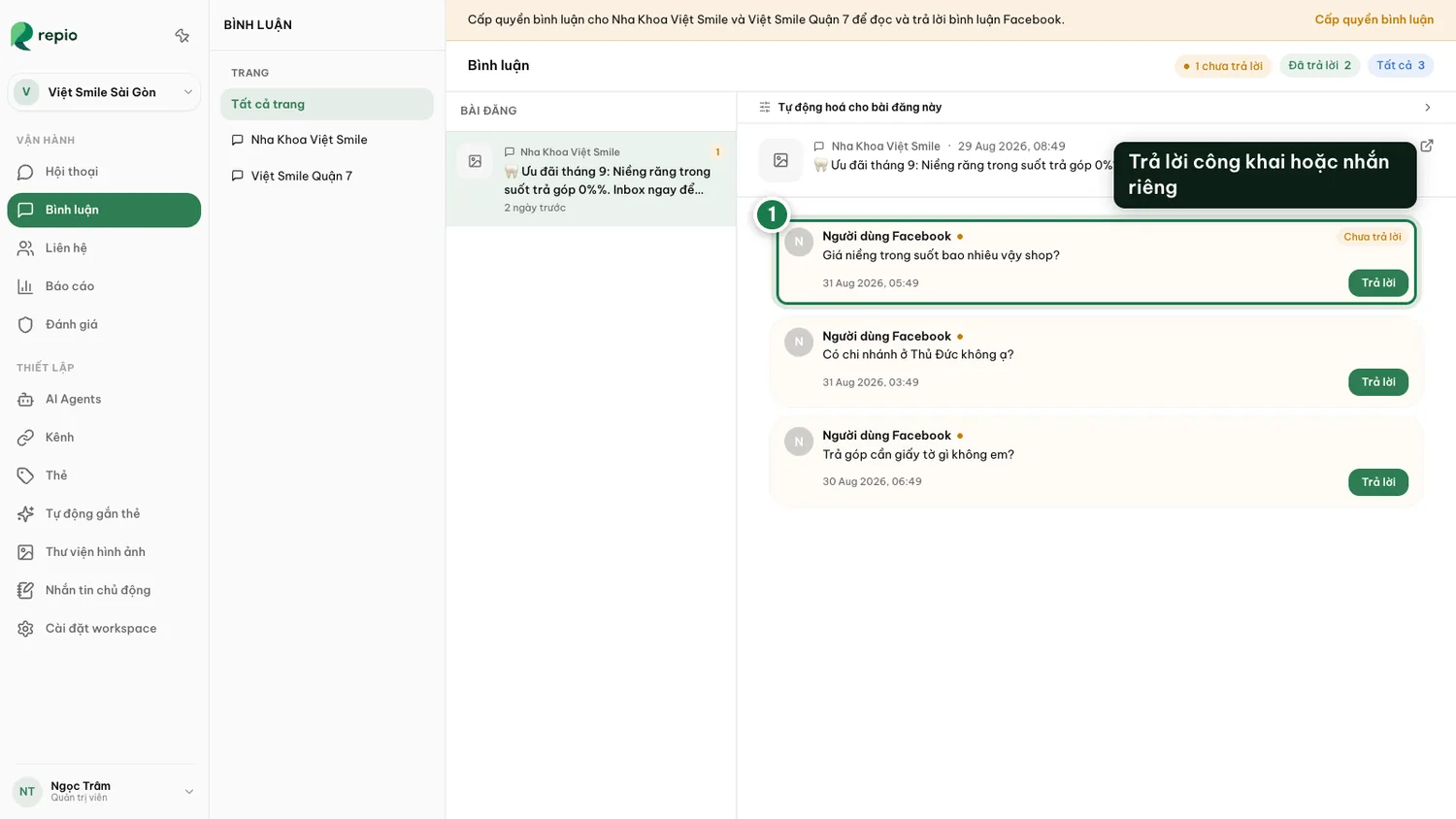
Pick an unanswered comment.
You can see the original post along with its whole comment thread.
Reply publicly under the comment, or insert a saved reply.
Reply publicly under the comment, or insert a saved reply.
The Automation panel only appears once you pick a specific page in the left column. It is absent under “All pages”. With a page selected, an admin sees two auto-reply switches just below the page list.
Each switch has its own Reply template dropdown, and every option in it is a template (how to write one). There is no way to switch automation on while skipping the template. Repio just appends the type after the name so you cannot confuse them: “· Templated” sends exactly what you wrote, “· Generative” is a template the AI writes from, phrasing each reply to the comment in front of it. The one option that is not a template is “No template (off)”, and as the name says, picking it sends nothing.
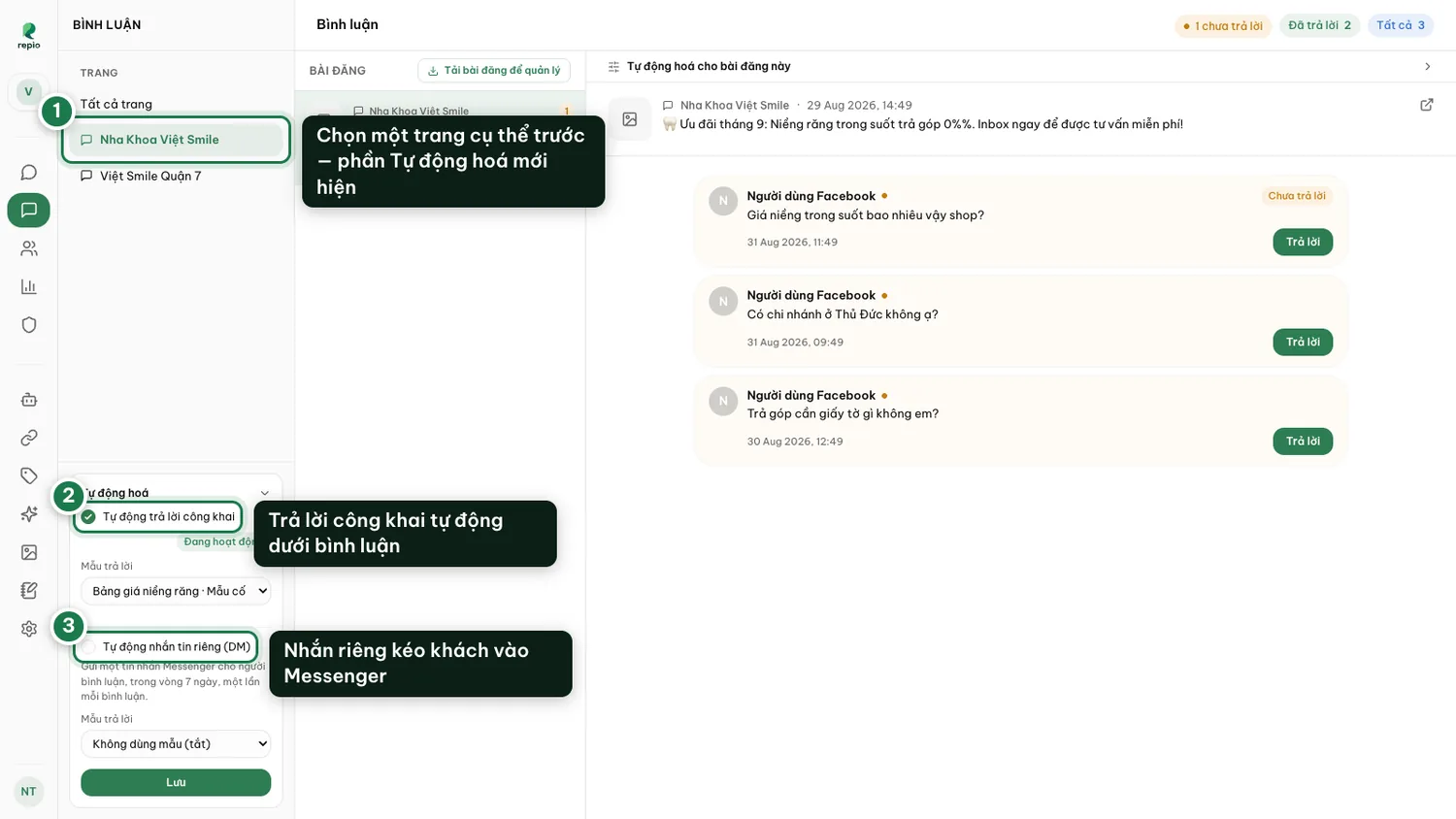
- Auto public reply: answered right under the customer’s comment, visible to everyone.
- Auto private reply (DM): a Messenger message that pulls the commenter into a private thread where the AI can advise properly.
Tip: Quota note: Automated comment replies and AI-generated private direct messages count towards your monthly AI message quota.
Note: Flipping the switch is not enough on its own. If anything is still missing, Repio lists it right under the switch as “For auto reply to run, you still need to:” followed by whatever is outstanding: “Grant comment access for this page”, “Turn on AI for this page”, “Pick a reply template”. Once all three are satisfied the switch carries a green Active badge. Per Meta policy, a private reply can only be sent within 7 days of the comment, and only once per comment.
This is the most reasonable worry to have before switching automation on, so here is the straight answer: yes. On a managed post the AI answers every new customer comment. It does not judge which are genuine questions, which are “tagging a friend”, and which are snark.
Repio only sets a few hard limits so that never becomes a disaster:
- The AI never replies to comments posted by your own page, so it cannot end up talking to itself.
- Per post, the AI publicly answers once per person. Someone commenting ten times still gets exactly one reply.
- A private message goes out once per comment, and only within 7 days of that comment. Meta’s rule, not Repio’s.
Tip: The real control is which posts, not which comments. Only manage posts you actually want the AI on. For a sensitive post, override it individually or simply leave it unmanaged. One more tactic: keep the public template deliberately neutral, “We’ve sent you a private message”, and let the real advising happen in Messenger, where the AI has full context and nobody else is reading.
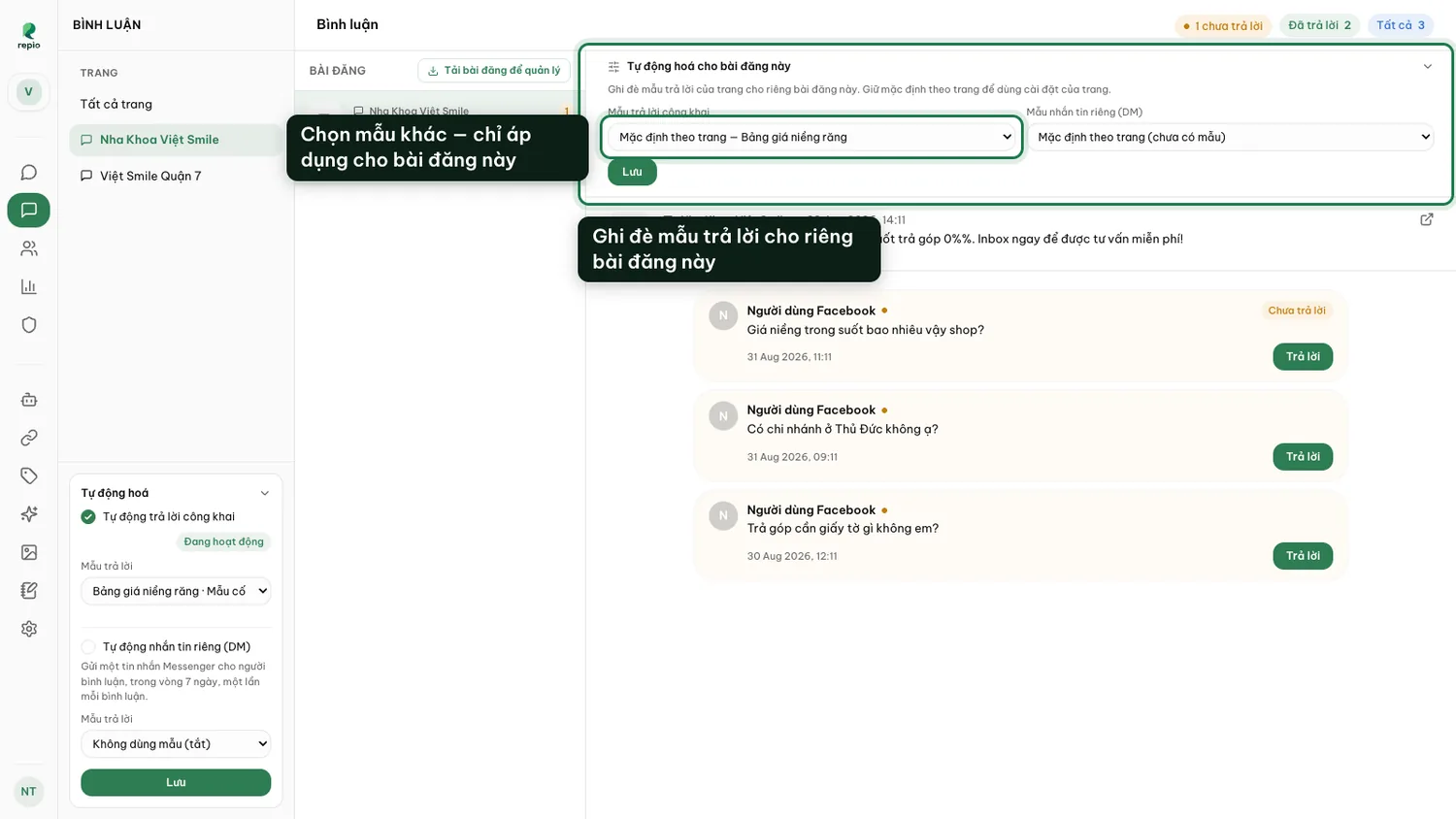
At the top of every comment thread sits a small “Automation for this post” strip, easy to miss because it starts collapsed. Open it to pick a different template for just this post without touching the page-wide setting.
Leave it on “Page default” for posts that should follow the page settings.