Accounts & roles
Everyone in the organization has their own account and a role. The role decides what they can see and do.
On this page1/9 · The three roles
Do these first
This only works once you have finished the following:
- 1
How Repio is structured: organizations & workspaces: Roles are granted at the organization level, while access is scoped by workspace. You need both layers first.
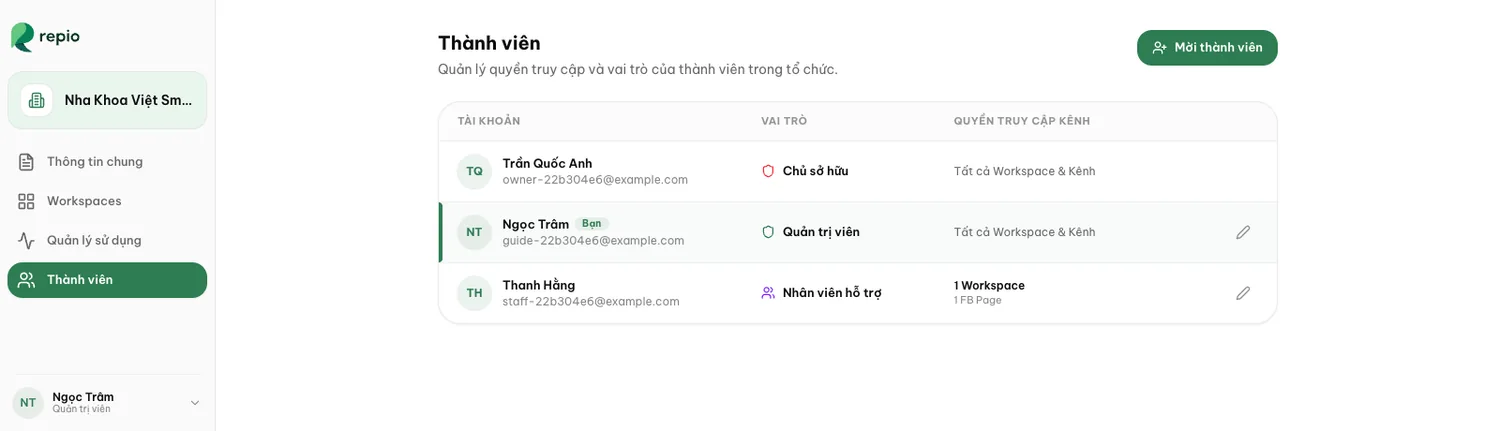
- Owner: the person the organization belongs to. The highest role: full configuration rights, control of the plan and billing, and the only role that can hand ownership to someone else.
- Admin: configures everything in the organization: channels, AI Agents, members, settings.
- Support staff: only replies to customers, in exactly the workspaces and channels assigned to them. No access to configuration.
Tip: The system always keeps at least one admin. If you are the last one, you cannot demote or remove yourself.
The table below helps you quickly decide which role is right when adding or managing team members:
| Feature / Activity | Allowed roles | Scope & Details |
|---|---|---|
| Inbox & Customer ChatReplying, taking over from AI, tagging, internal notes, rating conversations | All 3 roles | Support staff only operate within their assigned workspaces and channels. Admins and Owners access all. |
| Custom Views & FiltersSave filtered conversation views | All 3 roles | All members can create private custom views to speed up daily inbox workflows. |
| System ConfigurationAI Agents, Channels, Tags, Auto-tagging, Media library, Follow-ups | Admin & Owner | The entire "Setup" menu is hidden from Support staff to prevent accidental configuration changes. |
| Reports & Contact ManagementView analytics, export customer list, delete contacts | Admin & Owner | View Reports, export from Contacts, and manage sensitive customer data. |
| Member & Workspace ManagementInvite staff, change roles, remove members, create workspaces | Admin & Owner | Access Usage page. The sole remaining Admin cannot demote or remove themselves. |
| Plans, Billing & OwnershipManage subscription, buy extra pool, transfer organization ownership | Owner only | Highest legal and billing authority. Only transferred when changing the primary business representative. |
Tip: A practical rule: whoever works the inbox daily → Support staff. Whoever owns AI quality and configuration → Admin. Keep Owner to one person, or two who genuinely represent the business.
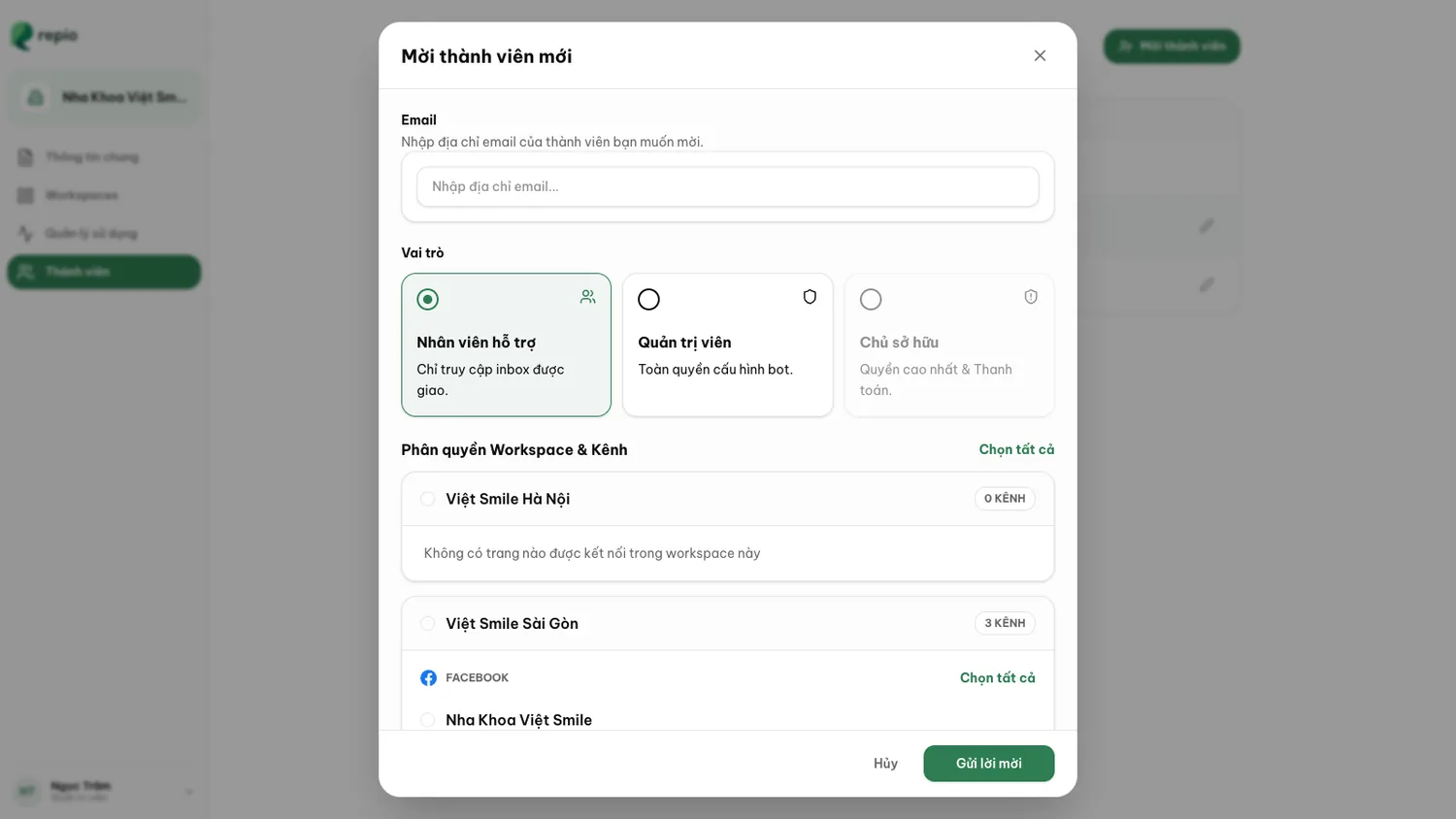
Open Organization settings → Members.
Start an invitation and enter their email.
Pick a role: Admin or Support staff.
For Support staff, select the workspaces and channels they may access.
Skip this and they can sign in but will not see any inbox.
Send the invitation.
They have 7 days to accept. After that, send a fresh invitation. Unaccepted ones sit under Pending invitations with who sent them and when they expire.
Tip: If the person already has a Repio account, invite them exactly the same way: one account can belong to several organizations, and they switch between them from the menu at the top of the sidebar. Repio only refuses in two clear cases: “This person is already a member of the organization.” and “There is already a pending invitation for that email address.”
From the member list you can promote Support staff to Admin, adjust their assigned workspaces and channels, remove someone from the organization, or cancel an invitation that has not been accepted.
The Owner role is the exception: only a current Owner can grant it.
Removing a member only revokes their access. The conversations, the messages they sent, their internal notes and the tags they applied all stay in the workspace. Nothing is deleted with them.
Note: Before removing someone, check the conversations they had taken over. Those stay in Human Handling and stay assigned to them, so the AI will not resume on its own. The fix: open each one and hand it back to the AI from the status badge, or have a colleague take it over. Separately, Repio blocks anything that would leave the organization without an admin, as the only admin, you cannot demote or remove yourself.
Support staff only see the inboxes of the workspaces assigned to them, and within those, only their assigned channels.
They reply to customers, take over from the AI, tag conversations and report issues. They cannot reach agent, channel or member configuration.
That lets you grow the support team without risking accidental changes to the system.
There are exactly two ways in, and you need to know which one you are on before anything else.
You are the first person from your business. The Repio team sends you the sign-in link (app.repio.io) when your rollout starts, if you do not have it yet, book a demo or write to hello@repio.io (hotline +84 933 898 048). Once your account exists, Repio asks for your company name and your first workspace name and creates both. You become the Owner of that organization. Nobody at Repio has to provision it for you.
A colleague invited you. You create nothing: an admin emails you an invitation, you click the link, set a password, and land straight in the existing organization with the role they picked.
Tip: Repio runs entirely in the browser. There is nothing to download. Use Chrome or Edge and install Repio as an app so it opens quickly every day.
The Repio app runs at app.repio.io: that is where you sign in, not this marketing site.
Sign up with an email and password, or click “Continue with Google”.
With email sign-up you must click the confirmation link in your mailbox before your first sign-in. If it has not arrived, check spam or resend it.
Forgot your password? Use the reset link on the sign-in screen. The email stays valid for 6 hours.
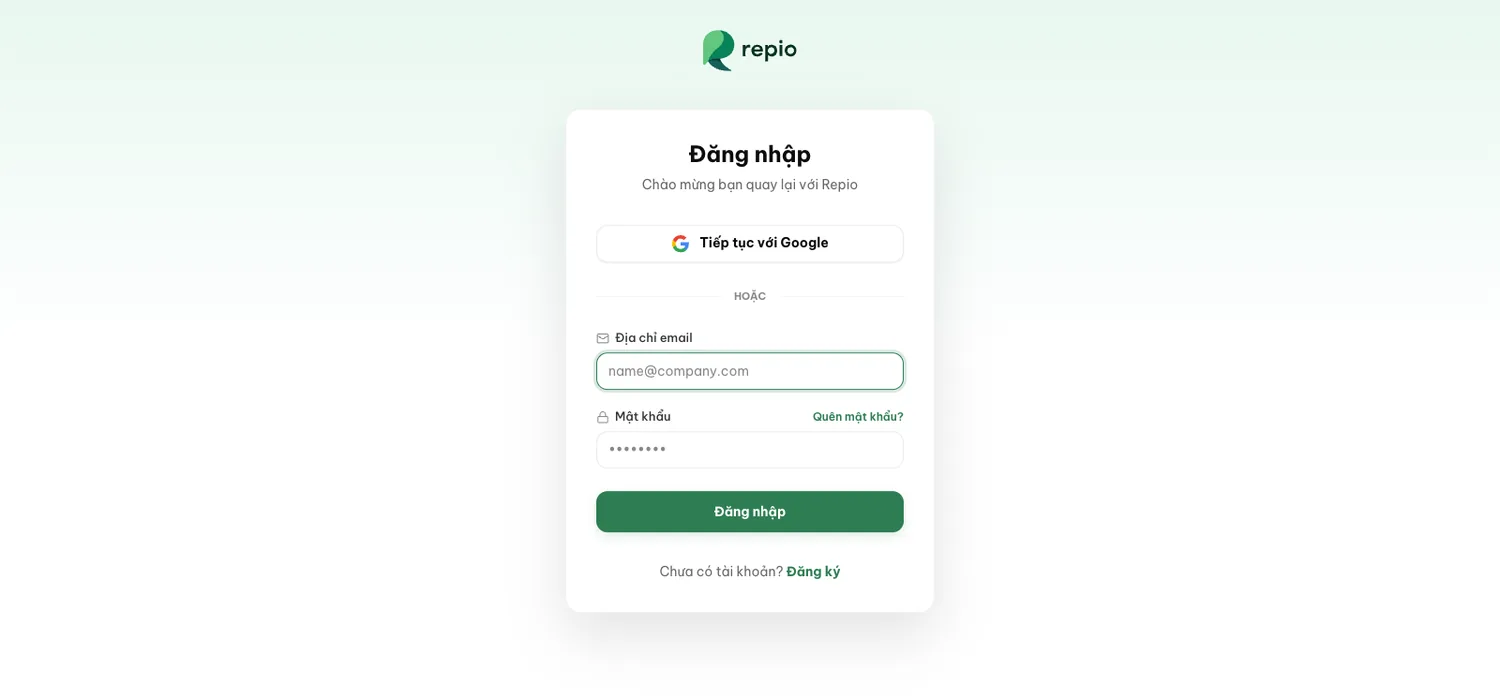
Note: Too many failed sign-ins locks the account temporarily. Repio emails you an “Unlock account” link; clicking it restores access.
An admin invites you by email with a role already attached. Open the link, set a password, and you are in.
The invitation page tells you your role and workspace scope before you accept.
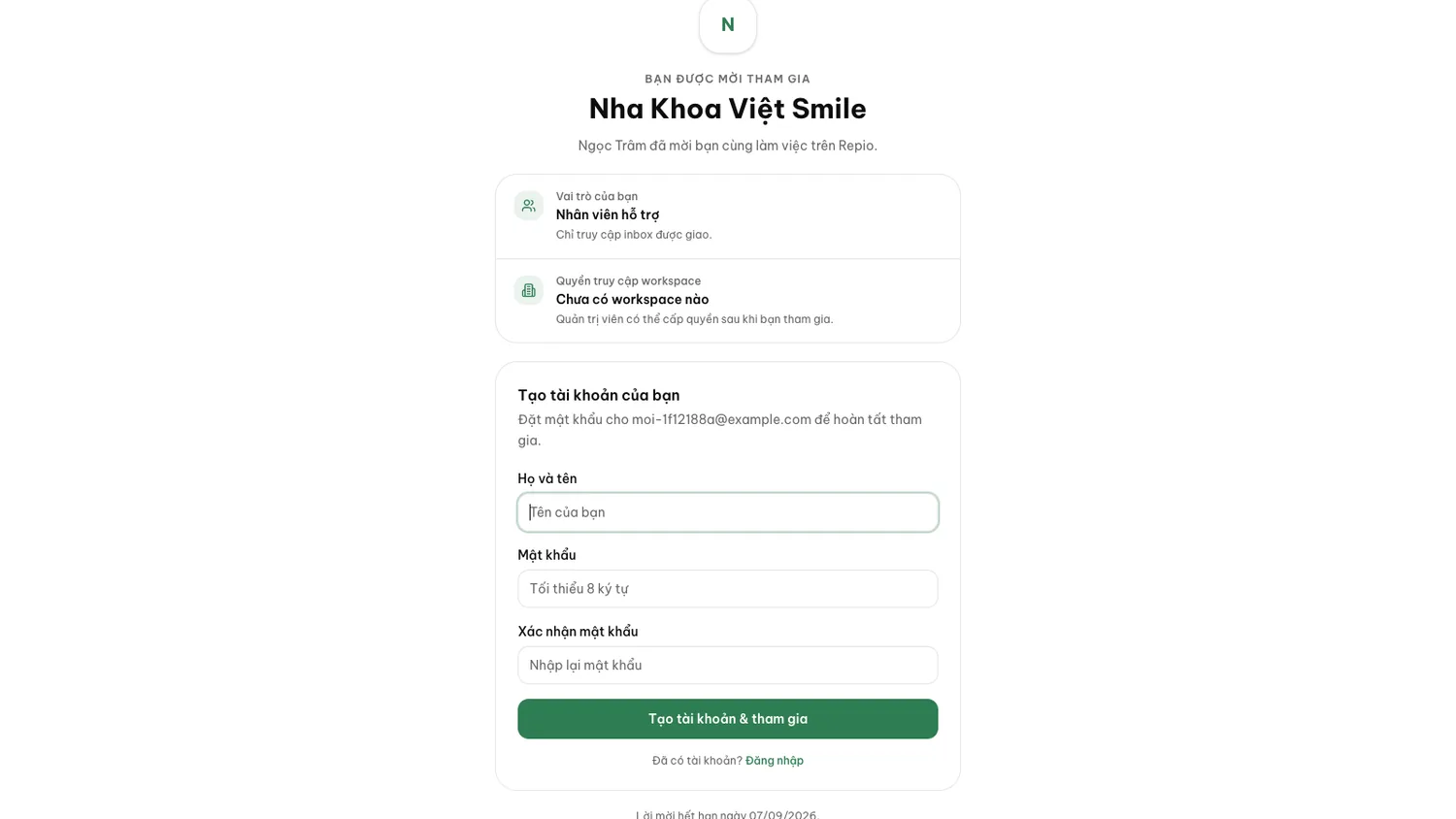
Note: Invitations expire after 7 days. If the link says it is invalid, ask your admin to send a new one.
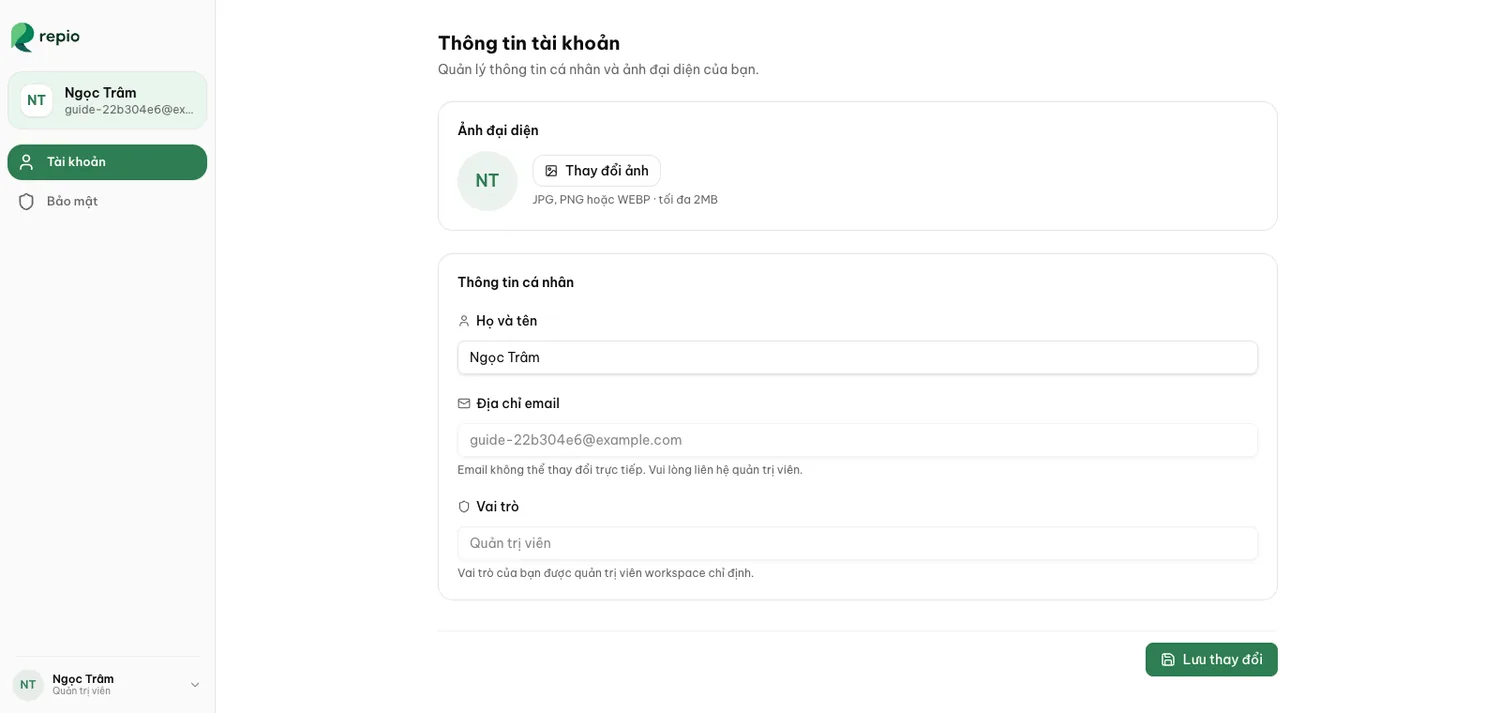
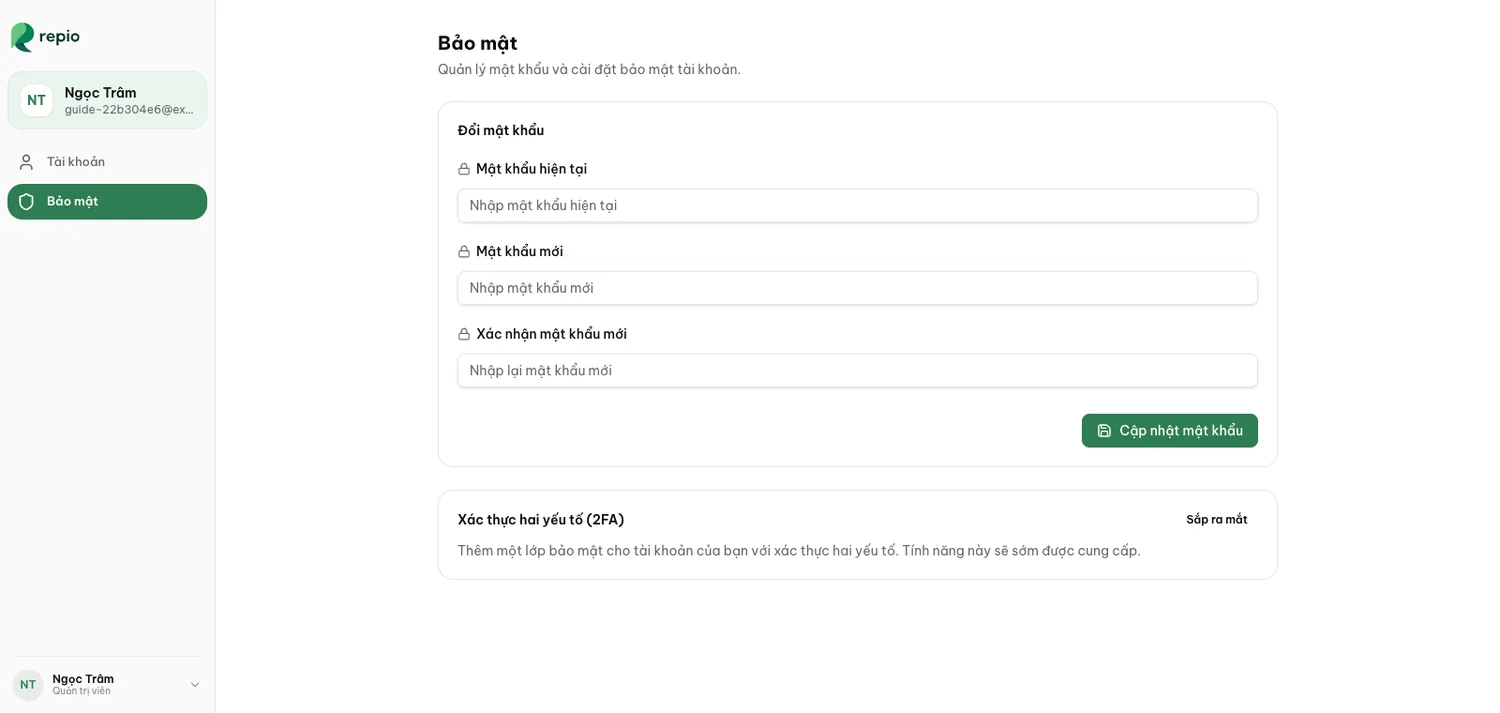
Open Personal settings to change your display name and avatar in the Account tab (JPG, PNG or WEBP, up to 2MB), and your password in the Security tab.
Your sign-in email cannot be changed from the app. Email hello@repio.io from the old address with the new one, and the Repio team will change it for you.