How Repio is structured: organizations & workspaces
Repio organizes your data in two layers: the organization is your business, and workspaces are the working areas inside it. Understanding these two first tells you where everything lives and who can touch it.
On this page1/4 · What each layer manages
Key terms
- Organization
- Your company. Say “Việt Smile Dental”: one legal entity, the one that signs up with Repio and pays for the plan.
- Workspace
- A branch or a department inside that company: a smaller unit than the organization. “Việt Smile Saigon” and “Việt Smile Hanoi” would be two workspaces of the same company, each with its own pages and its own team on duty.
The key thing to remember: some things are shared by the whole company, and some are kept separate per branch. The two settings screens below show the difference.
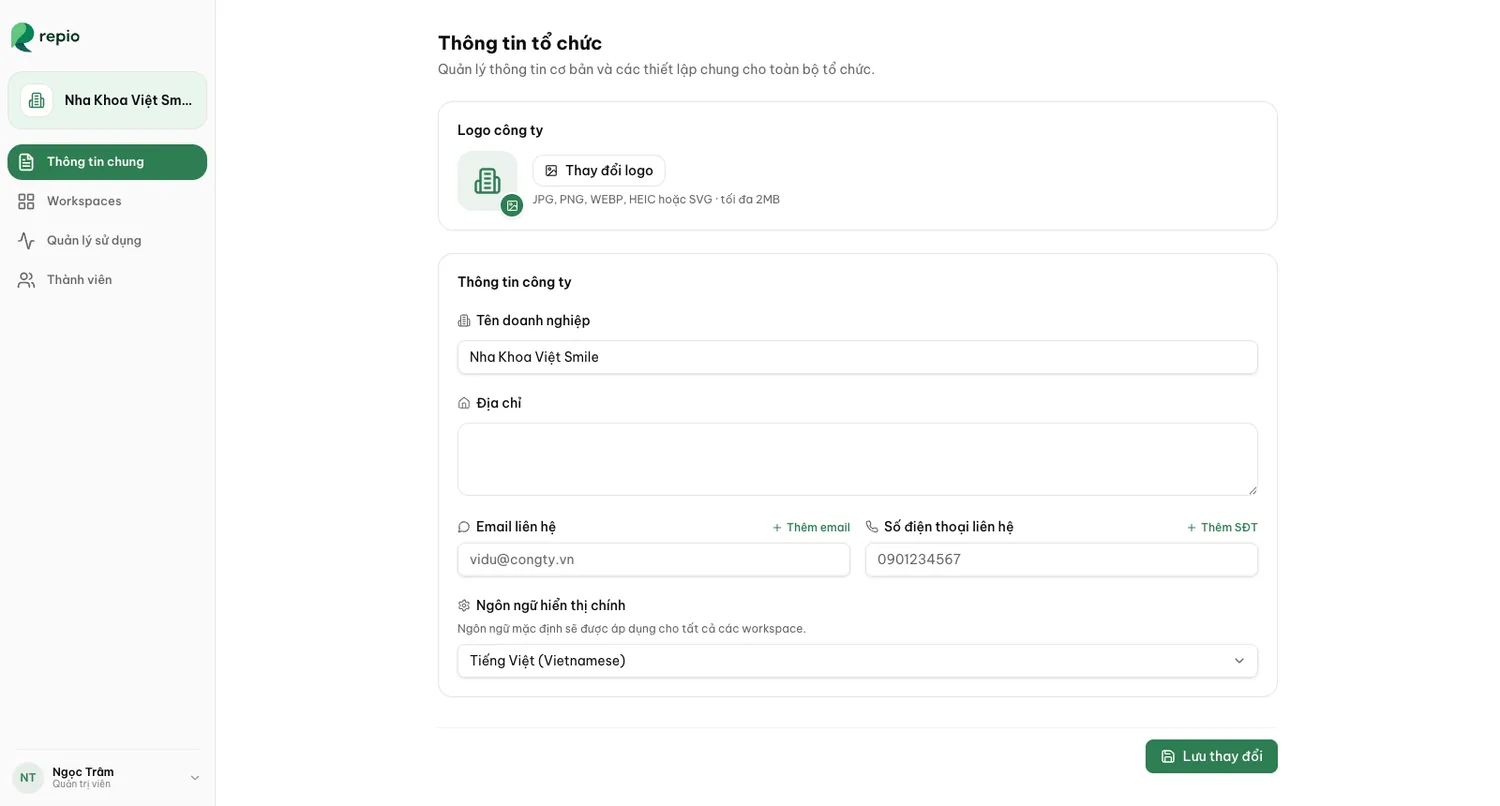
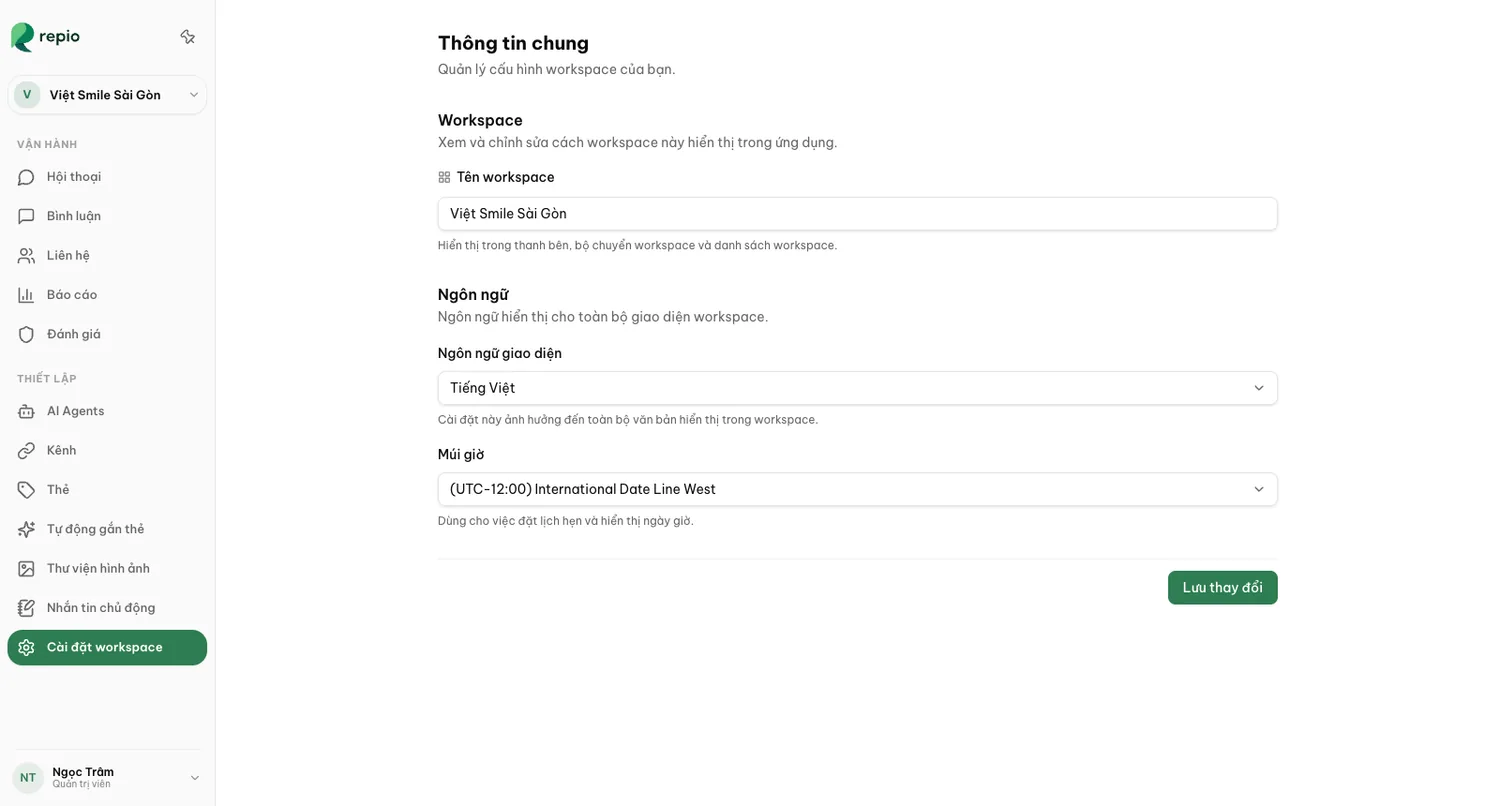
The organization holds what is shared
The member list and their roles, your plan, the AI message quota, and your business details. Managed under Organization settings.
A workspace holds the day-to-day work
Connected channels, AI Agents, tags, the media library, follow-up sequences and the inbox. Interface language and timezone are set per workspace too.
Tip: The practical consequence: an AI Agent can only cover channels in its own workspace, and a tag created in one workspace does not exist in another.
Most businesses only need one workspace.
Add more when business units genuinely have to run separately: one per branch or brand, each with its own pages, AI Agents and support team.
Admins create workspaces under Organization settings → Workspaces.
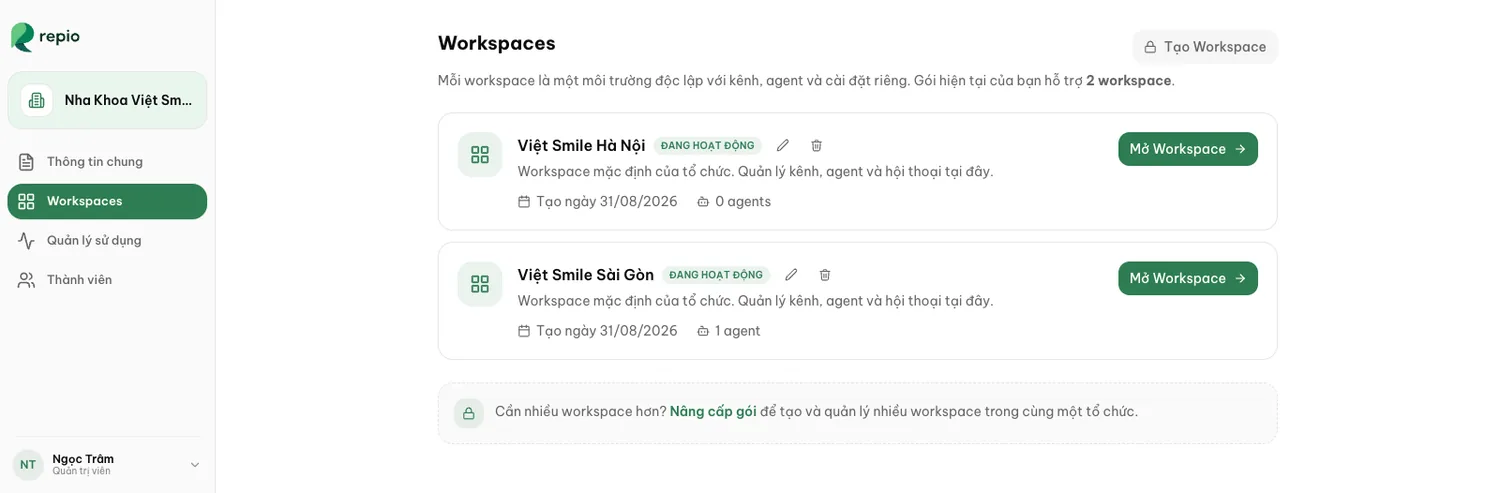
Note: You cannot delete an organization’s last remaining workspace.
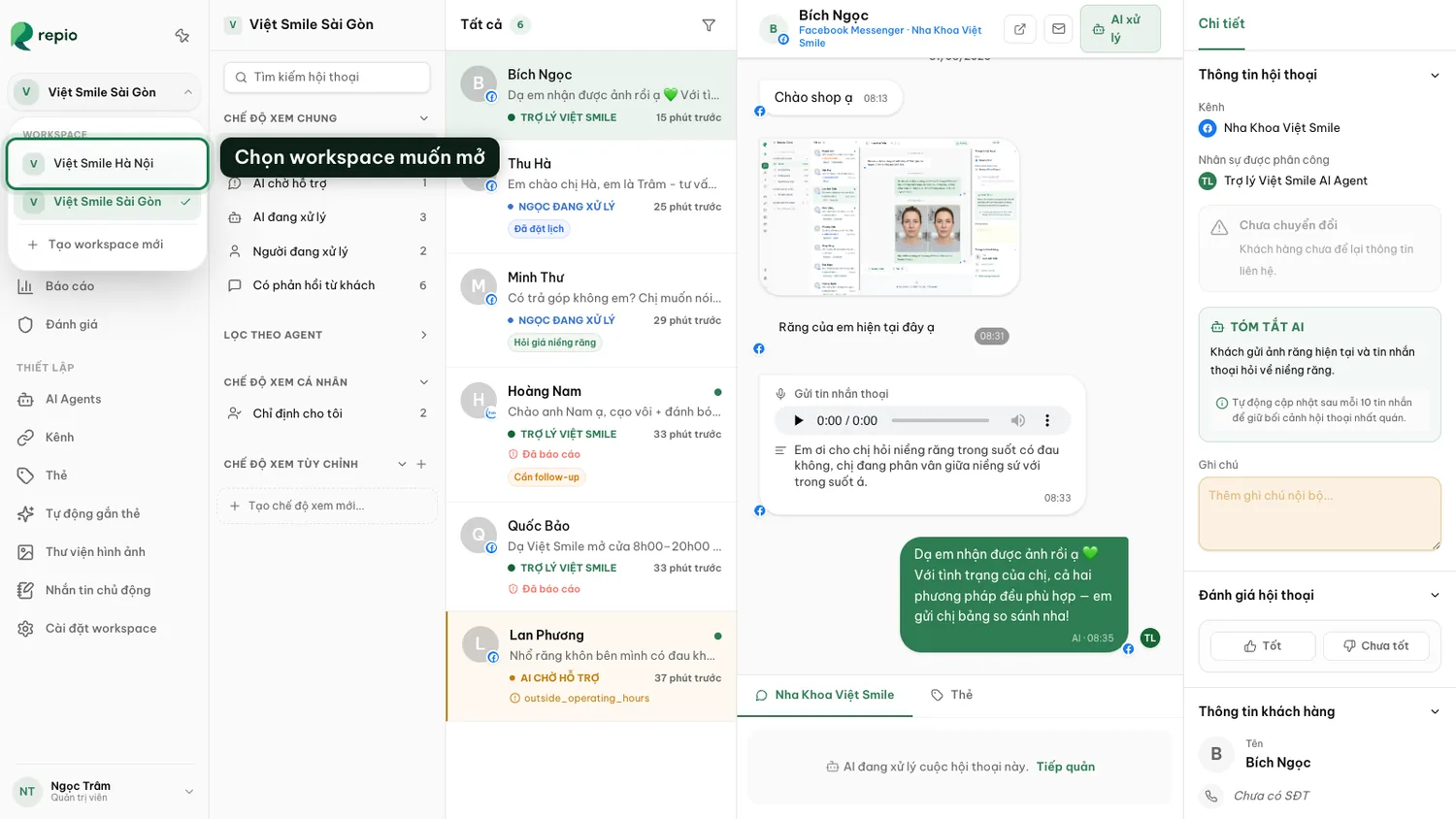
Click the workspace name at the top of the sidebar.
Pick the workspace you want.
The list only shows workspaces you have access to.
Tip: If you belong to several organizations, your own company plus somewhere you consult for: the same menu switches those too. Repio remembers the most recent one for your next sign-in.
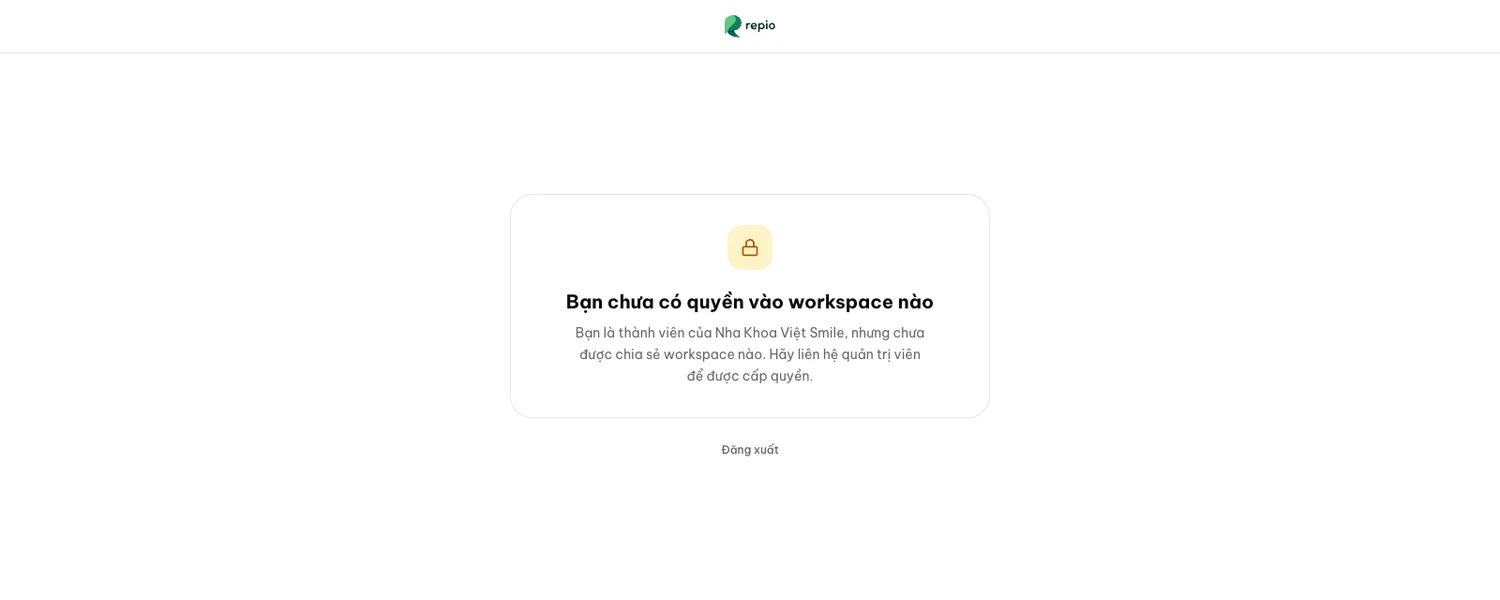
A newly invited support-staff member may not have been assigned a workspace yet. You then see the screen below instead of the inbox.
This is normal, not an error. Ask an admin to open Organization settings → Members and assign your workspaces and channels.