Replying to customers
The composer sits at the bottom of every conversation. Type and press Enter to send, attach media, or insert an answer you saved earlier.
On this page1/4 · The two buttons under the composer
Do these first
This only works once you have finished the following:
- 1
AI–human handoff: While the AI is handling a conversation the composer is locked. You have to take over before you can type.
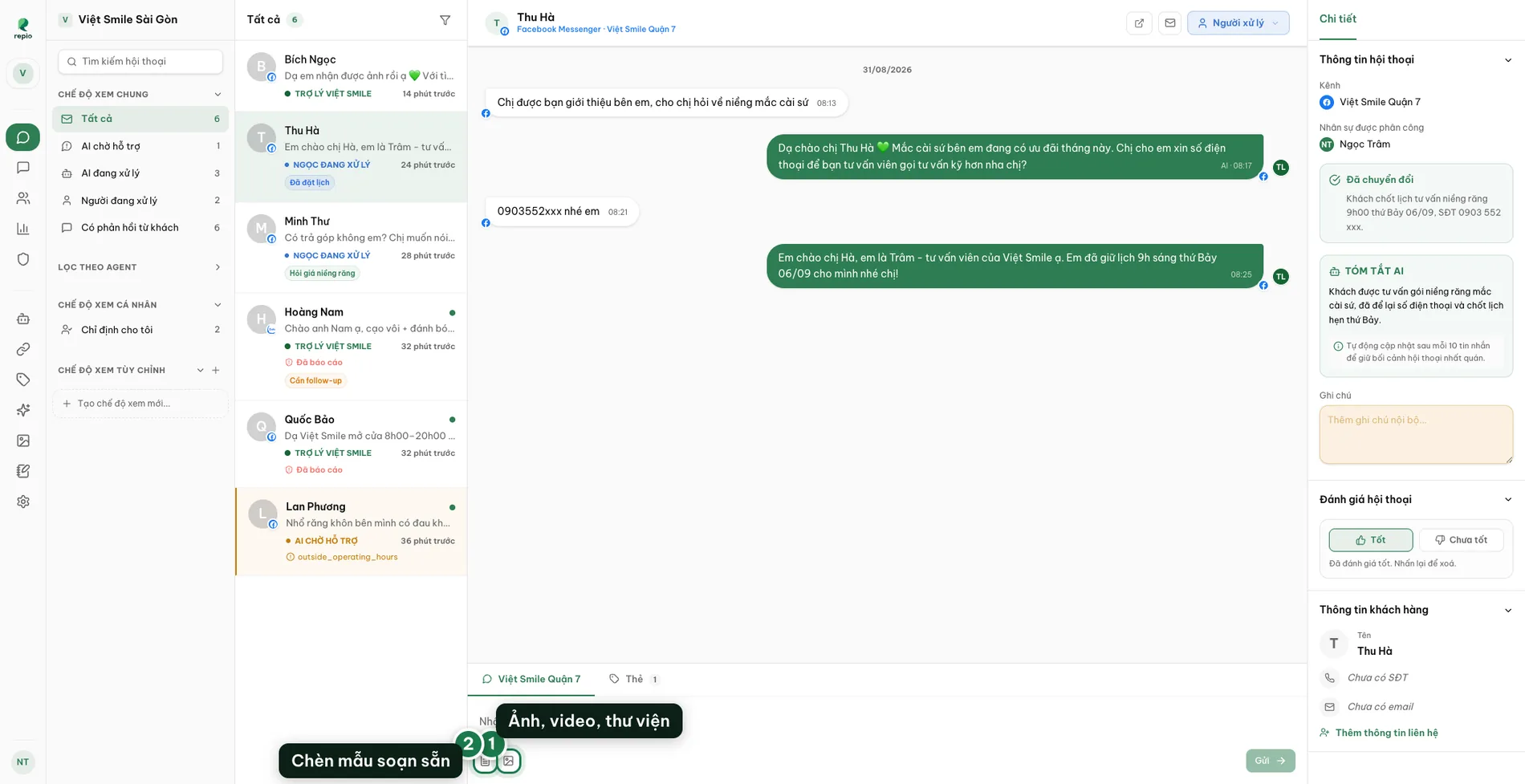
The Templates button (1)
Inserts a pre-written answer into the composer. Type a few letters to find the right one.
The Attach media button (2)
Opens a picker showing the whole workspace media library, with an Upload button to add a new file from your device.
Tip: Enter sends. Shift+Enter adds a line break without sending.
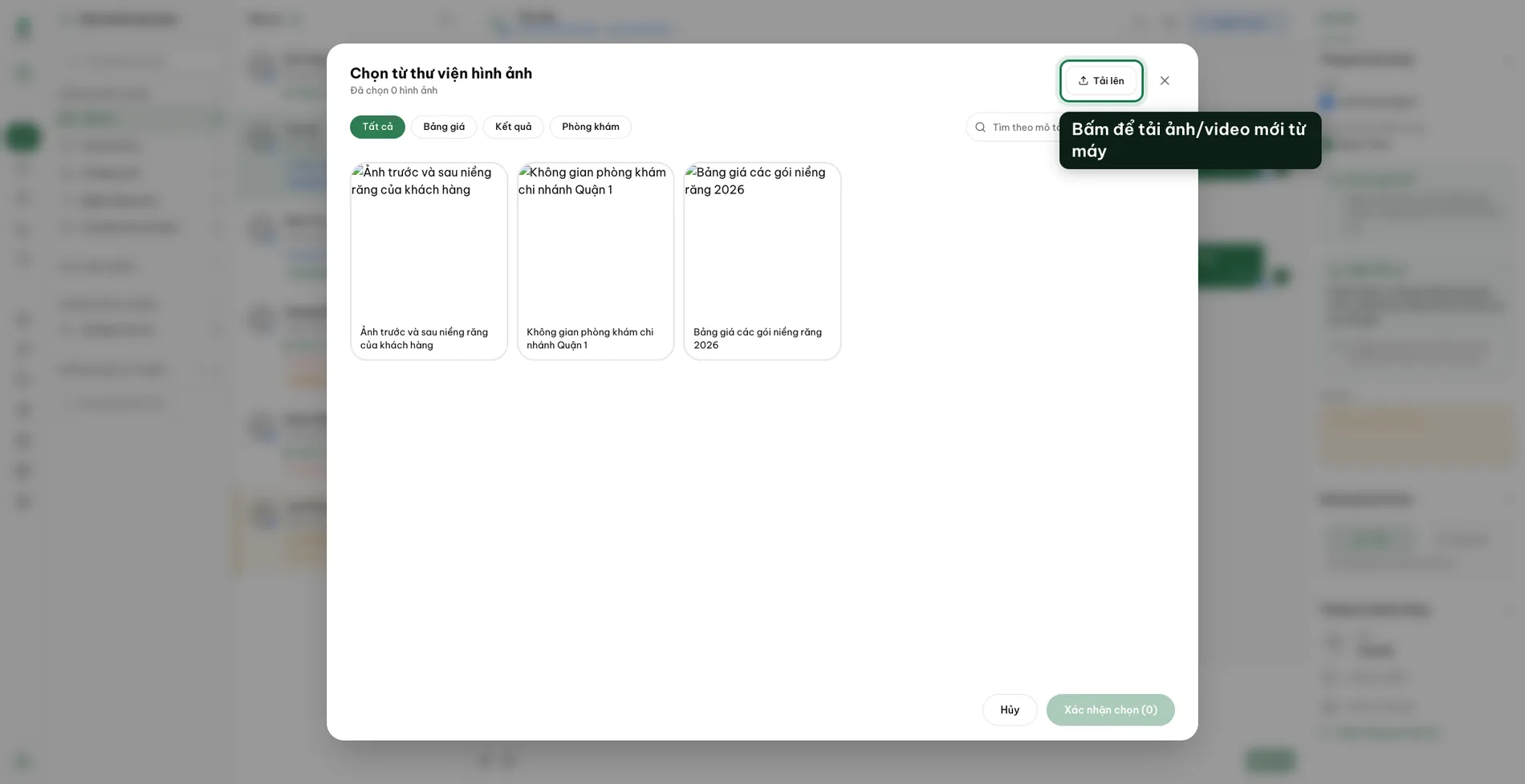
Click Attach media under the composer.
Pick an existing asset from the media library, or click Upload to add a new file from your device.
Formats the current channel cannot send are greyed out, unselectable, and sunk to the bottom.
Tick the assets to send, then click Confirm selection.
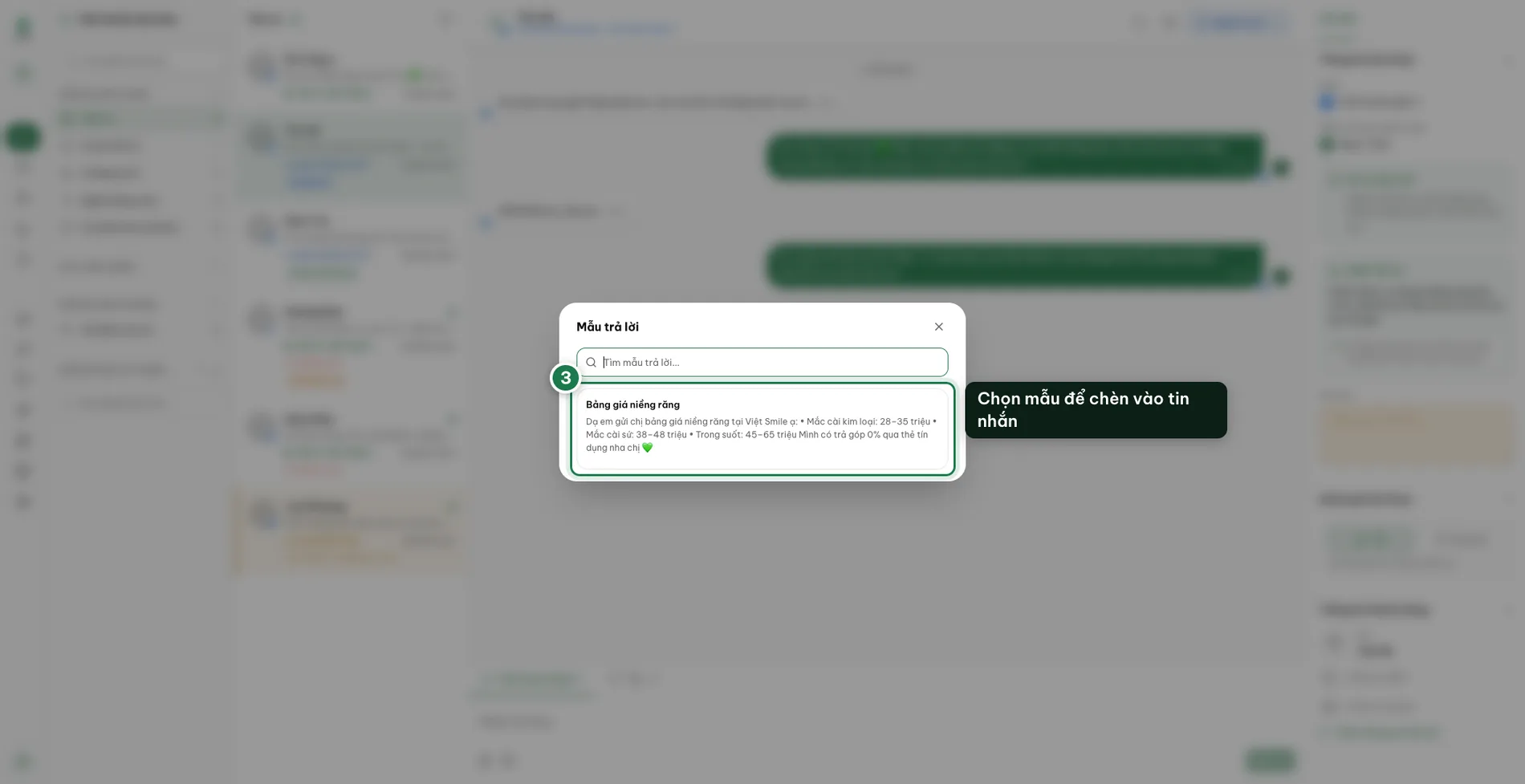
Click the saved-replies button.
Type a few letters to filter the list.
Pick one. Its text drops straight into the composer.
You can still edit it before sending.
Every messaging platform has its own rules. When a send fails, Repio states the reason right under that message instead of failing silently.
- “Conversation is locked by the channel’s messaging-window policy.”: more than 24 hours since the customer’s last message. You have to wait for them to write again. To optimize engagement, you can set up follow-up sequences to reach out and follow up automatically while the 24-hour window is still active.
- “This contact has blocked this channel. Messages cannot be sent.”: they blocked your page, so nothing more can be delivered.
- “This channel is disconnected. Reconnect it from Channels to send messages again.”
- “This media can’t be sent on this channel: the video is too large or the channel doesn’t support video.”
- “<name> is handling this conversation.”: a colleague took it over while you were typing. Hand it back to the AI and take it over again, or let them answer.
Tip: The first three are the messaging platform’s rules rather than Repio’s, so there is no way to force a send. Repio just states the reason instead of failing silently.