Rating conversation quality
When you spot a conversation the AI handled badly, report it on the spot. Each report is a concrete example the team uses to fix the agent.
On this page1/3 · Reporting a bad conversation
Do these first
This only works once you have finished the following:
- 1
The unified inbox: You rate a conversation from its details panel in the inbox.
The two buttons sit side by side in the details panel. Good records the instant you click it. Nothing to fill in. Needs review opens the report form the steps below walk through.
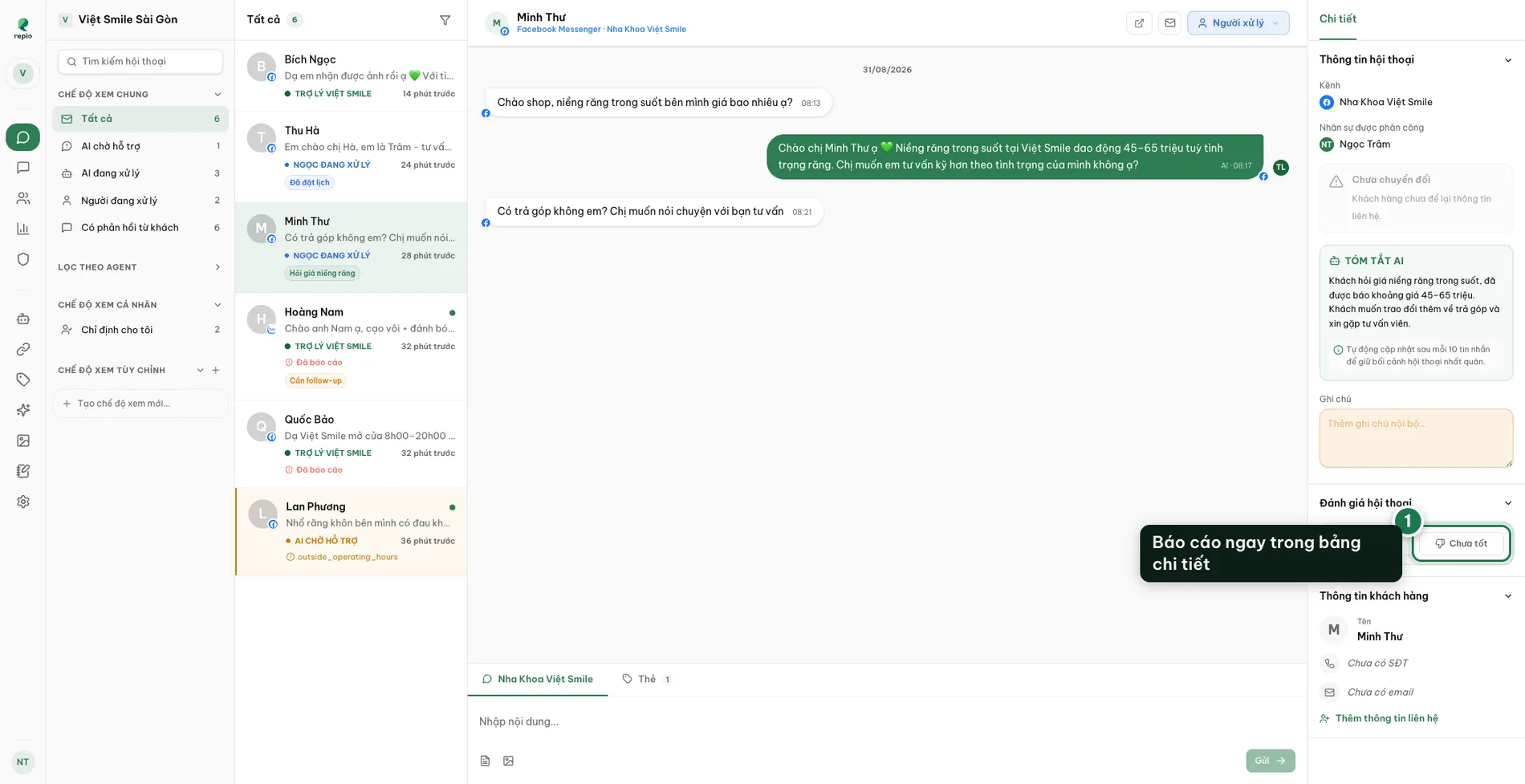
Click “Needs review” in the conversation details panel.
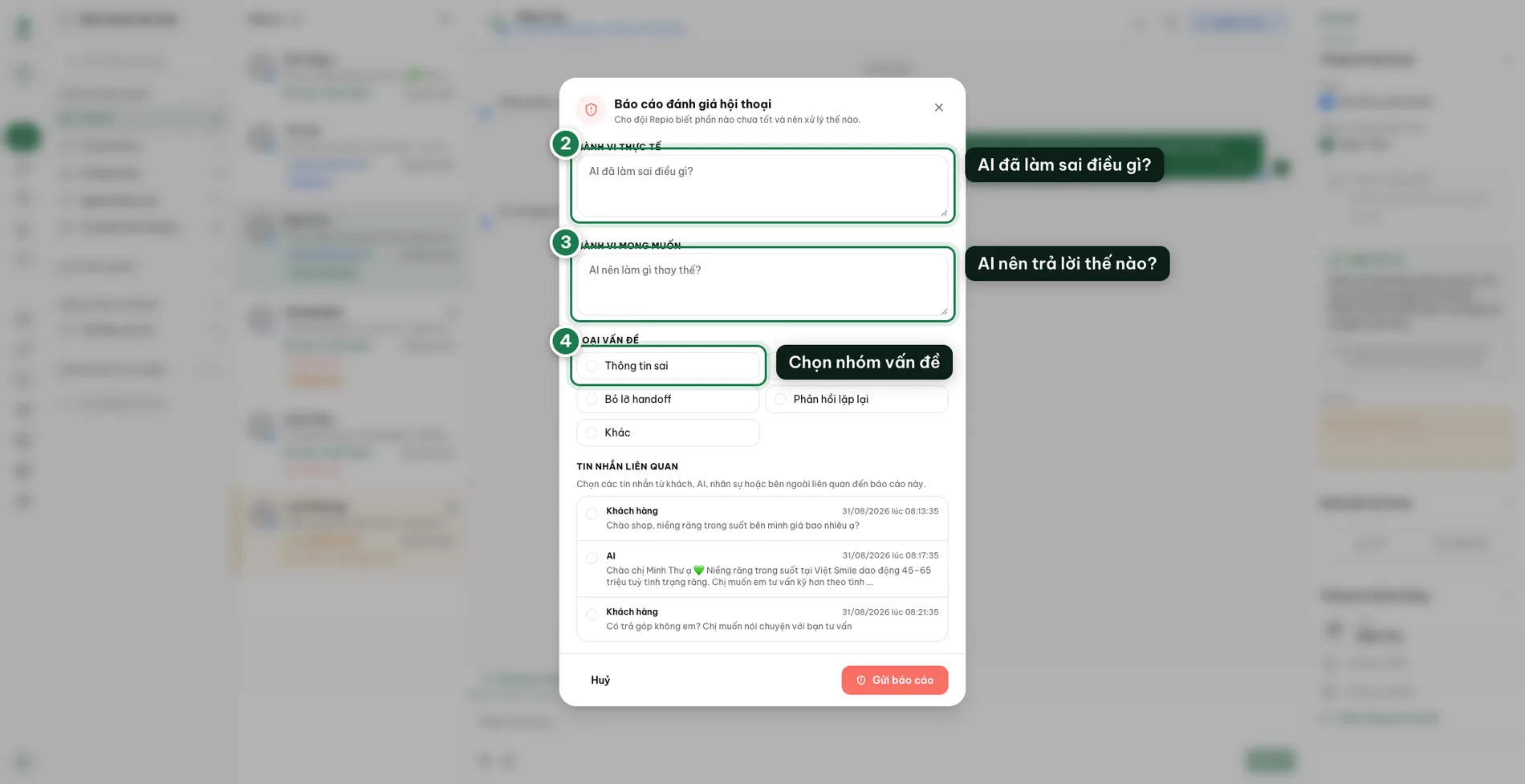
Answer: what did the AI do wrong?
Describe what actually happened. The more specific, the easier to fix.
Answer: what should it have done instead?
This becomes the model answer the team tunes the prompt against.
Pick the issue category.
Wrong information, tone mismatch, missed handoff, repetitive response, or other.
Tick the related messages, then send the report.
Whoever reviews it sees exactly the right excerpt instead of re-reading everything.
Note: Each conversation takes one rating. If a colleague reported it first, you see “This conversation has already been rated by another staff member.” instead of the form.
A rating you submitted yourself can be edited or withdrawn at any time, with nobody’s help.
- Edit the report: click the Edit link next to the “Report submitted” line. The form reopens with everything you wrote.
- Withdraw the report: click Needs review a second time. The hint under the button says as much: “Report submitted. Click Needs review again to clear.”
- Undo a good rating: the same way, click Good again: “Marked as good. Click again to clear.”
Tip: Withdrawing a report you sent by mistake is routine and leaves no trace. Do not hesitate to click Needs review for fear of getting it wrong. It is easy to undo.
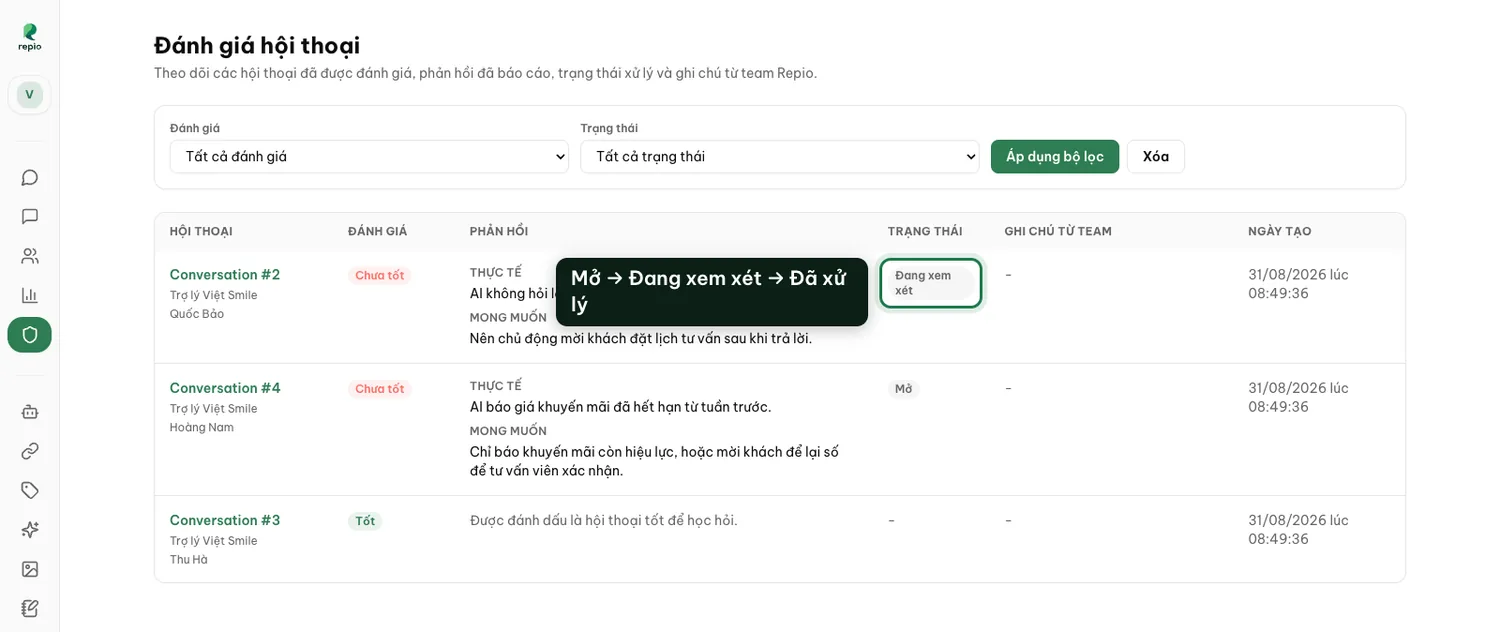
Every rating lands on the workspace Ratings page. Filter by type (good or needs review) and watch the status: open, in review, resolved.
The Repio team updates the status and remediation notes on each report; your admins monitor that progress right here (read-only).
The number of issues over time is also charted in Reports.