Reading workspace reports
Reports show how much of the work the AI carries and how well it closes: four headline numbers, a conversion funnel comparing the AI with your staff, and a reported-issues chart.
On this page1/4 · Setting the period and filters
Do these first
This only works once you have finished the following:
- 1
The conversation details panel: The conversion figures come from each conversation’s conversion status.
- 2
Rating conversation quality: The reported-issues chart counts exactly the “needs review” ratings your team submits.
Key terms
- Conversion
- A conversation that produced a result: a phone number left, an appointment booked, or whatever goal you set for the agent. The AI marks it during the conversation; staff cannot set or clear it. See the conversation details panel.
- Handler
- Who answered the customer in that conversation: only the AI, only staff, or both together.
- Reach
- The funnel’s first stage: every conversation in the period, including someone who sent one message and vanished. Labelled “Customer contacted” on the chart.
- Engagement
- The second stage: conversations where the customer sent 2 or more messages. In other words they did not leave after their opening line. They actually talked. The chart states the rule: “Sent ≥ 2 messages”.
Pick the period.
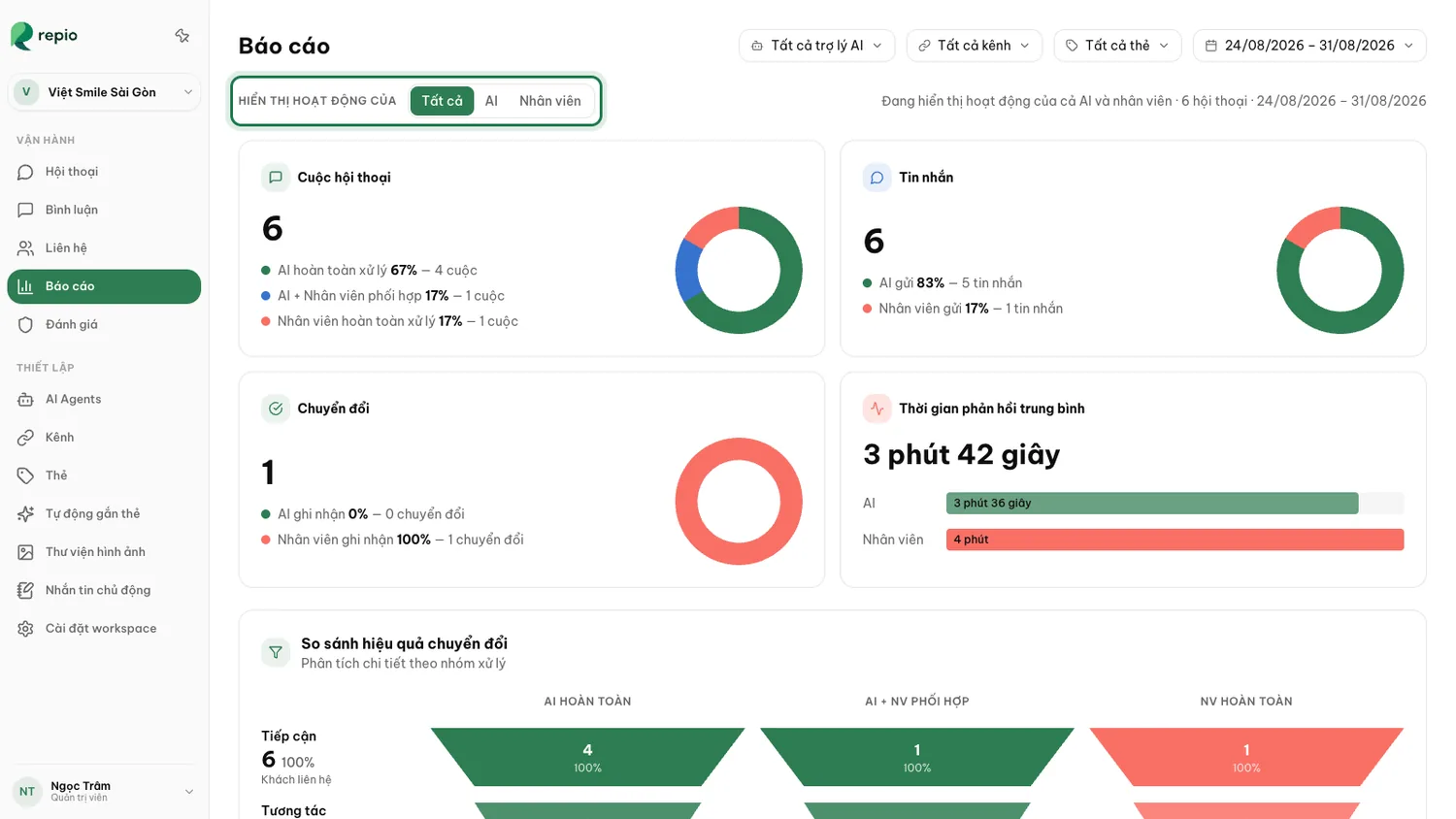
Presets run from today to the last 12 months, or pick Custom and enter your own dates.
Filter by agent, channel or tag.
These three filters can be combined.
Choose All, AI or Staff.
Separates AI work from human work inside the same filtered scope.
- Conversations: how many happened in the period.
- Messages: the total exchanged.
- Conversions: how many produced a result.
- Average response time: a direct speed comparison between the AI and your staff.
The “Conversion Efficiency Comparison” block splits conversations into three columns by who answered the customer: AI FULLY, AI + HUMAN COLLAB, and HUMAN FULLY.
Each column runs through three narrowing stages:
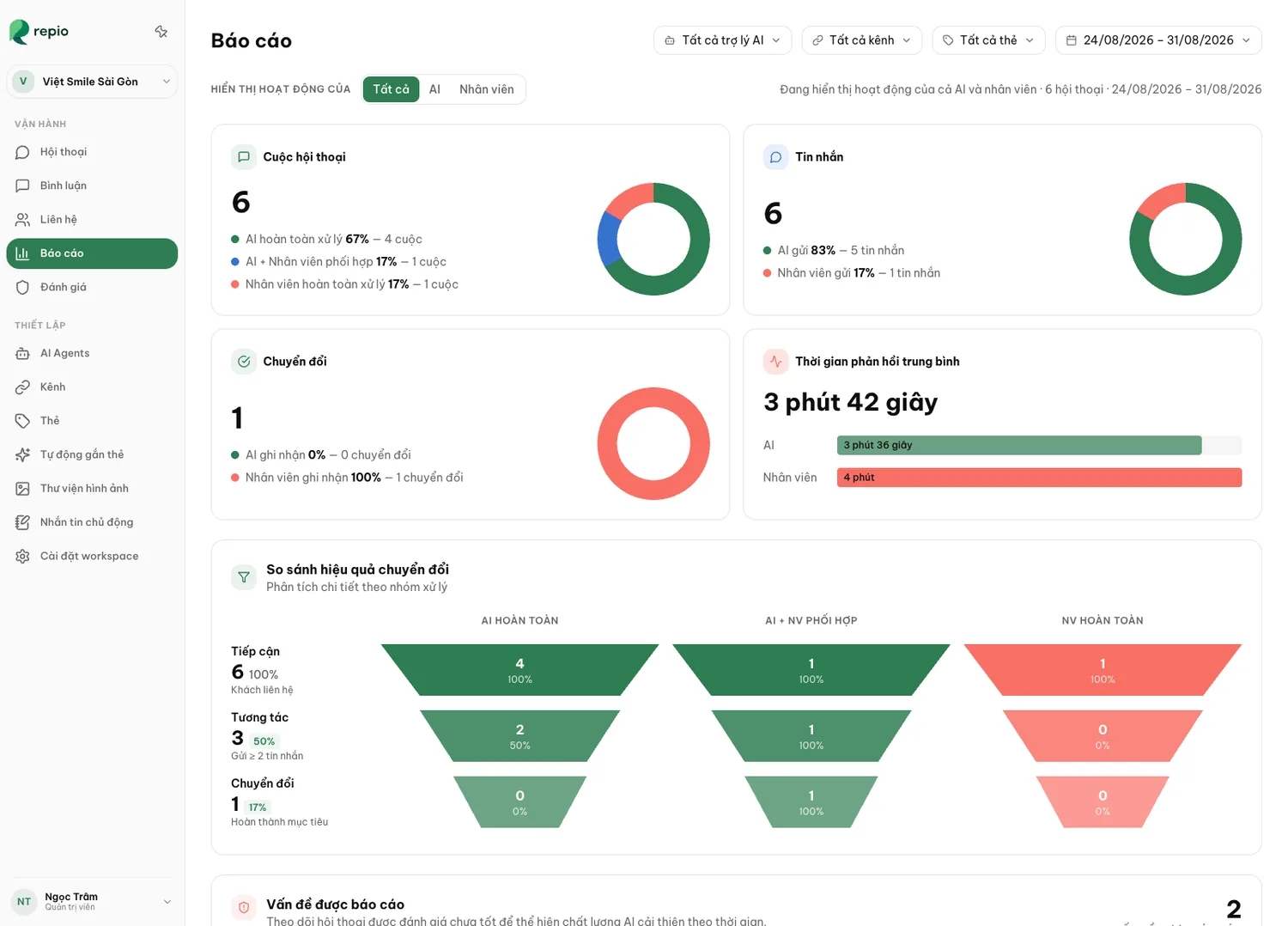
- “Reach”: “Customer contacted”. Every conversation in the period, nothing excluded. This is the denominator for the whole funnel.
- “Engagement”: “Sent ≥ 2 messages”. Only conversations where the customer wrote at least twice. They stayed and talked rather than leaving after the opening line.
- “Conversion”: “Goal completed”. The conversations the AI marked as having met the goal you set for the agent.
Tip: If the AI + HUMAN COLLAB group converts unusually badly, revisit the agent’s handoff conditions. One hypothesis to check: the AI may be holding customers too long before calling someone in, read a few of that group’s conversations to confirm.
Note: The percentages on each stage are computed against that column’s own Reach, not against all three columns. A column with 20 conversations therefore shows “50% converted” just like one with 2,000, read the absolute number beside it before concluding anything.
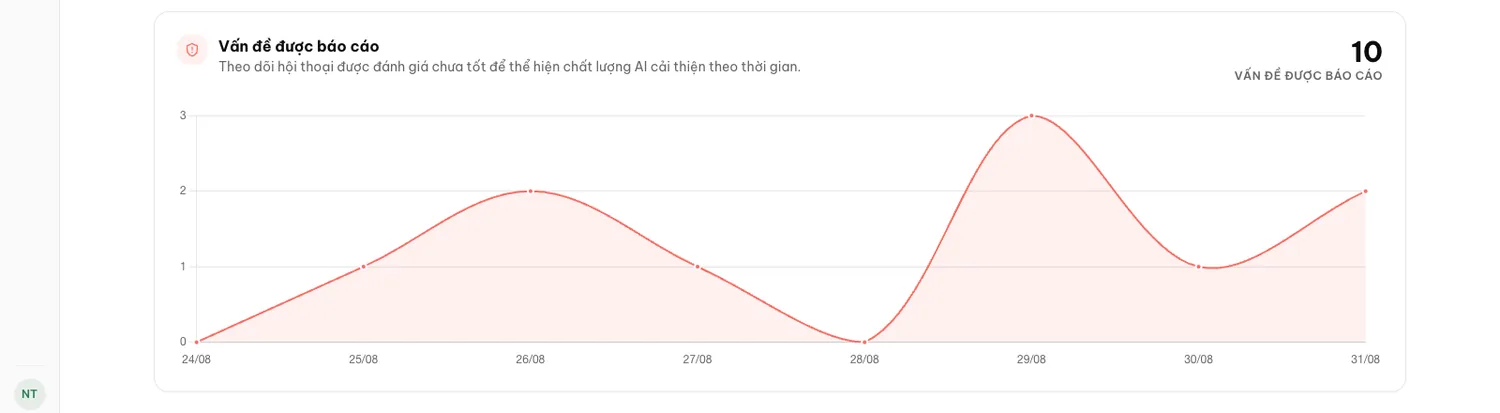
Reports also chart how many conversations were flagged as needing review over time.
That line falling after a prompt revision is a good signal, but not proof on its own: the count depends on how diligently your team reports, and on how many conversations there were. To compare fairly, keep the filters fixed and use two periods of equal length.