Auto-tagging
Relying on staff to manually tag every conversation inevitably leads to missed or inconsistent labels during peak chat hours. Auto-tagging automates conversation classification completely: either by letting AI read chat context and apply relevant tags, or by triggering tags on key events like a customer’s first message or when a deal converts.
On this page1/3 · Prepare your tags first
Do these first
This only works once you have finished the following:
- 1
Managing tags: You must create tags under "Tags" and enable "Allow AI to automatically apply this tag" so the AI has allowed tags to apply.
Key terms
- Trigger moment
- A specific event or milestone in a conversation that triggers tagging (e.g. on customer's first message, upon conversion).
- AI-permitted tag
- Tags you specifically enabled for AI under Tags. When set to "AI decides", the system only selects from this allowed list.
Before automating, open "Tags" (in the Setup group) to create your tags with clear names and colors (see tag guide).
For tags you want the AI to handle, toggle on "Allow AI to automatically apply this tag" and write a detailed description. The AI analyzes both the tag name and description against customer messages to decide. For example, describe “Braces pricing” as: “Customer asks about braces costs, instalment plans, or clear aligner fees”.
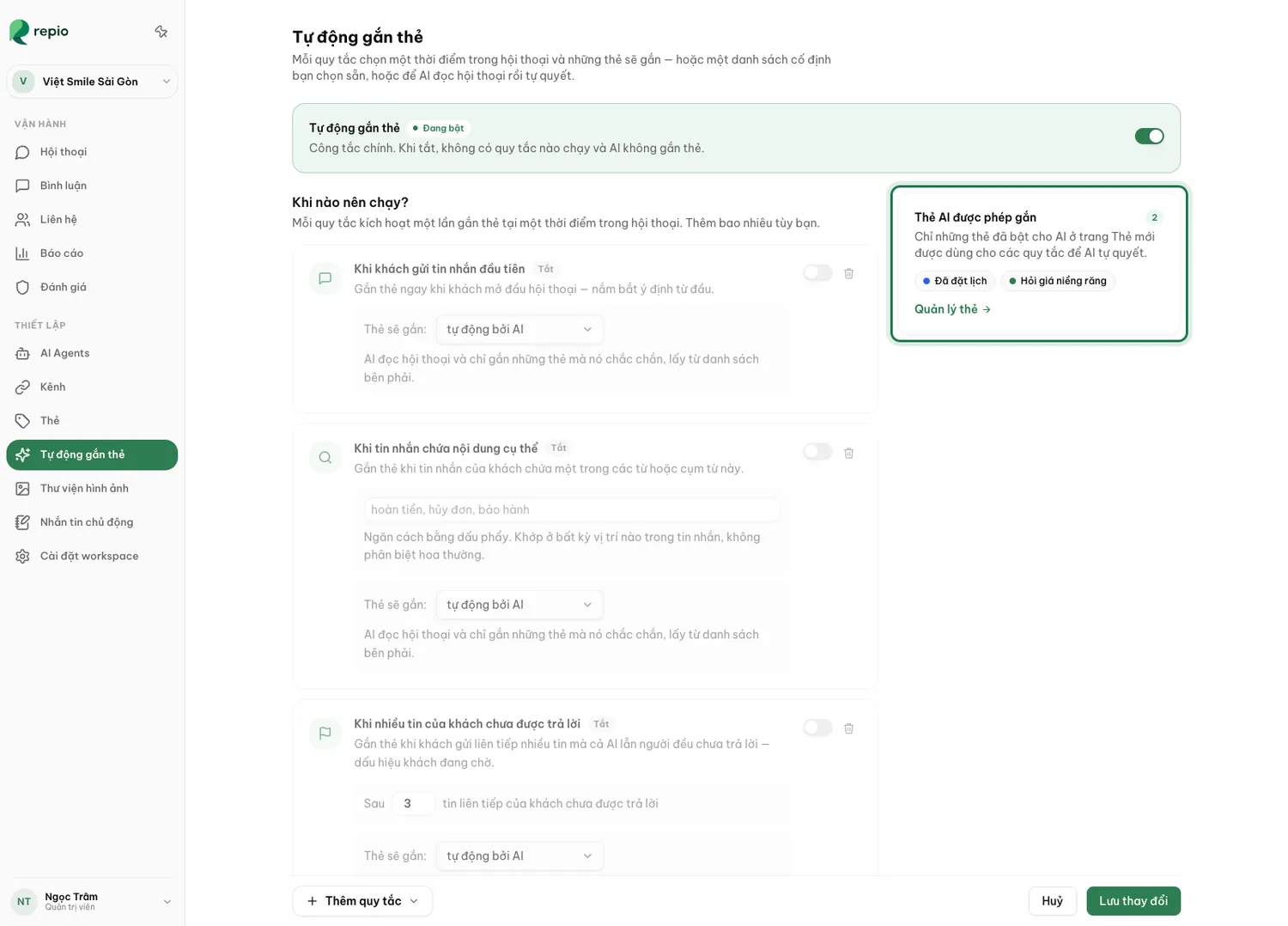
Open "Auto-tagging" and turn on the master switch.
Toggle the master “Auto-tagging” switch at the top to “Enabled”. If turned off, all rules below are paused.
Click "+ Add rule" and choose a trigger moment.
Repio provides 8 built-in trigger moments. You can add as many rules as your operational workflow requires.
Select the tagging method for each rule.
Under “Tags to apply”, pick either:
1. “AI decides”: The AI reads the conversation and tags only when confident, choosing exclusively from the allowed list on the right.
2. “Fixed set”: You specify fixed tags to apply automatically every time the event fires (applicable to any tag in the workspace).
Click "Save changes" to finish.
Configured rules take effect immediately on incoming conversations.
Tip: Workflow tip: Operational tags like “Needs call back” or “After hours” should be applied via fixed rules rather than delegated to AI, preventing accidental customer-facing tagging.
The 8 trigger moments fall into two distinct groups:
- Content or attribution triggers: Ideal for AI semantic analysis or campaign tracking.
- Conversation event triggers: Ideal for operational fixed-tag workflows.
- “On customer’s first message”: Fires immediately on new conversations to capture initial intent.
- “When message contains specific words”: Matches your keyword list (comma-separated, case-insensitive). Allows multiple sub-rules for different keyword sets.
- “When conversation comes from a specific ad”: Matches Facebook ad campaign names to attribute customer acquisition source.
- “When several customer messages go unanswered”: Triggers when multiple incoming messages sit without a reply (default: 3 messages).
- “When a customer has waited too long”: Flags when wait time exceeds threshold (default: 2 hours).
- “When AI asks for a human”: Automatically tags any conversation flagged for human handoff.
- “When conversation converts”: Tags customers who reached conversion goals (left phone number or booked appointment).
- “When conversation goes idle”: Triggers after a period of customer silence (default: 30 minutes).
Tip: Smart memory: If AI applies an incorrect tag, simply remove it in the conversation view. Repio remembers and will never re-apply that tag to that conversation.