Exporting customers
Need customer data in Excel for a campaign, a reconciliation or a report? Export it straight from Contacts, choosing exactly which customers and which columns.
On this page1/2 · Creating an export
Do these first
This only works once you have finished the following:
- 1
The customer directory: You start an export from Contacts, and it uses the same filters as the directory.
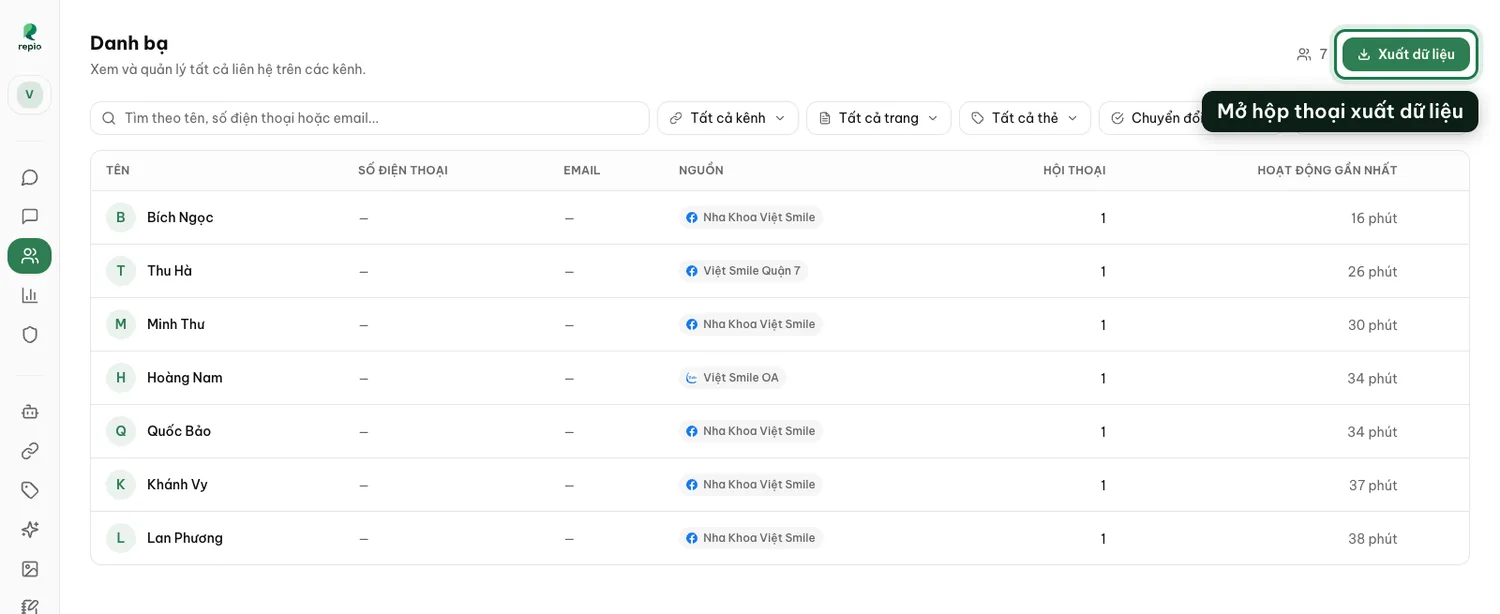
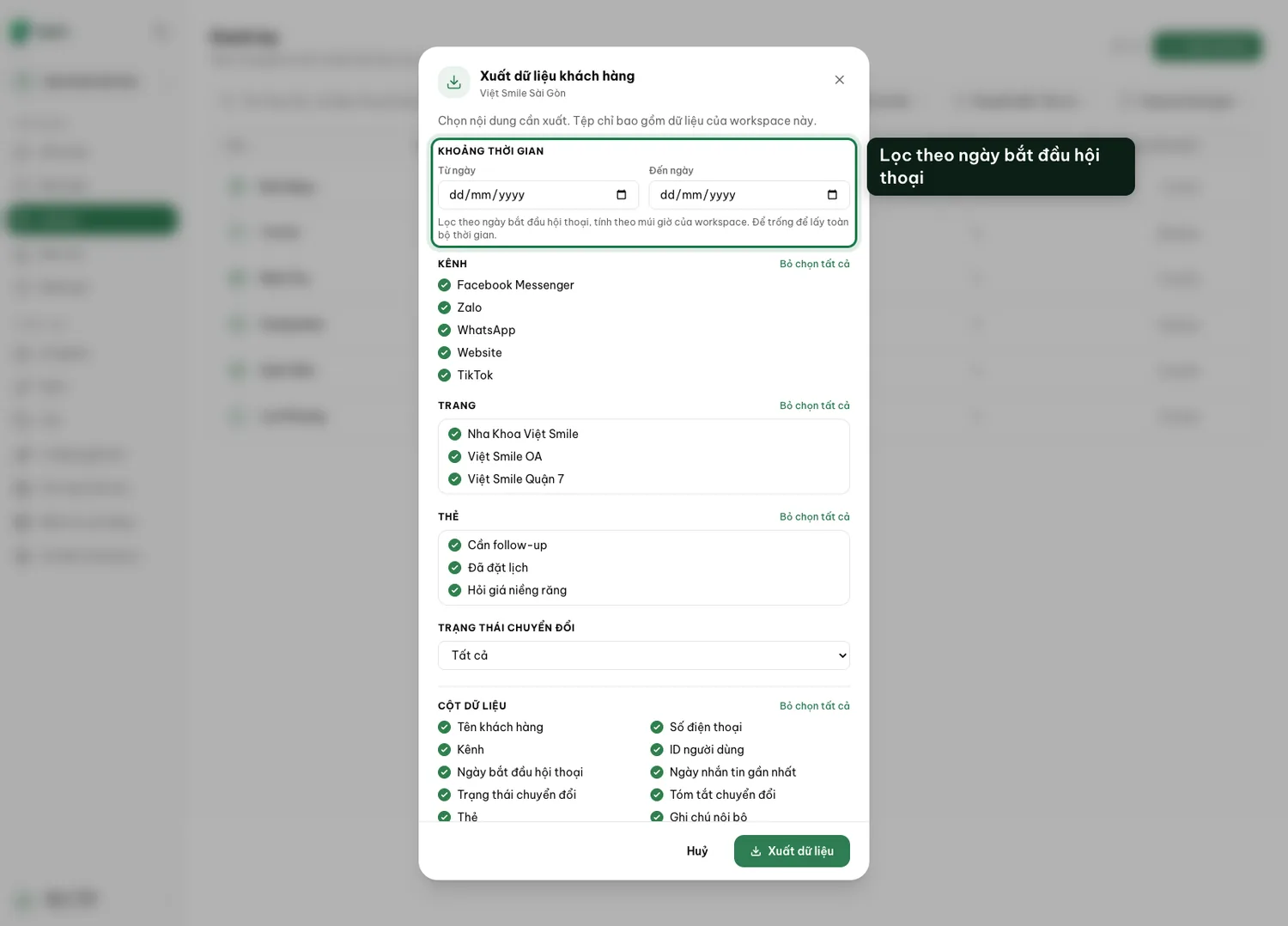
In Contacts, click Export.
Set the date range.
It filters on the conversation start date, in the workspace timezone. A customer is included if at least one of their conversations started in the range, and each matching conversation is one row in the file, so a customer with several conversations takes several rows. Leave it empty to take everything.
Choose channels, pages, tags and conversion status.
Filtering here is much tidier than exporting everything and trimming it in Excel.
Tick the columns you need.
Name, phone, channel, last-message time, conversion status and the conversion summary: a one-line note the AI writes about what the conversation achieved, tags, internal notes.
Click Export.
Repio previews the row count (“About … customers will be exported.”), then starts building the file.
Wait in the dialog, then click Download.
The download button appears inside that same dialog: not by email, not in a notifications area. It changes from “Generating export...” to “Your export is ready, … customers.” with a Download button. The dialog says as much up front: “We’ll put a download link here as soon as the file is ready. You can keep working.” It builds in the background so you can keep working, just do not close the dialog if you want to grab it straight away.
Note: If you closed the dialog, reopen Export to get the download link for the run in progress. Past 24 hours Repio says “That export is no longer available. Run a new one.”, just run it again with the same filters.
- Only the person who requested the export can download it. Customer data is not left for anyone else to fetch.
- The download link expires after 24 hours. Run a fresh export if you need it again.
- One active export per person at a time. Wait for the current one to finish before starting another.