Message templates
Instead of retyping the same price list, address, or greeting for every customer, message templates let you save standard replies once and reuse them anywhere. Templates also serve as the core content library powering Repio’s automations, including follow-up sequences and Facebook comment auto-replies.
On this page1/4 · Two template types: Fixed and AI-guided
Key terms
- Message template
- A saved piece of content organized under Proactive messaging → Templates, making it easy to find and reuse.
- Saved reply
- The quick-insert button in the Inbox composer that lets staff insert fixed templates into chats in a single click.
Repio offers two template types suited for different consultation needs. Understanding how each works helps you choose the right format from the start:
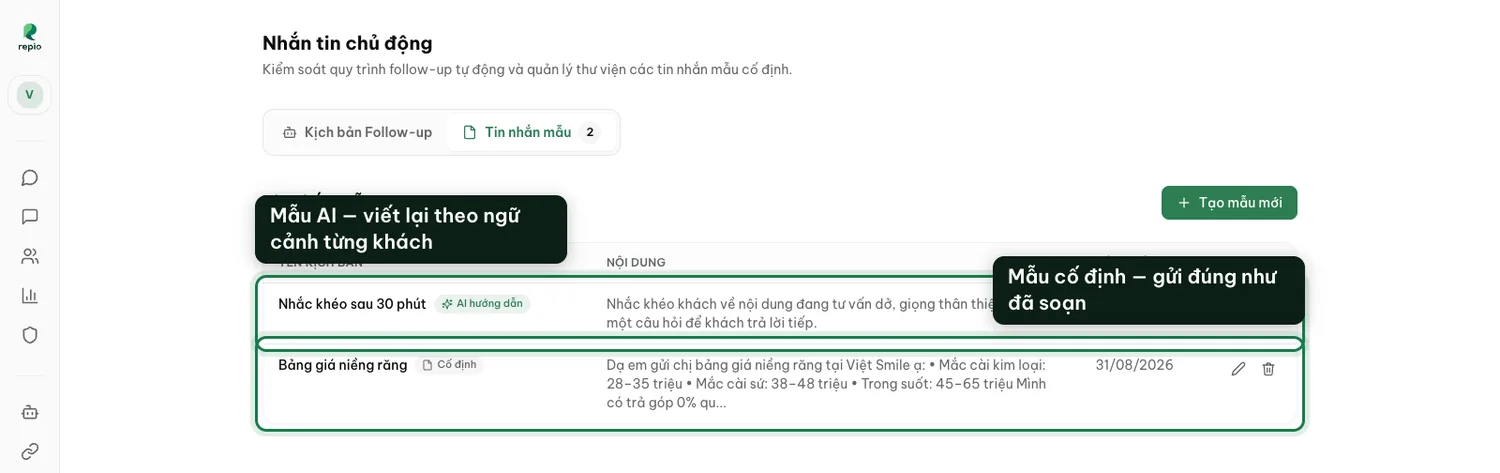
Fixed template ("Fixed" badge)
Sent word for word exactly as you wrote it. Ideal for information that must never change: price lists, clinic addresses, bank accounts, or warranty terms.
AI-guided template ("AI-guided" badge)
Instead of writing out exact phrasing, you provide high-level intent or instructions (e.g. “Remind the customer about this month’s braces promo and ask if they need more help”). The AI reads each customer’s specific chat history and generates a natural message tailored to their context.
Tip: You can attach images or videos from the media library to templates. Attached media will be sent alongside the message whenever the template is used.
- In the composer in Inbox: Staff click the "Saved reply" button to quickly insert standard answers while chatting live with customers.
- In a follow-up sequence: Each step in a sequence sends a designated template on schedule (supports both fixed and AI-guided templates).
- In Facebook comment automation: Used for automatic public replies under posts or private messages sent directly to the commenter’s Messenger.
Note: The "Saved reply" button in the composer only displays fixed templates. AI-guided templates do not appear here because their content is generated dynamically at automated execution time.
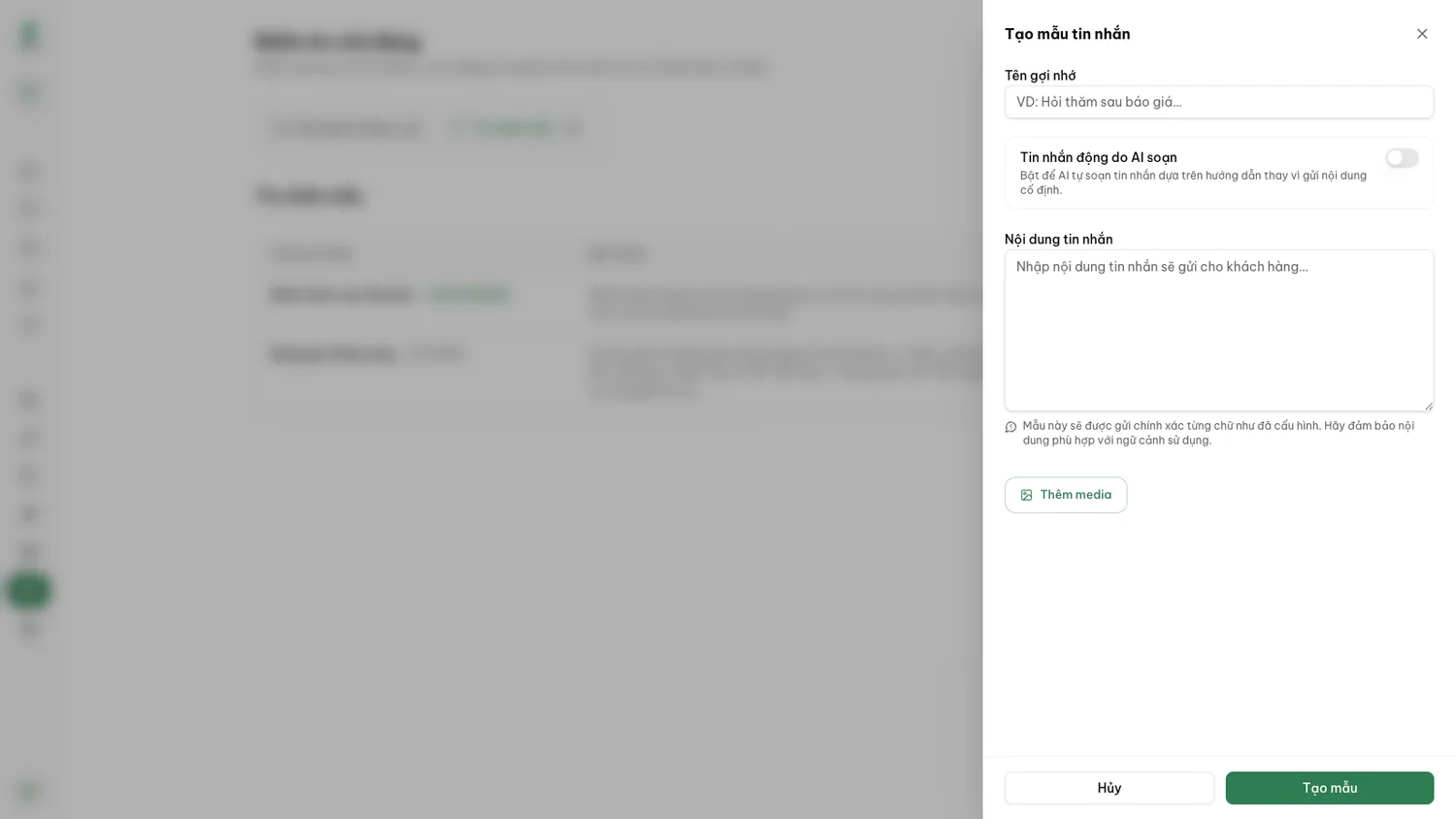
Open "Proactive messaging" and select the "Templates" tab.
Click "+ New template" in the top right. To edit an existing template, click the pencil icon at the end of its row.
Enter a "Template name".
Use a clear, recognisable name (e.g. “Braces pricing”, “Follow-up after quote”). This name is only seen internally by your team; customers never see it.
Choose the template type using the "Dynamic message with AI" switch.
Leave off for a fixed template (sent word for word). Turn on for an AI-guided template (you provide the intent, AI crafts the words).
Write the "Message content".
For fixed templates: Type the exact complete message to send. For AI templates: Type guidance instructions for the AI (e.g. tone, specific services to mention, ending with an open question).
Attach media if needed and click "Create template".
Click "Add media" to pick images or videos from the media library. Then click "Create template" (or "Save changes" when editing) to finish.
When a template is no longer needed, you can delete it from the list:
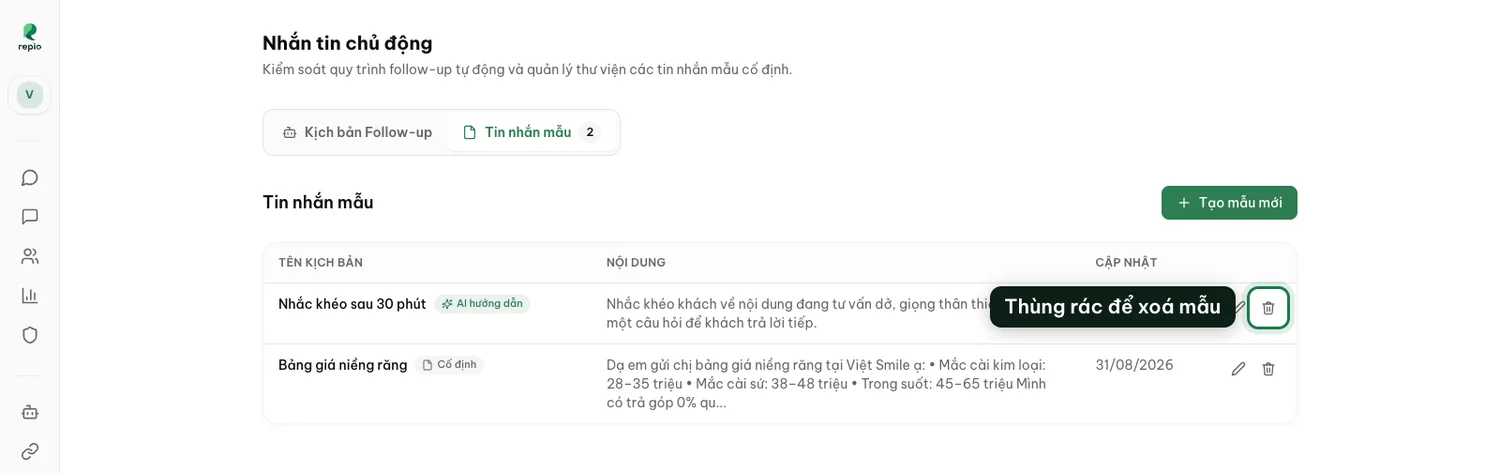
Click the trash icon at the end of the template row.
Repio displays a confirmation prompt to help you double-check before deletion.
Confirm deletion to finish.
This permanently deletes the template from your workspace and cannot be undone.
Note: A template currently used in a follow-up sequence or automation rule cannot be deleted immediately. You must open that sequence, remove or replace the template, and then delete it.