Automated follow-up sequences
A customer who asks for a price or service details and then goes silent is where most revenue leaks. An automated follow-up sequence messages them again after delays you set, keeping the conversation warm without your team having to remember.
On this page1/2 · Building a follow-up sequence
Do these first
This only works once you have finished the following:
- 1
Message templates: Every step in a sequence must pick a message template. With no templates, you cannot configure a step.
- 2
How AI Agents work: A sequence only runs once attached to an AI Agent. Without an agent, the sequence remains dormant.
Key terms
- Follow-up sequence
- An automated nurturing workflow comprising scheduled messaging steps, triggered when a customer stops responding after an initial conversation.
- 24-hour window
- Meta's messaging policy limiting automated follow-up messages to within 24 hours of the customer's last incoming message.
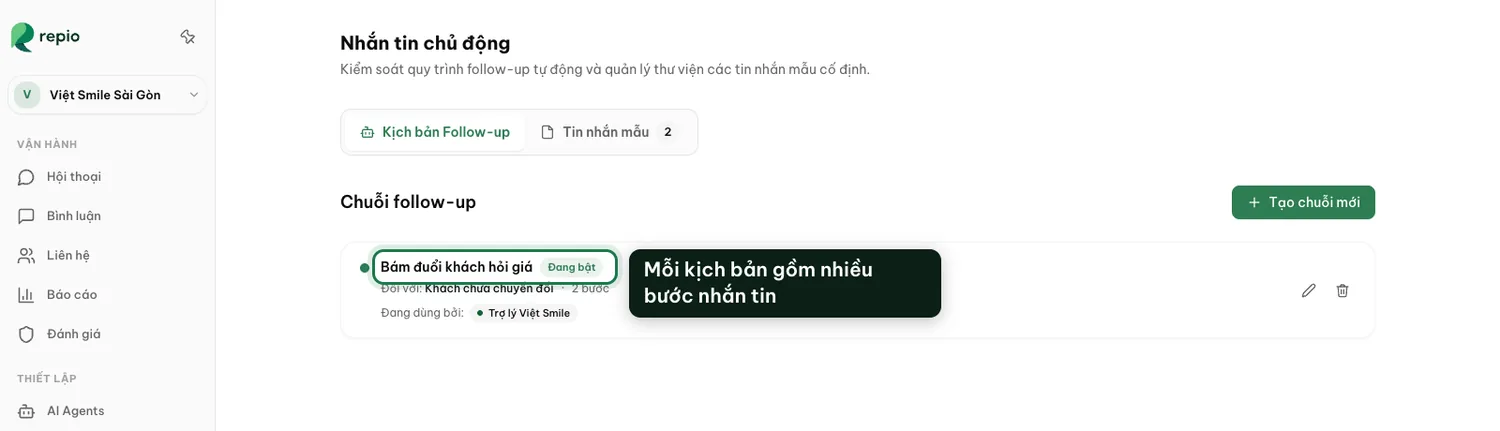
Open "Proactive messaging" and select the "Follow-up scripts" tab.
Click "+ New sequence" in the top right to open the sequence builder.
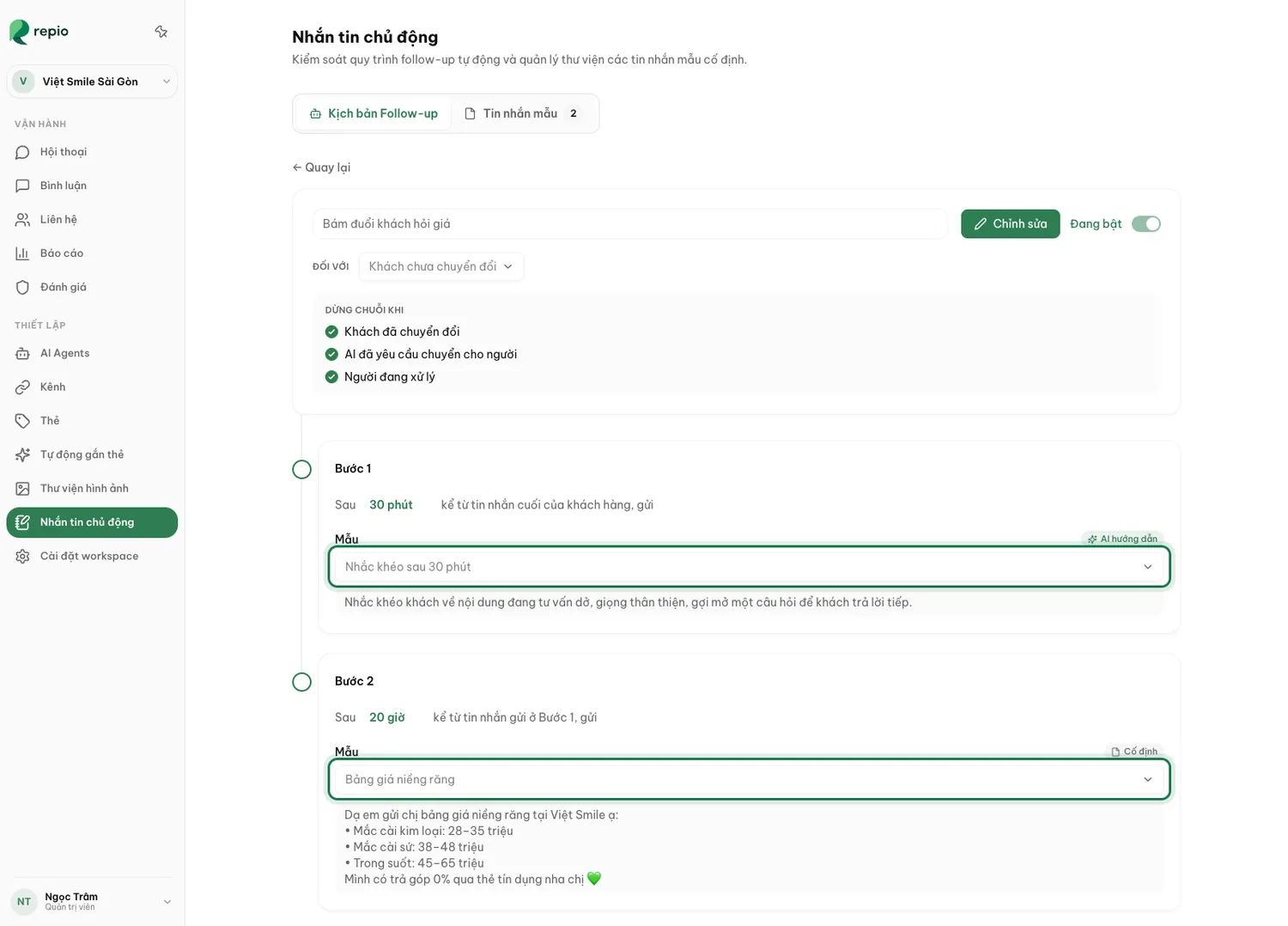
Name the sequence.
Name it clearly after its objective (e.g. “Chase price enquiries”, “Check-in 30 mins after quote”). This name is only seen internally.
Choose the audience under "For".
“Customers not yet converted” (recommended for sales): Only messages people who have not left contact details. “All customers”: Messages everyone, ideal for appointment reminders or post-service surveys.
Configure Step 1: Set the delay and select a template.
Step 1 delay is counted from the customer’s last message. Select a suitable message template (fixed or AI-guided).
Add Step 2 and further steps if needed.
Note: Step 2 delay starts from the moment Step 1 was successfully sent (not from the customer’s original message).
Select stop conditions under "STOP SEQUENCE WHEN".
Check the conditions where Repio should immediately halt the sequence to avoid pestering customers.
Click "Save" and toggle the switch to "Enabled".
Once saved, verify the top-right toggle is switched to “Enabled” so the sequence is active.
Attach the sequence to an AI Agent.
Open “AI Agents” → “General” tab of the corresponding agent, select the newly created sequence, and click “Save changes”. An unassigned sequence will never run.
Tip: On your message quota: A step using an AI-guided template counts as 1 AI message when sent; a step using a fixed template goes out verbatim and does not draw on your quota.
Note: Per Meta’s 24-hour policy, the total delay across all steps in a sequence cannot exceed 24 hours from the customer’s last message. Repio automatically prevents saving if the cumulative time exceeds this threshold.
To ensure a seamless, polite customer experience, we recommend enabling all three stop conditions:
- “Customer converted”: The customer has already provided their phone number or booked an appointment. All remaining follow-up steps are automatically canceled.
- “AI requested a handoff”: The conversation reached a stage needing human intervention. Automated messages pause immediately to avoid awkward interruptions.
- “Human is handling”: Staff are actively chatting with the customer in the Inbox. The automated sequence halts at once.
Tip: Whenever a customer sends a new message at any point, all pending follow-up steps are automatically dismissed.