Custom views
If you click the same set of filters every day, save it as a view. The whole workspace then shares it. Unlike the on-the-fly tag/Agent filter (the funnel button, gone once you leave), a view is a filter saved permanently into the left column.
On this page1/3 · Creating a view
Do these first
This only works once you have finished the following:
- 1
The unified inbox: A view is a saved inbox filter, so you need to know the filters first.
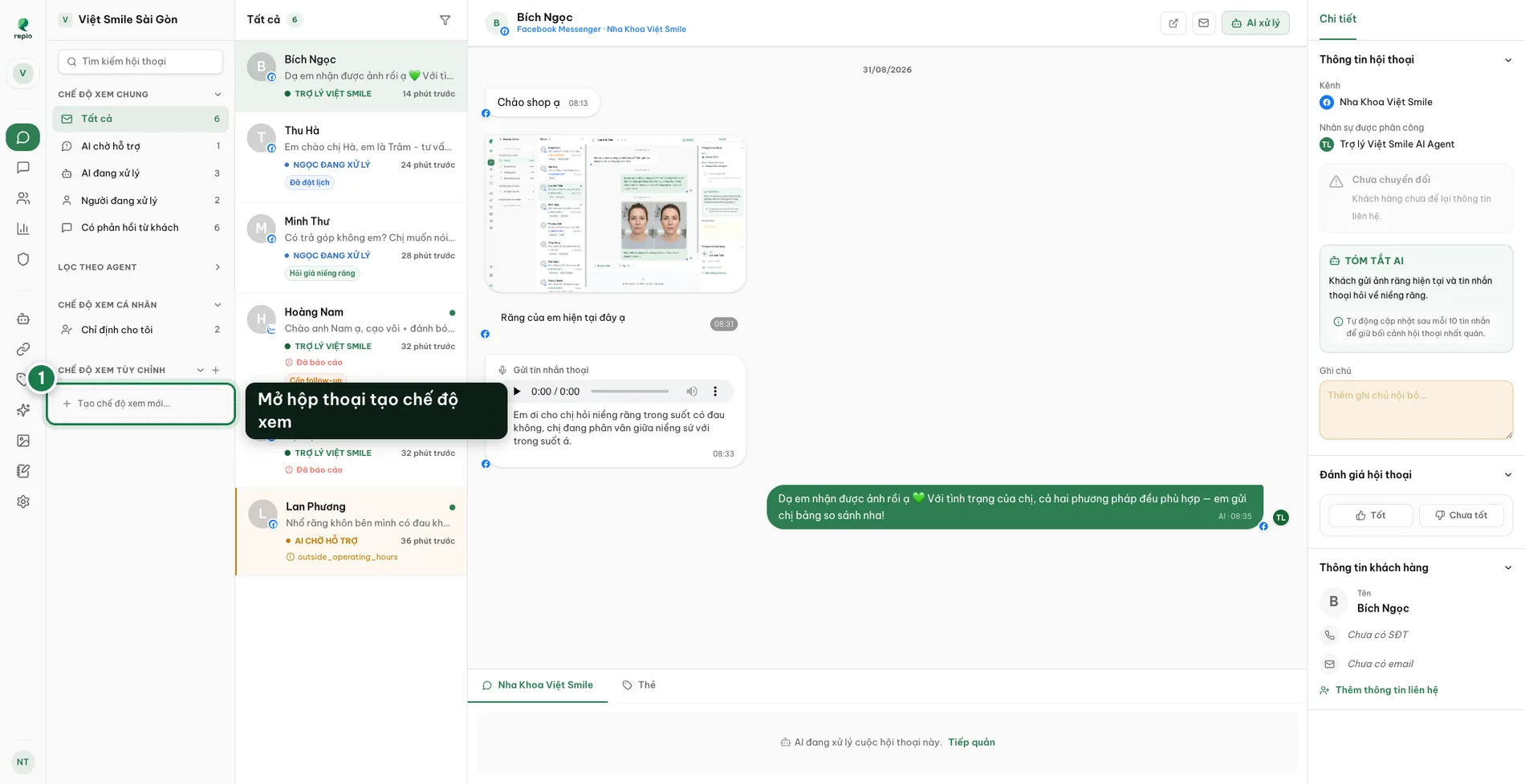
Click “Create new view…” in the inbox left column (1).
You can also click the plus icon (+) next to the Custom Views header.
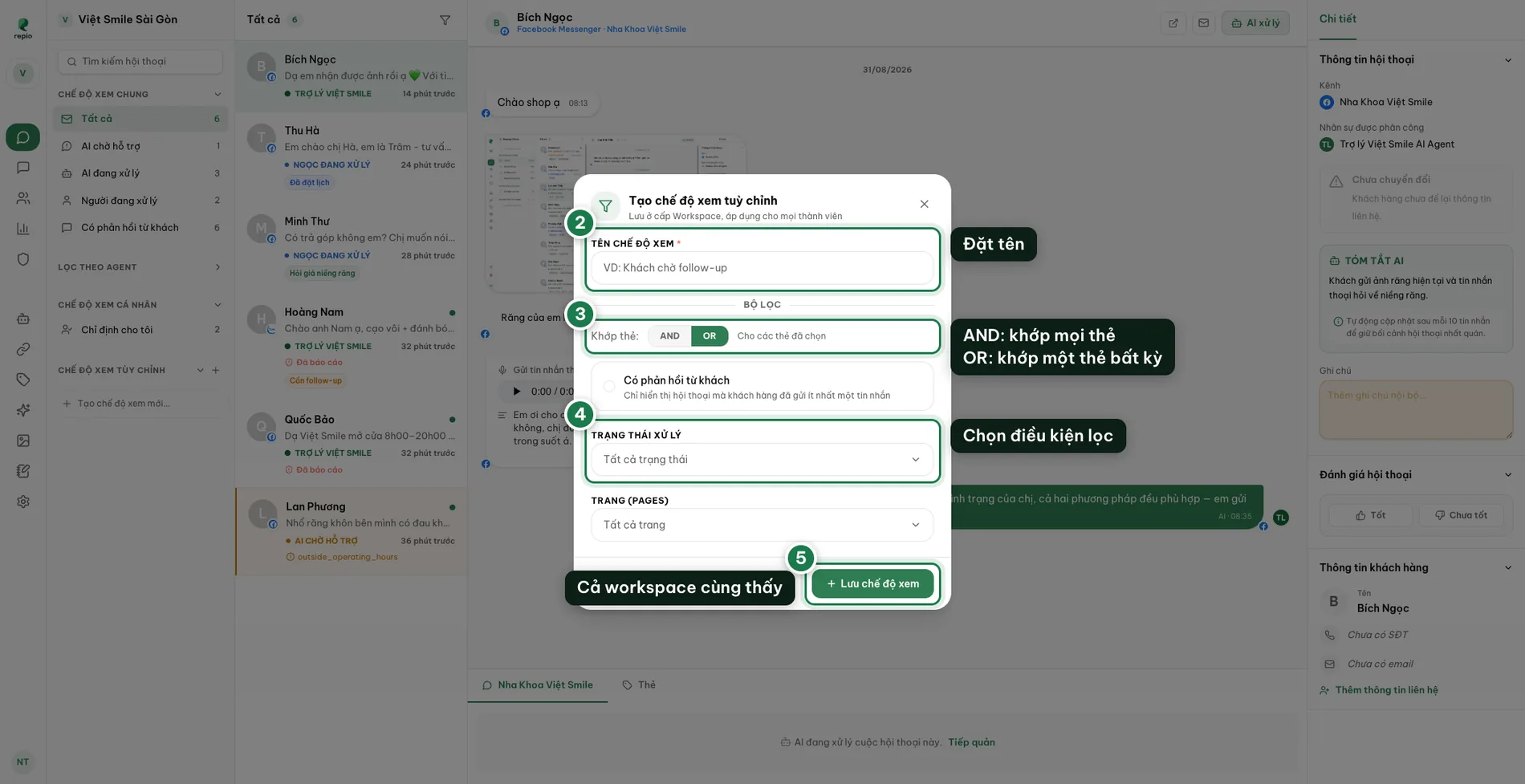
Name the view (2).
Everyone in the workspace sees this name, so agree on a convention with your team.
Choose how tags match: AND or OR (3).
AND means the conversation must carry every tag you picked. OR means any one of them is enough.
Pick the remaining filters (4).
The form labels each group: HANDLING STATUS, PAGES, AGENTS, TAGS, plus an untagged-only option and Has customer reply.
Click Save view (5).
It appears under Custom views for every workspace member.
Hover a view in the left column and a “…” icon appears. Click it to Edit (rename or change the filters) or Delete the view.
Note: Because views are shared workspace-wide, editing or deleting one affects everyone, so agree with the team before changing it.
- Tracking a campaign: tag “September promo” plus has-customer-reply.
- A chase queue: status human-handling plus the tag “Needs follow-up”.
- Splitting shifts by service line: one view per group of channels.