Connecting Facebook Pages
Connecting a page takes under a minute: log in to Facebook, pick your pages, done. Messenger messages start arriving straight away.
On this page1/4 · The steps
Do these first
This only works once you have finished the following:
- 1
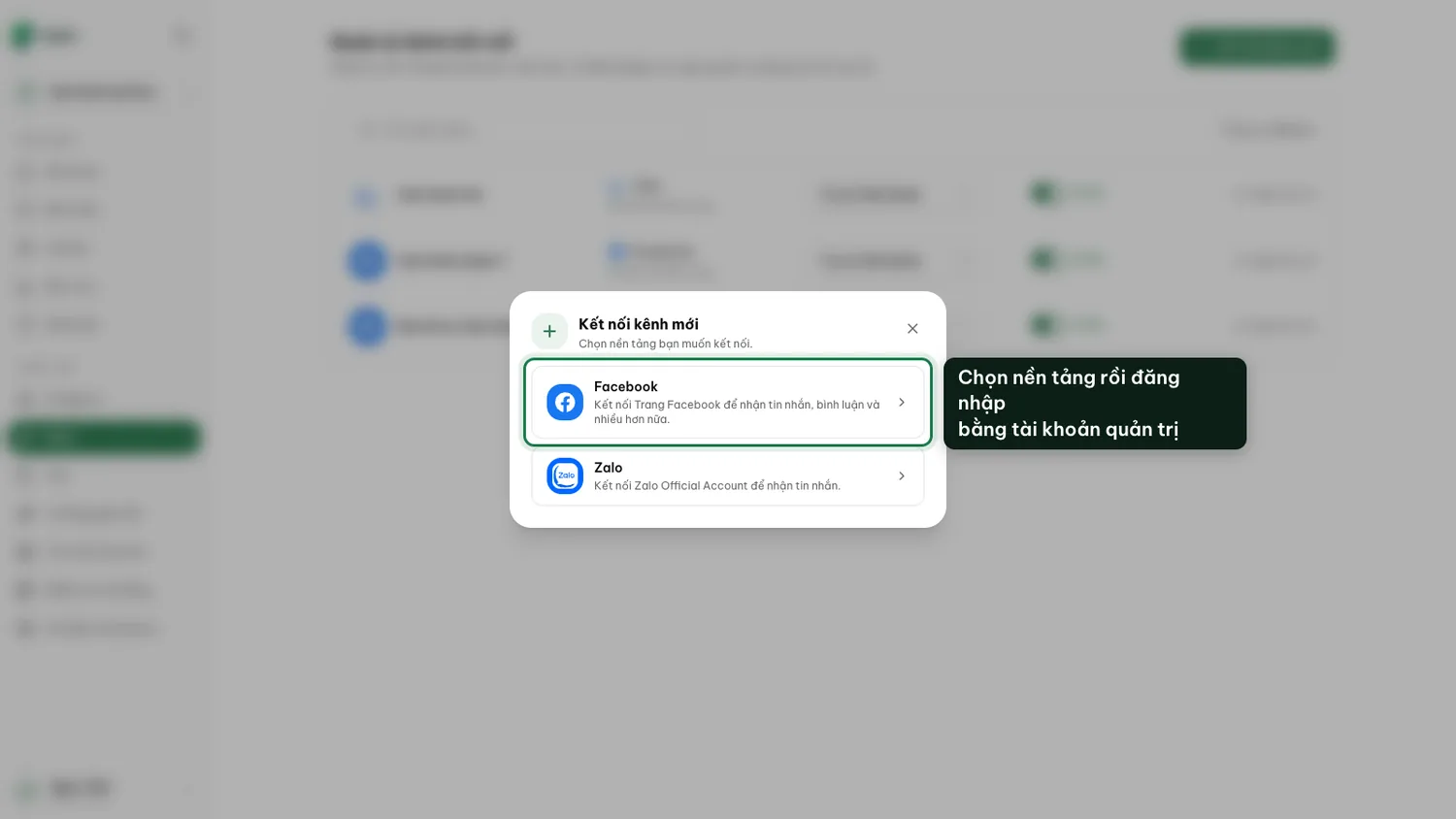
Managing your channels: You start from the Channels page, and go back there afterwards to assign an agent.
Log in with a Facebook account that administers the page.
Facebook opens its own login window. An account without admin rights will see no pages to choose from.
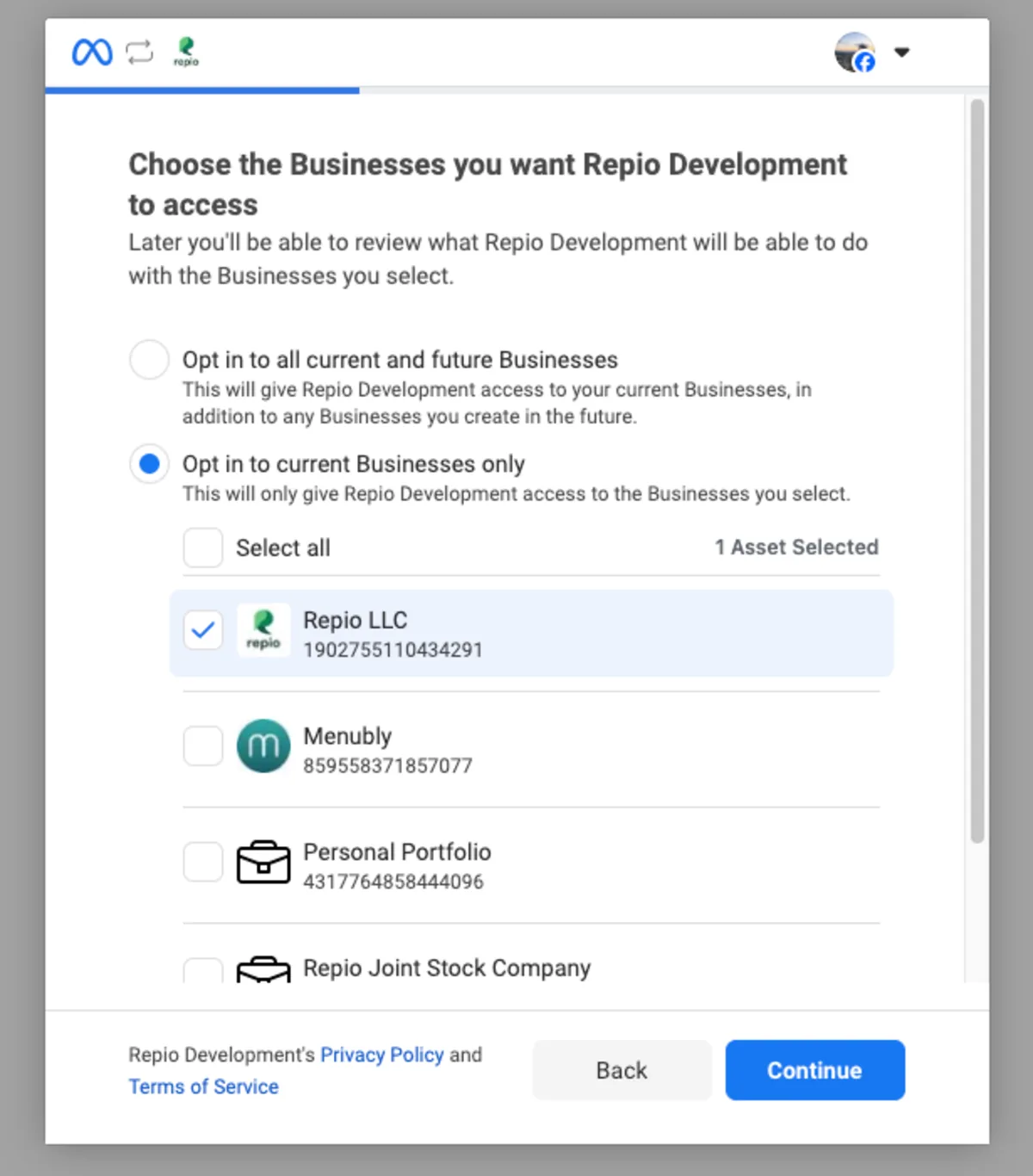
Choose the Business Portfolio that owns your page.
Business Portfolio (formerly Business Manager) is Facebook’s business profile: the container that holds a company’s Pages, ad accounts and staff. Pick the one that owns the page you just ticked, then click “Continue”.
No portfolio listed? Your page has never been placed in one, which is completely normal for a page created from a personal account. Facebook offers to create one right there: give the business a name and continue. It is free and changes nothing about the page.
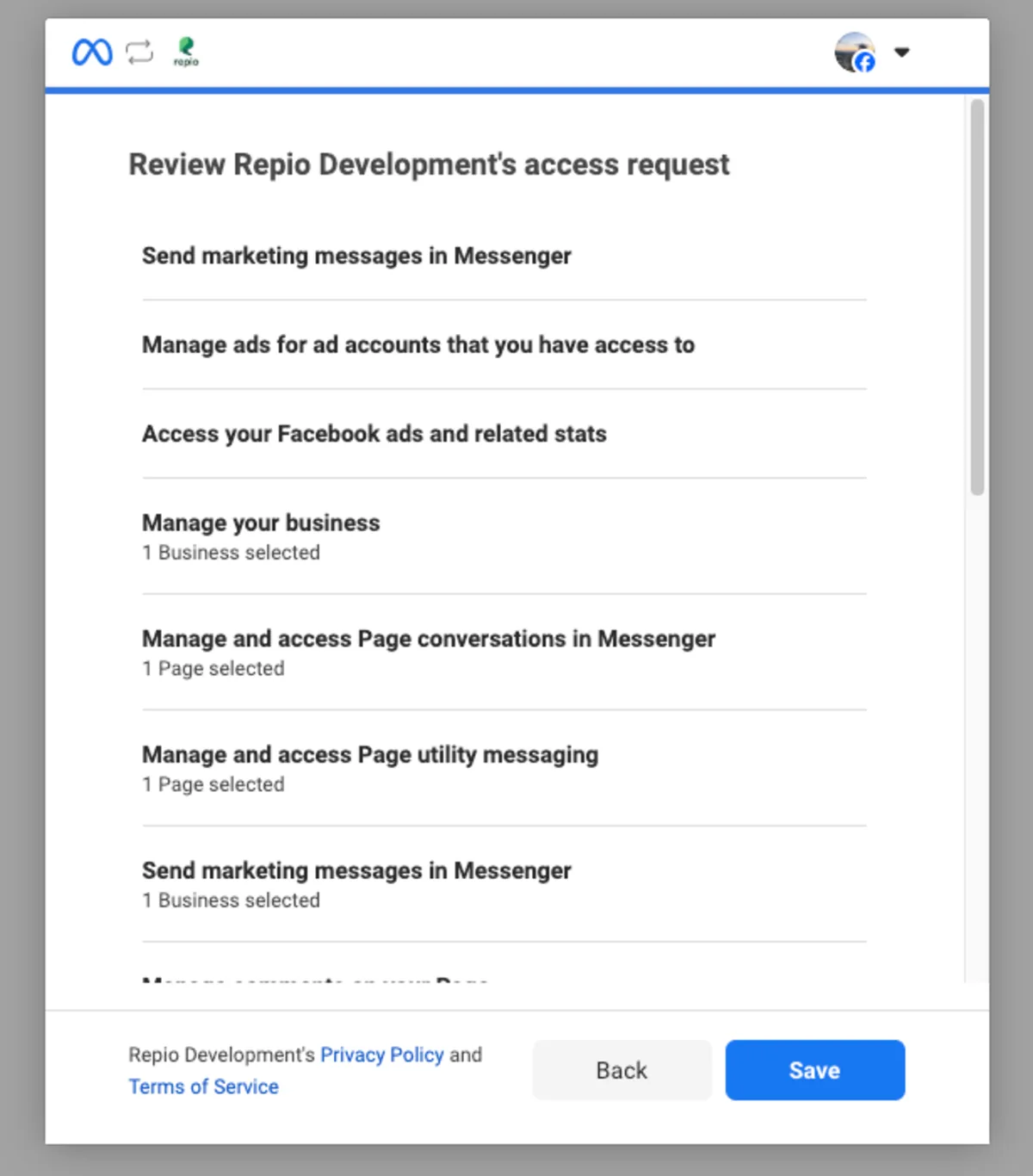
Click “Save” on the access-review screen, leave every toggle on.
This screen lists every permission Repio is asking for, each with a toggle already on. This is the step that most often breaks things: switching one off still lets Facebook report success, but the channel then quietly lacks a capability: no incoming messages, or no comment access, with no clear error.
Repio uses these permissions to read and answer messages and comments on the pages you just selected. It does not post to your page, does not read your personal profile, and never touches pages you did not tick.
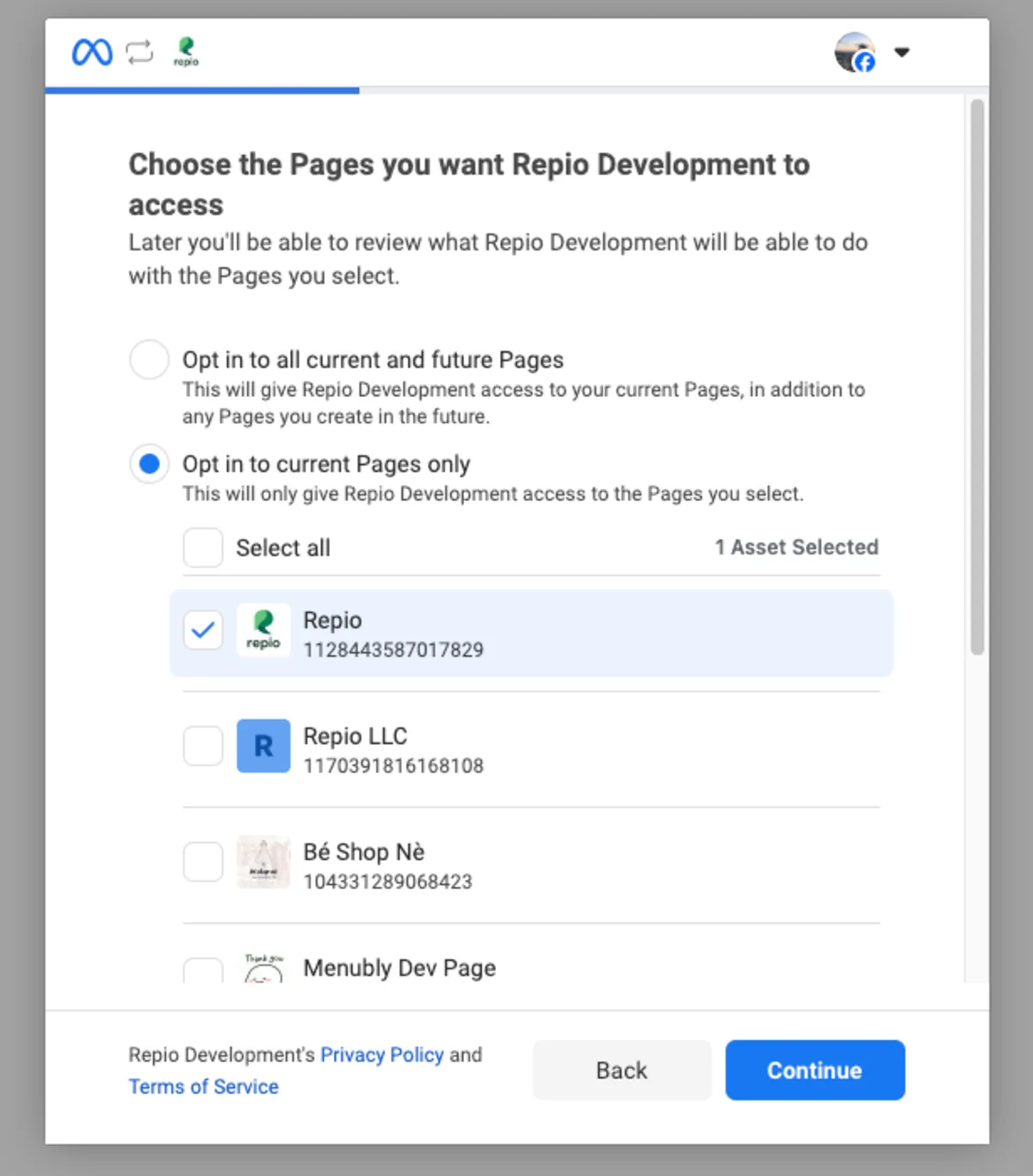
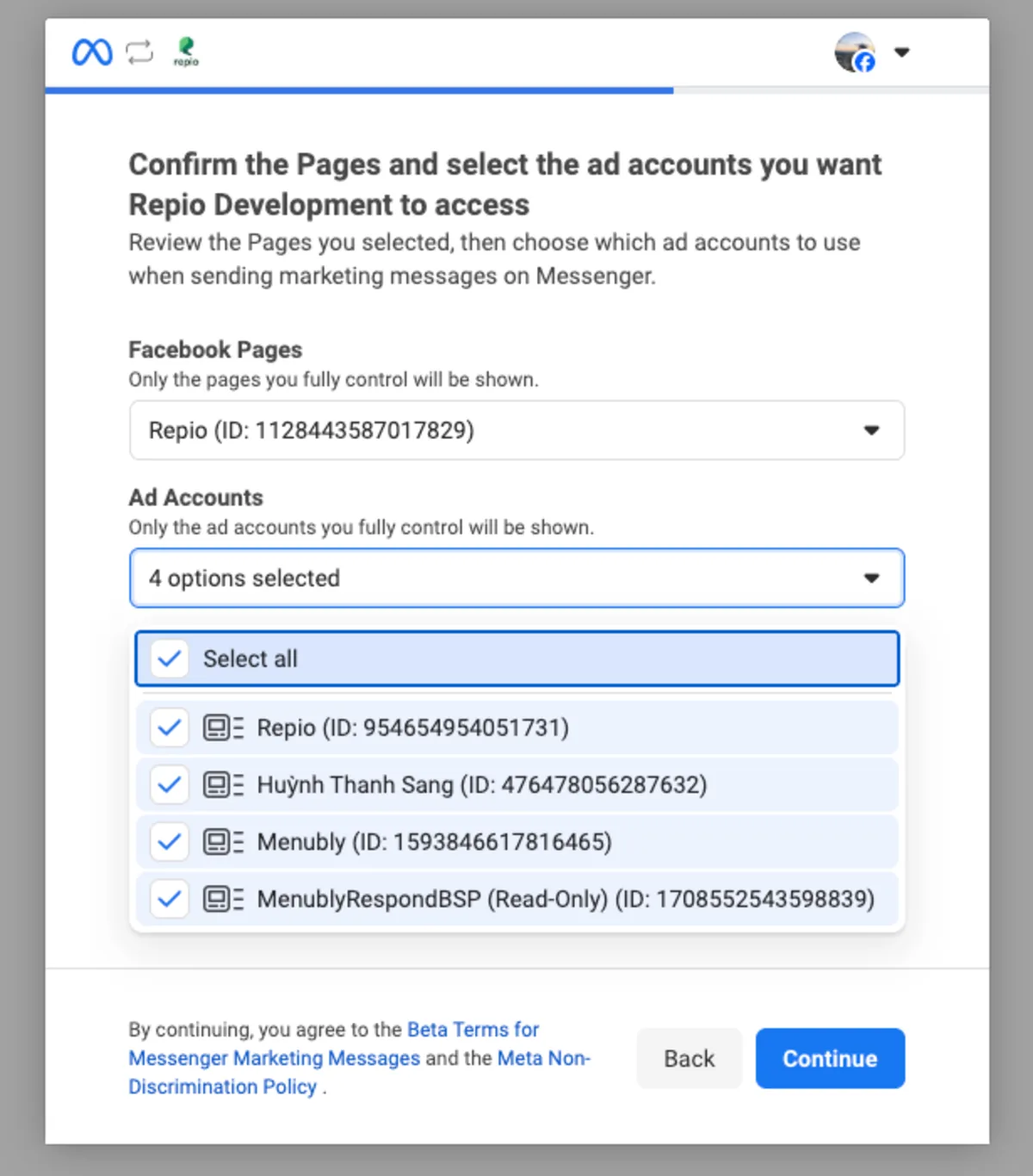
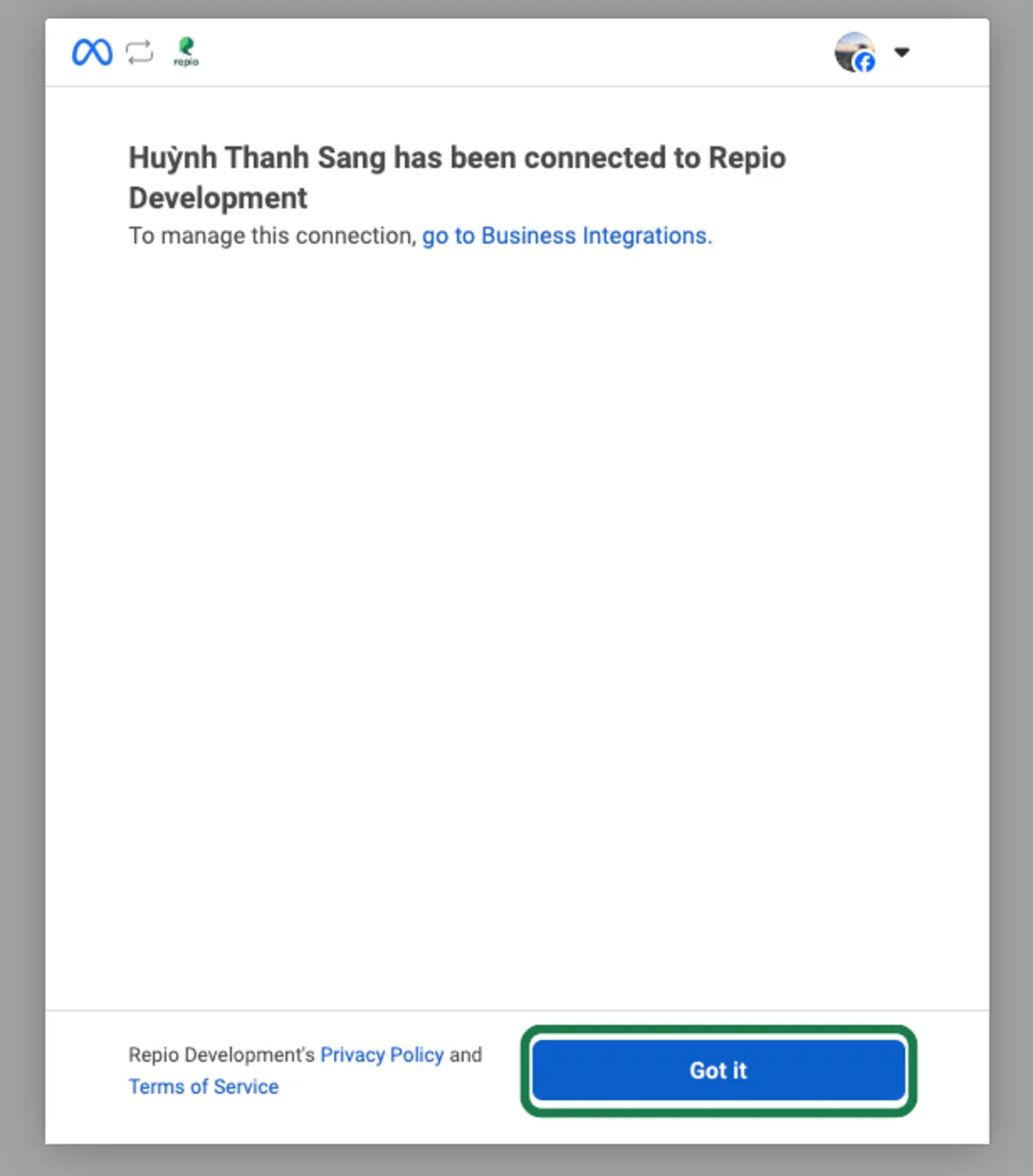
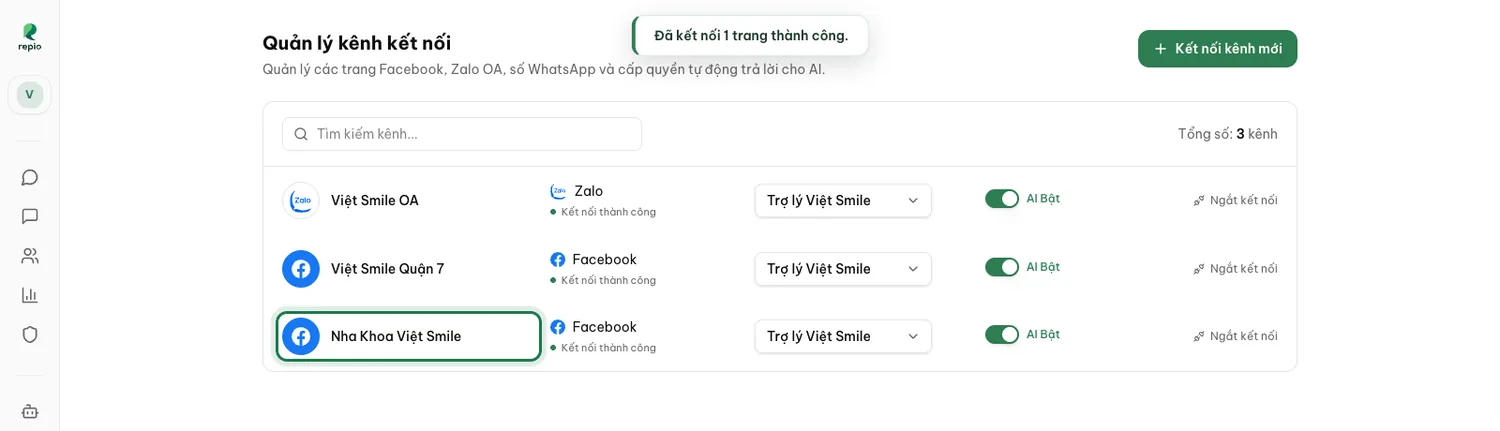
Tip: Pages already connected in another workspace or organization are flagged rather than connected twice. Each page lives in exactly one place.
Note: These buttons appear in whatever language your Facebook account uses, and Facebook changes the screens over time, so the exact order and button labels may differ. Keep going with “agree and continue” until the final confirmation screen.
If you also want the comments feature, the page needs one extra permission.
When it is missing, Repio shows a grant-comment-access prompt in the app. Following it is one short Facebook login round, with no impact on live messaging.
Occasionally the flow ends with the generic “Could not connect to Facebook. Please try again.”: usually a temporary hiccup between Repio and Facebook. Start over from “Connect a channel” and go through in one sitting: leave the Facebook window open too long and the request expires, with “The connection request has expired. Please try again.”
Still failing after a few tries? Use a different browser or an incognito window to rule out pop-up blockers, and double-check you are logged into the Facebook account that administers the page.
Changing your Facebook password, revoking the app, or swapping page admins can all invalidate the session. The channel flips to “Disconnected” and stops receiving.
The fix: open Channels and click the Reconnect button right on that channel’s row. It also appears on the channel’s detail page, then log in to Facebook again. All your history is untouched.