AI–human handoff
At any moment exactly one side is answering the customer: the AI, or a person. The AI decides for itself when to stop and ask for help, but only a person clicking the button actually takes the conversation on.
On this page1/5 · The three handling statuses
Do these first
This only works once you have finished the following:
- 1
The unified inbox: You take conversations over from inside the inbox, so you need to know it first.
Key terms
- Take over
- You take the conversation onto yourself. The AI goes silent immediately and you answer the customer.
- Hand back
- You give the conversation back to the AI once you are done, using the status button at the top of the conversation. It only resumes when handed back this way.
- Handoff reason
- The line explaining why the AI stopped and asked for help. It is always shown on the conversation.
The path a conversation usually takes is:
AI handling → AI awaiting support → Human handling
The AI makes the first move itself. The second one only happens when a person clicks Take Over. When you are done you hand it back, and it returns to AI handling.
But you do not have to wait for the AI to ask. The Take Over button is there in both AI Handling and AI Awaiting Support, so the moment you see the AI answering badly you can cut in. It goes silent from that second on.
- AI handling: the AI is answering on its own. The badge on the conversation reads AI Handling.
- AI awaiting support: the AI has stopped itself and is waiting for a person. It surfaces in the queue with a reason.
- Human handling: a staff member took over. The AI stays silent until it is handed back. The badge reads Human Handling.
Note: Two more badges are not handling statuses but delivery ones: Contact Blocked (they blocked the channel, so nothing reaches them regardless of who is handling it) and Disconnected (the channel is unlinked from Repio, so nothing can be sent or received).
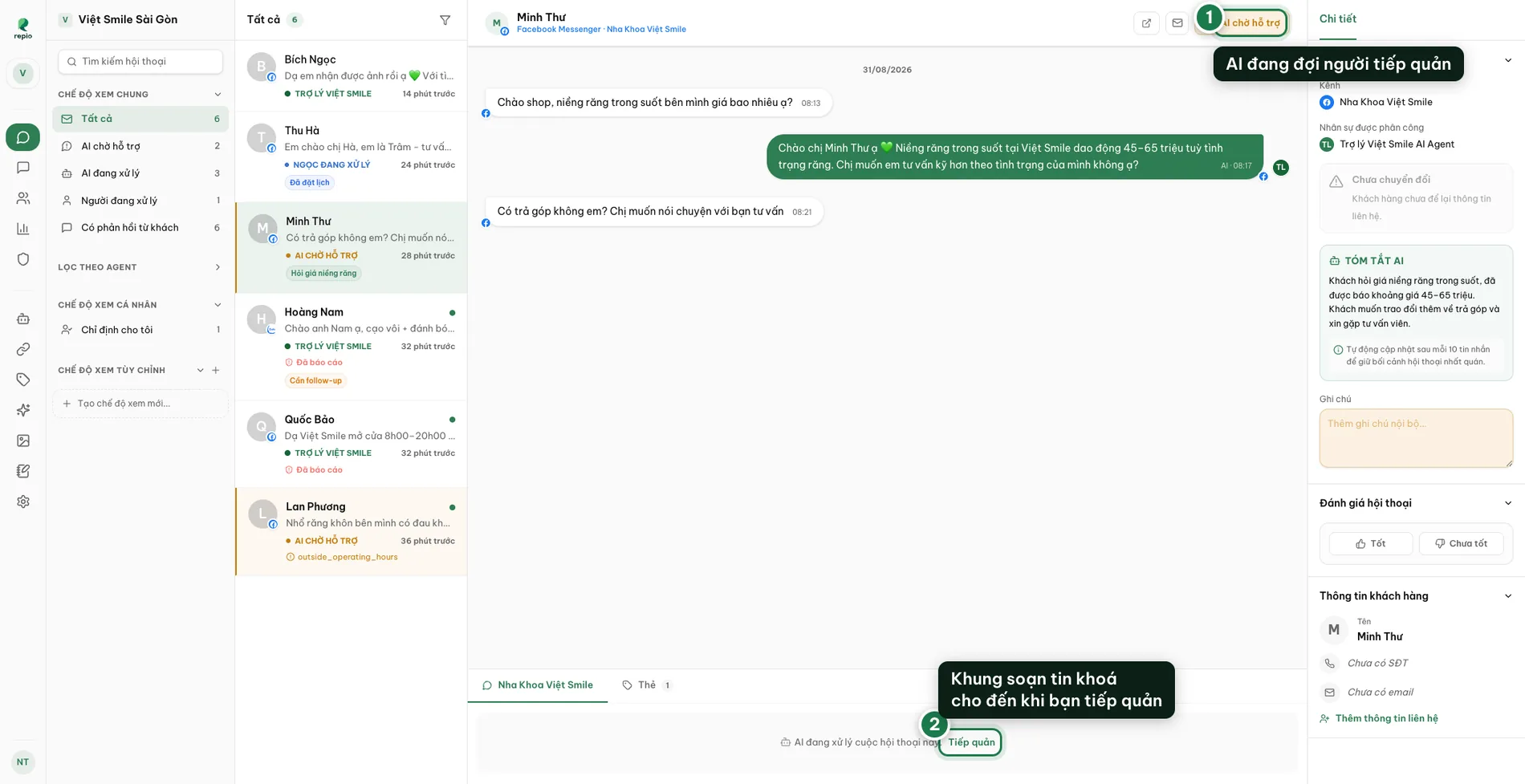
Open the conversation and check the status badge, top right (1).
“AI Awaiting Support” means the AI has stopped and is waiting for you. “AI Handling” means it is still replying automatically; you can still take over at any time.
Click "Take Over" in the composer area (2).
While the AI handles the conversation, the composer shows the note “AI is handling this conversation.” with a Take Over button next to it. Clicking it unlocks the composer immediately.
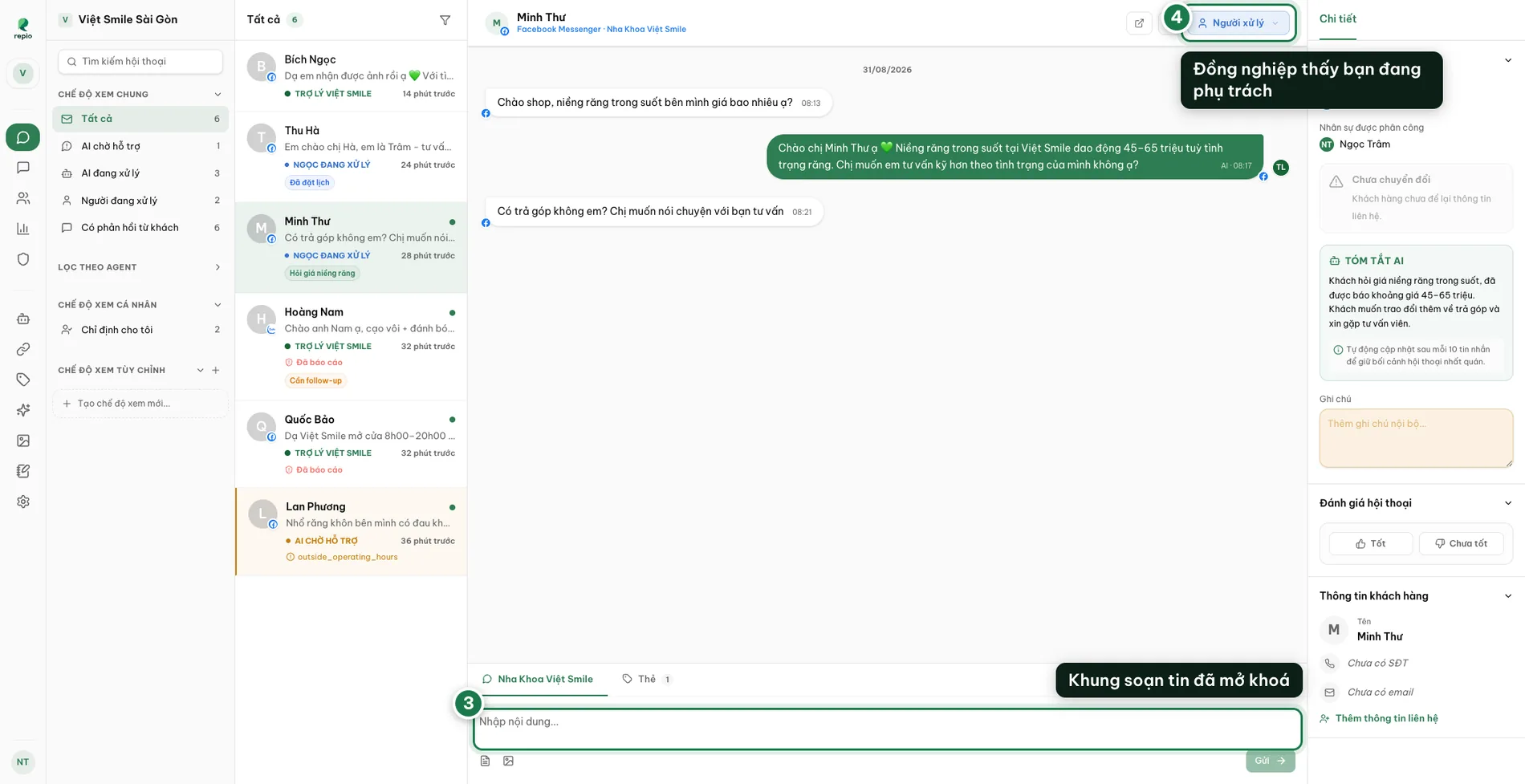
Type and send your reply to the customer (3).
The composer is fully ready, supporting saved replies shortcuts, library images, and file attachments.
Check the status badge flips to "Human Handling" to confirm assignment (4).
Colleagues across the workspace clearly see you are handling this conversation, preventing duplicate replies.
Once finished, remember to hand the conversation back to the AI so it can resume answering future messages.
Tip: Turn on browser notifications so you never miss a customer. Every time the AI requests support, the workspace team gets an alert with a direct link to the conversation.
This is the step people forget most often, and the one that matters most: a conversation you take over and never hand back leaves the AI silent with that customer permanently, even if they write again three weeks later.
The hand-back control is the status badge in the conversation’s top-right corner. In Human Handling that badge is a clickable menu.
Click the "Human Handling" badge in the top-right corner.
It carries a small chevron showing it is clickable. In other statuses this badge is display-only.
Choose "AI Handling. Let AI respond automatically".
The conversation returns to the AI immediately, unassigning you and letting the AI reply to any future messages.
Tip: The same menu unsticks a conversation still assigned to a colleague who ended their shift or is busy: hand it back to the AI, then click Take Over to bring it to yourself. To hand back many threads at once, use bulk status changes.
The AI is saying something wrong and you need it to stop. There are three brakes, differing in scope, pull the smallest one that solves your problem.
One conversation → click "Take Over".
The AI goes silent with that customer alone; nothing else is affected. This is the right answer nine times out of ten.
One channel → switch off "Let the AI reply automatically".
Open Channels and switch Let the AI reply automatically off on that row. From then on every new conversation on that channel routes straight to staff with the reason “AI is turned off for this channel”. Requires admin rights.
A whole agent → toggle off "Active" switch.
In the AI Agent’s settings, switch it back into Draft. It stops replying on every channel it covers. Use this when the problem is how the agent was configured, not one particular channel.
Note: None of the three touches conversations a person is already handling, and none of them deletes anything. Switch back on and the AI resumes, except on conversations you took over, which still wait for you to hand them back.
There are two kinds of reason. The first you configure on the agent; the second the system decides on its own.
- You configured it: the customer is upset, asked something not covered in the prompt knowledge, just left their details, or asked for a person.
- The system decided: the reason will be one of these exact lines: Outside business hours, No AI agent assigned to this channel, AI is turned off for this channel, Monthly AI message quota exhausted, or Imported from Facebook history, review before the AI takes over.
Tip: The first four are things you can fix yourself: change the operating hours, assign an agent to the channel, switch the channel’s AI back on, or check your quota.