The unified inbox
Conversations brings messages from every page, Zalo OA and other channel into one place. This is the screen your staff keep open all shift.
On this page1/4 · The five areas of the inbox
Do these first
This only works once you have finished the following:
- 1
Managing your channels: The inbox only has messages once at least one channel is connected.
Key terms
- Conversation
- All the messages back and forth between your business and one customer, on one channel.
- Channel
- A Facebook Page, a Zalo OA, a WhatsApp number, anything connected to Repio.
- View
- A pre-filtered list of conversations in the left column. Repio ships with several; you can add your own.
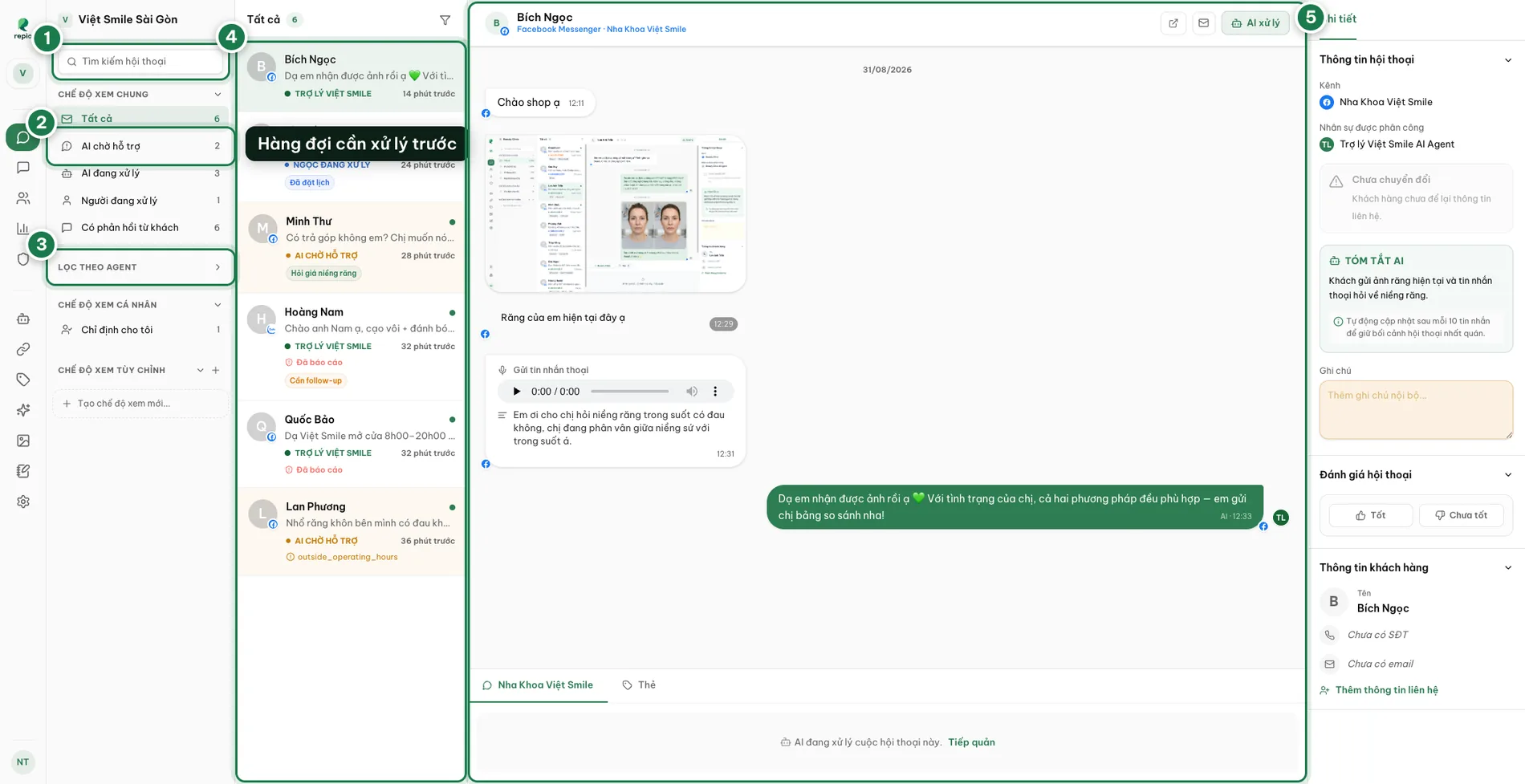
Search box (1)
Matches the customer’s name or their platform user ID (Messenger, Zalo, …).
Shared views (2)
The pre-filtered conversation lists, in four groups. During a shift you mostly want AI Awaiting Support: the customers the AI has asked for help with. Each group is broken down in the section just below.
Filter by agent (3)
Pick an AI Agent to see only its conversations, or audit channels that still have no agent assigned.
Conversation list (4)
New messages, status changes and takeovers all appear immediately in real time; you never need to refresh.
Details panel (5)
The whole right-hand column: the AI-written summary, internal notes, tags, conversation ratings, and contact details.
The left column stacks the conversation lists into four groups, top to bottom. The thing that separates them is who can see them.
- Shared views: the five built-in lists everyone sees: All, AI Awaiting Support, AI Handling, Human Handling, Has Reply. Has Reply keeps only conversations where the customer has sent at least one message, dropping threads where only your side has written so far. You cannot edit or remove these views.
- Filter by agent: pick an AI Agent to see only its conversations. The Unassigned channels entry at the end of the group is how you audit channels that still have no agent.
- Personal views: exactly one fixed entry, Assigned To Me: the conversations currently assigned to you. A conversation is assigned to you the moment you click Take Over, and unassigned once you hand it back to the AI.
- Custom views: the views you create, shared across the whole workspace. This is the only group you can add to.
Tip: One thing to remember: “personal” means the contents are yours (conversations assigned to you), not that the filter is yours. For a filter you reuse daily, create it under Custom views, and expect the whole team to see it.
When hundreds of conversations come in daily, what you want is rarely “all of them” but one specific slice: people asking about braces pricing, people who need a call back, people from this month’s campaign. The funnel button at the right of the conversation-list header does exactly that.
It is an on-the-fly filter: it stacks on the view you already have open rather than replacing it. Sitting in AI Awaiting Support and adding the tag “Braces pricing” gives you exactly the overlap of the two.
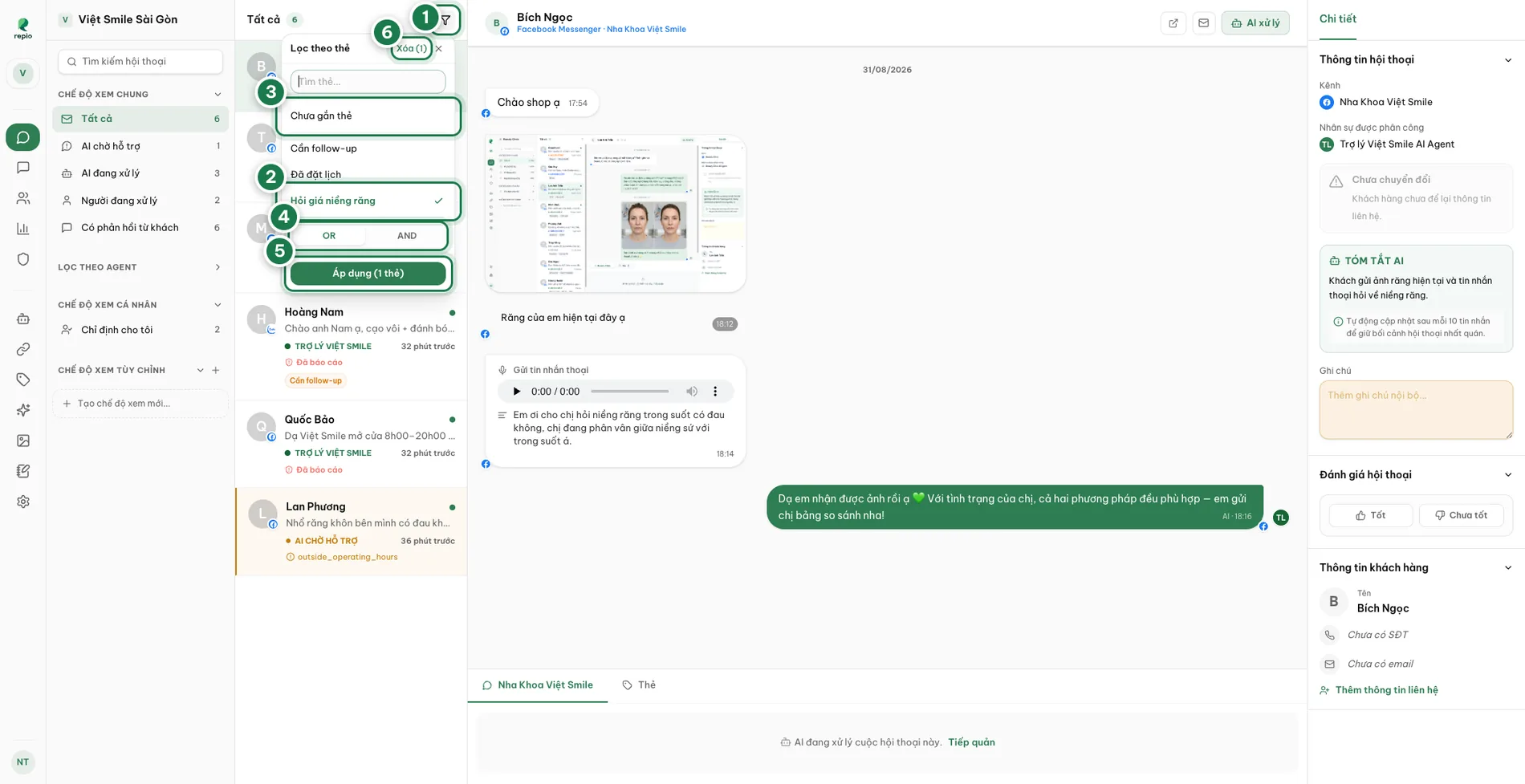
Click the funnel button at the top of the conversation list (1).
The Filter by tags panel opens beneath it.
Search tags or pick "No tags" (3).
Type in Search tags… to narrow the list. To check whether your team or auto-tagging is missing anything, select No tags.
Select your tags (2).
Click a tag to select it (a green checkmark appears), click again to unselect. You can pick several tags at once.
Choose the match mode: OR or AND (4).
OR: the conversation needs any one of the selected tags.
AND: it must carry every one of them. Two tags with AND returns far less than with OR, so if the list comes back unexpectedly empty, check this first.
Click "Apply" (5).
The list refilters immediately. The small badge on the funnel button tells you how many tags are active.
Clear filter with "Clear" button (6).
Click Clear next to the "Filter by tags" header to remove the tag filter and return the list to its default view.
Tip: The filter lives in the page URL, so you can copy the link and a colleague opens the exact same list. If you reuse the same tags every day, save them as a custom view instead of re-filtering each time.
Note: The filter only lists tags that exist under Tags. If the one you want is missing, create it first, or ask an admin to create it.
Read state is per person. Opening a conversation marks it read for you only; colleagues still see it unread.
If you need to come back to something later, use “Mark as unread” so it stays visible as a job to do. It lives in two places: right-click the conversation in the list, or click the inbox-icon button in the open conversation’s top bar.