Push notifications
When the AI needs a person, Repio pushes a notification to your browser. You get it even if you are on another tab, or have closed Repio.
On this page1/2 · Turning notifications on
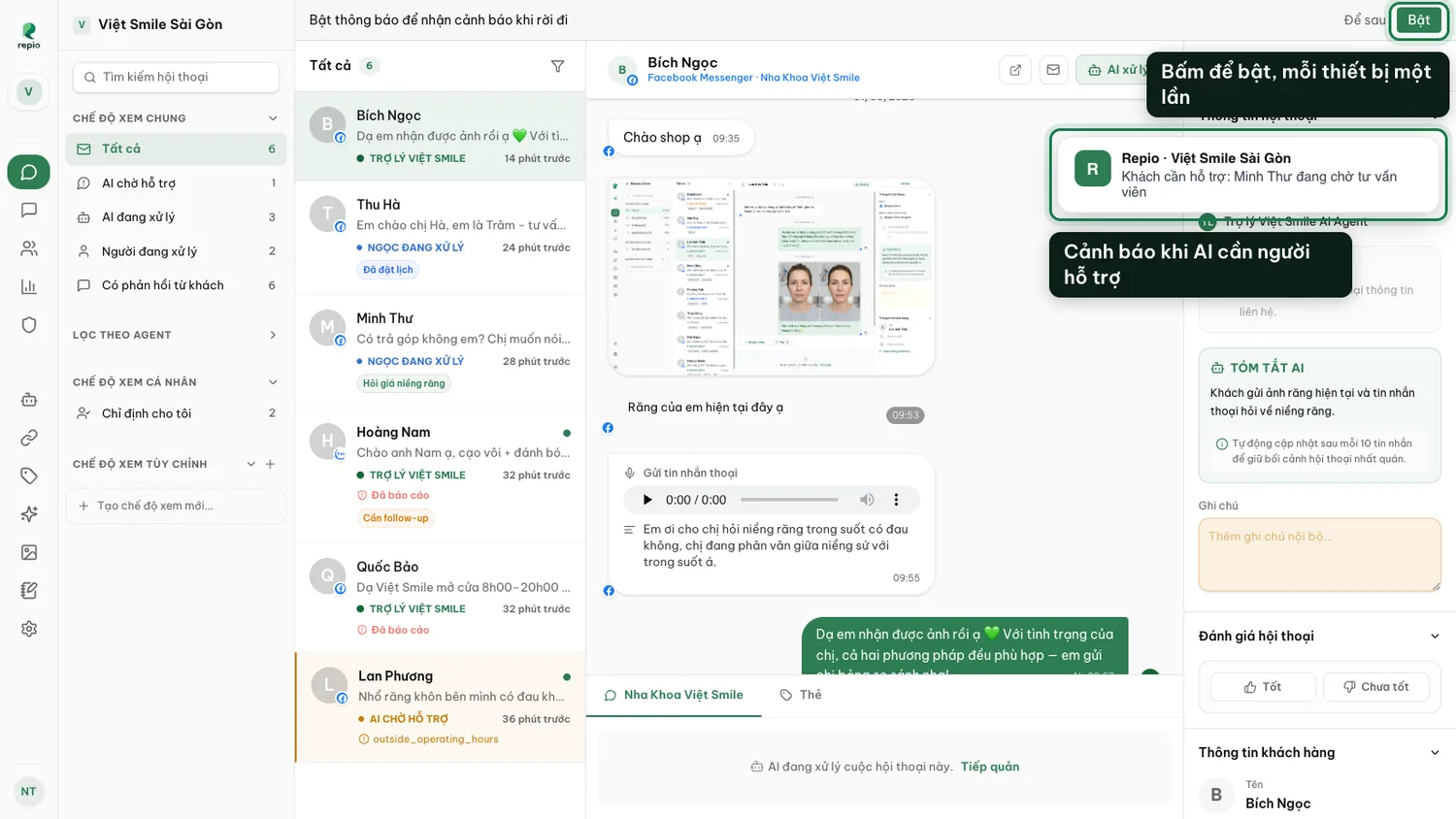
Open Conversations.
Repio shows an enable-notifications prompt right in the inbox.
Click “Enable notifications”, then allow when the browser asks.
Click “Enable notifications”, then allow when the browser asks.
Repeat on every device you want alerts on.
Each browser registers separately, so your desktop and your phone are two separate opt-ins.
Tip: Notifications are per workspace. The whole team gets the alert when a conversation needs a person, with a link straight to it.
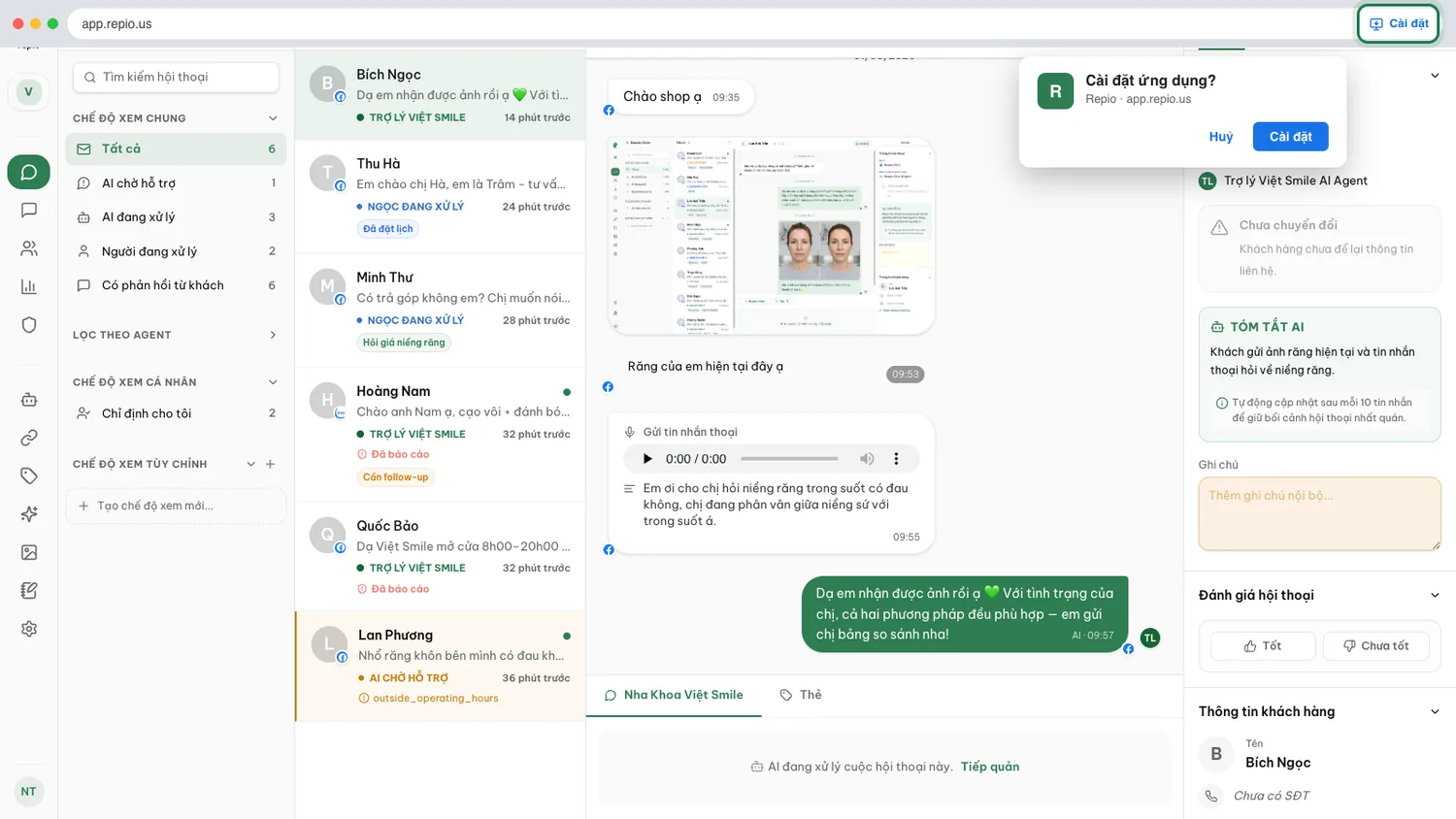
Open Repio in Chrome or Edge.
Click the install icon at the end of the address bar.
If it is not there, open the browser menu and choose “Install app”.
Confirm in the browser dialog.
Repio then sits on your desktop or home screen as its own app: quick to open, in its own window, separate from your other tabs.